

Managing issue types
Last updated:
Every company’s needs are different so SortScape allows you to create your own custom types of issues. For example, a landscaper might have issue types for “fertiliser” and “irrigation.” This helps you group your issues and know who to assign them to.
SortScape also includes a built-in General task issue type (shown as GT on the schedule). It is always available and is not listed on the Issue types admin screen. See tracking customer requests with issues for how issue badges work.
An administrator can manage issue types in Settings → Issues → Issue types. From this screen you can:
-
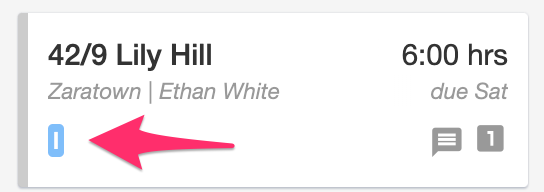
Add a new issue type by clicking Add issue type. Each issue type has a name and a colour. If you add an issue of that type to a job, a small badge in that colour shows the type’s initials on the schedule (see Viewing issues). For example see the ‘f’ for “fertiliser” on the job below:
-
Edit an existing issue type by clicking its name. That opens Edit issue type, where you can change the name and colour only.
-
Archive an issue type by clicking the archive icon on the right of the row. It is a small box (it can look a bit like a bin), not a text link. Confirm Archive. Archiving stops you creating new issues of that type. Existing issues of that type stay as they are. You cannot delete issue types, because you may already have issues of that type.
Restore an archived issue type
Section titled “Restore an archived issue type”Issue types are archived, not deleted. To unarchive one:
- Open Settings → Issues → Issue types.
- Set the status filter to All or Archived. Active hides archived types.
- Find the type. It shows an Archived badge.
- On the right of the row, click the restore icon (a small box with an arrow). It is an icon only, not a text link.
Do not click the issue type name to restore it. That only opens Edit issue type.