

Managing customer text messages and emails
Last updated:
SortScape allows you to send text messages (i.e., “SMSs”) and emails to your customers, letting them know of your next job. This saves you time because you no longer have to type the same message over and over again from your mobile phone.
You can also send bulk email messages to customers using our email campaigns feature.
Turning customer messages on
Section titled “Turning customer messages on”The text message and email buttons on jobs, quotes, invoices and requests are on for every account, so there is nothing to enable. Text messages are only available in countries where SortScape can send SMS. If you need them turned off for your account, contact support.
Automatic job reminders are separate and are turned on in Settings → Messaging → Job messages. See Automatic job reminders.
How to send a text message or email from a job
Section titled “How to send a text message or email from a job”From the job screen, in the app or desktop, go to the top right hand corner and click on the relevant icon - SMS or Email. Choose the template you wish to use and then click send. You can send SMS to multiple numbers on a contact; see Sending appointment notifications to customers and Multiple mobile numbers for SMS reminders.
You can also text or email a customer from a request, before there’s a quote or job. See Texting or emailing the customer.
Saving contact details when you send a message
Section titled “Saving contact details when you send a message”When you send an email or text message to a contact who does not have an email address or mobile number on file, SortScape may show a Remember this email address for [contact] or Remember this mobile number for [contact] checkbox in the send dialog. You only see this checkbox if you have permission to update contacts.
- The checkbox is checked by default. When it is checked, SortScape saves the email address or mobile number you enter to the contact when you click Send.
- If you uncheck the box, the message still sends, but the contact record is not updated. Use this when you are sending to a one-off address or number (for example, a shared inbox for a kindergarten or property manager) and you want to keep the contact email or mobile blank so automatic invoice or reminder emails are not sent.
- SortScape remembers your choice for next time. If you uncheck the box once, it stays unchecked the next time you send to a contact without an email or mobile on file. Check it again any time you want to start saving details to contacts.
The checkbox only appears when the contact has no email address or mobile number saved, and when you have permission to update contacts. Administrators and employees typically have this permission; contractors do not. If you do not see the checkbox, you can still send the message, but the contact record will not be updated. See Managing employee permissions for what each role can do.
This applies when sending from jobs, quotes, invoices, and other notification screens. It does not apply to bulk emails and texts sent to selected jobs on the Schedule, where each contact must already have an email or mobile number on file.
Customer notification templates
Section titled “Customer notification templates”SortScape allows you to create message templates so that you can send a standardised message to each of your customers. To help you get started, there are default message templates for both text messages and emails, which you can override with your own custom template. You can create any number of message templates.
Invoice message templates also include Payment received templates when SortScape’s built-in invoicing is enabled. These control the wording of payment receipt emails and text messages sent when invoices are paid in full or in part.
For partial payments, receipt templates can use payment_amount for the payment just received and amount_due for the remaining balance. See Sending payment receipts for invoices.
Template order
Section titled “Template order”When sending text or email messages to customers manually, your team chooses a template from a dropdown. Use the relevant page below, then drag the templates into order. The template at the top of the list appears first in the dropdown.
- Settings → Messaging → Job messages
- Settings → Messaging → Quote messages
- Settings → Messaging → Invoice messages
- Settings → Messaging → Request messages
Template tags
Section titled “Template tags”You can add “tags” to your template so that each message is customised to the person you’re contacting. For example, the tag cust_first_name would get converted to “Sue” if you’re sending a message to Sue Abbott. See the example below.
Message tag example
Hi cust_first_name, we will be at cust_address on job_date. Please call or text me at user_mobile if you need anything. - user_first_name user_last_name
converts to:
Hi Sue, we will be at 18 Banner Road on Friday, 29 January. Please call or text me at 4107748838 if you need anything. - Harold Rasmusun
The full list of notification tags can be found when creating and editing templates.
Showing the next job on an invoice message
Section titled “Showing the next job on an invoice message”Invoice email and text templates can include next_job_date. That tag becomes the next incomplete job date for the property on the invoice (scheduled date if the job is scheduled, otherwise the due date). If there is no next job, it becomes [not scheduled]. If the invoice covers more than one property, each property name is included with its date.
This only appears if you put the tag in the template. The default New invoice email and text do not include it.
To add it, open Settings → Messaging → Invoice messages, edit the New invoice email or text template, and insert next_job_date. For example:
Next scheduled service: next_job_dateSortScape fills this tag when it sends the invoice email or text. If QuickBooks Online sends the email, or Xero sends it with Email Xero invoices from SortScape turned off, those accounting templates are used instead and this tag does not apply.
The same tag is available on job message templates. Job reminders are a separate send from the invoice.
Multiple mobile numbers on one contact
Section titled “Multiple mobile numbers on one contact”If a contact has a primary mobile plus extra mobiles, each number receives the same message. Tags such as cust_first_name always use that contact’s name, not a different name per phone label. Phone labels (for example Primary, Owner, Manager) are only for identifying numbers in SortScape; they are not inserted into the message.
To greet different people with different names, each person needs their own contact. Job SMS still goes to the property’s service contact only. For how to add extra mobiles and labels on a contact, see Mobile phone and extra numbers.
The user_mobile tag
Section titled “The user_mobile tag”The user_mobile tag inserts the mobile number from the SortScape user profile of whoever sends the message—the number customers see inside the message text when you ask them to call or text you back.
This is separate from the phone number customers see as the sender of the SMS itself. SortScape sends SMS from a system number assigned by our SMS provider, not from your personal mobile or from whatever appears in the message body.
You cannot configure user_mobile to pull from a custom field or an arbitrary number. It always uses the sender’s profile mobile. To change what appears in your templates:
- Use your own number (or update it): In a web browser, open your profile picture or initials (top right) → View profile, then edit your mobile. Profile editing is not available from the mobile app Settings page. Any message you send, including automatic reminders sent from you, will show that number wherever
user_mobileappears. - Use another team member’s number: For automatic job reminders, set Who it is sent from to that employee. The
user_mobiletag will then use their profile mobile. - Always show the same number, whoever sends: Remove
user_mobilefrom the template and type the number directly in the message text instead. Use this when employees also send messages (for example bulk texts to a job run) but you want customers to always contact you or your office line. A typed number is the same on every message, whileuser_mobilechanges with the sender and is left blank when the sender has no mobile on their profile. This also works for a number that is not stored in SortScape, such as a shared CRM line.
Recent messages
Section titled “Recent messages”SortScape provides a message log so that you can view and search all text messages and emails recently sent to customers. Log in as an administrator, then open Settings → Messaging → Sent messages.
Email messages in the Recent Message list may show a status. You can read about the various email statuses here.
If an email was dropped because delivery is blocked for the contact, admins can allow emails to that address again.
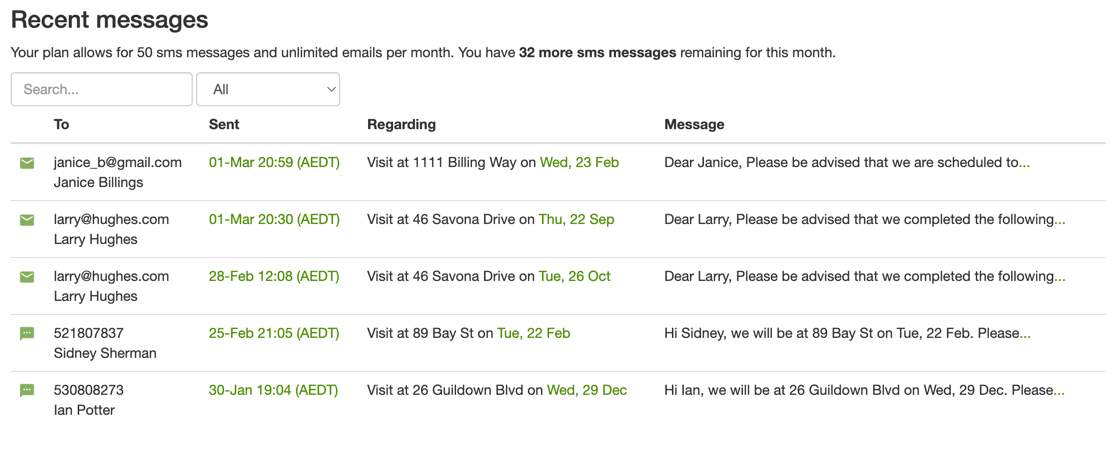
View recently sent text messages and emails for all customers
Text message replies
Section titled “Text message replies”Viewing text message replies
Section titled “Viewing text message replies”We capture replies customers make to the text messages you sent from SortScape. Only administrators can view customer SMS replies in the Customer Messages inbox (top right in a browser; bottom of the screen in the mobile app).
Employees and contractors do not have access to Customer Messages. See Managing employee permissions for what each role can access.
Non-admin users who sent a text message may still be notified of replies by email or push; see Text message reply notifications below.
In Australia and New Zealand, a reply to a much older text may not reach SortScape. See Why didn’t I receive a customer’s SMS reply?.
Text message reply notifications
Section titled “Text message reply notifications”When a customer replies, SortScape emails whoever sent the original text message and every administrator, as long as they have Text message replies turned on in their notification settings. The same people can also get a push notification in the mobile app. See Email and push notifications.
If you also want reply notifications to go to a shared address, open Settings → Messaging → Settings and enter it in “Reply to” email addresses to use when messaging customers. That address gets a copy of each reply notification as well.
Who customers see as the email sender
Section titled “Who customers see as the email sender”Emails sent from SortScape (job emails, automatic reminders, invoices and quotes) arrive from your business name at a SortScape system address, for example Your Business <no-reply@sortscape.com>. This is the same whoever sends the email, including automatic reminders that are set to send from a particular employee. Customers do not see a team member’s personal email as the sender.
A team member’s email can reach the customer in two ways:
- Reply-to address: if no shared reply-to address is set, the reply-to is the email on the sender’s profile (see Email replies below). New accounts start with the shared reply-to set to the email you signed up with, so this only happens if you clear it.
- Template tags: the
user_emailtag puts the sender’s profile email into the message text.
Sender tags (user_first_name, user_last_name, user_email and user_mobile) fill in from whoever has the send email window open. If your signature uses them, each team member sees their own name and email in the message when they open that window, and those are the details the customer gets if that person sends it. To show your office details whoever sends, type them into the template in place of the tags, in Settings → Messaging → Job messages. The default templates in new accounts sign off with your business name (your_company_name) and don’t use sender tags.
When no shared reply-to address is set, the Reply to field in the send email window shows the email of whoever is logged in, so each team member sees their own address there. To use one address for everyone, open Settings → Messaging → Settings and set the “Reply to” email addresses to use when messaging customers field.
Email replies
Section titled “Email replies”SortScape does not capture customer replies to emails inside the app. The Customer Messages inbox is for SMS (text message) replies only — not email replies.
When a customer replies to an email you sent from SortScape, the reply goes to the reply-to address on that message:
- The sender’s profile email (whoever sent the message), or
- Your account “Reply to” email addresses to use when messaging customers setting, if configured in messaging settings
New accounts start with that setting filled in with the email used to sign up, so replies go to the account owner until you change it. If the setting is blank (as it is on many older accounts), replies go to whoever sent the message.
This includes invoice emails sent from SortScape (for example Xero invoices emailed with Email Xero invoices from SortScape turned on). Set a shared reply-to address if you do not want replies going to whichever team member sent the invoice. See Invoicing customers.
Check that email inbox (or the shared reply-to mailbox your team uses) for customer email replies.
To review outbound emails sent from SortScape (delivery status, not inbound replies), see Recent messages. The Email status and tracking guide explains each delivery status.
Template format
Section titled “Template format”We currently only support plain text for email and text message templates. Support for HTML and email templates is something that we might add in future versions of SortScape.