

Managing employee permissions
Last updated:
Employees can be granted one of three types of permissions:
- Administrator - only granted to certain employees. By default, the first user in your SortScape site is granted administrator permissions.
- Employee - every employee created is given “employee” permissions by default. Employees can access most areas of the site except for administrative settings.
- Contractor - contractors can open the schedule (job runs screen) but only see jobs on job runs they are assigned to. They cannot see other crews, the unscheduled backlog, or the employee roster.
Payslips and timesheets
Section titled “Payslips and timesheets”SortScape does not include payslips. Hours for payroll are under Timesheets. Employees and contractors can enter and view their own timesheet hours. See Entering timesheets.
Restricted functions
Section titled “Restricted functions”The list below shows the functions that each role is allowed to perform:
Contractor
Section titled “Contractor”- Jobs
- View jobs in job runs they are assigned to. Use the day or week view to move forward or back and see upcoming assigned days, not just today.
- With the following caveats:
- They cannot see the job’s est value unless an administrator turns on Show estimated job value to non-administrators? under Settings → Jobs → Job settings. With it on, the job and the schedule totals show the value to contractors too
- They cannot see contact email or contact phone number
- They cannot see jobs more than a week old
- They cannot see other crews’ job runs or the full company schedule
- Mark jobs complete
- Add time and materials to jobs (cannot see dollar values unless an administrator allows it, see the note under Administrator below)
- Upload images and attachments
- Sync assigned jobs to a personal calendar via Tools → Sync calendar on the schedule (web only). See Syncing with external calendars.
- Properties
- No access – can only see properties on the job run
- Contacts
- No access to contacts.
- (Can only see contact name on the job. Cannot see contact email or phone number on a job.)
- Employees
- No access to Employees → Roster (availability and leave). Contractors can still see days where they have assigned jobs on the schedule. To view or edit the roster, change their role to Employee. See Setting employee availability on the roster.
- Quotes
- No access – can only see quote number on the job
- Requests
- No access to the signed-in Requests list, on the web or in the mobile app. The public request form is separate, so anyone with the link can still submit a request. See Managing leads and requests.
- Invoices
- No access to invoices
- Issues
- Create new issues on jobs
- Edit issues
- Mark issues complete from jobs
- (Exception: Cannot assign issues to other staff)
- Access administration area
- No access
- Customer Messages (SMS replies)
- No access
Employee (same as contractor plus…)
Section titled “Employee (same as contractor plus…)”- Jobs
- Add new jobs
- Edit jobs
- View daily/weekly/monthly schedule
- Reschedule jobs
- Reorder jobs
- Route optimization
- Properties
- Browse all properties
- Search properties
- Add new properties
- Edit properties
- Upload images and attachments
- Delete attachments
- Contacts
- Can see all contact details like phone number and emails
- Search contacts
- Add contacts
- Edit contacts
- Employees
- View and update employee roster
- Quotes
- No access – can only see quote number on the job
- Requests
- Open the signed-in Requests list and see all requests for the company, on the web and in the mobile app
- Invoices
- No access to invoices
- Issues
- View all issues
- Access administration area
- No access
- Customer Messages (SMS replies)
- No access. Employees cannot view the SMS replies inbox. They may still receive email or push notifications when they are the person who originally sent the SMS (see Email and push notifications).
Administrator (same as employee plus…)
Section titled “Administrator (same as employee plus…)”- Jobs
- Delete jobs
- View “Est value” *
- View the dollar value of Materials *
- Properties
- Archive and unarchive properties
- Export properties
- Contacts
- Archive and un-archive contacts
- Export contacts
- Employees
- Create new employees
- Edit employee information
- Deactivate/reactivate employees
- Change employee permissions
- Export employees
- Note – employees can edit their own basic information like phone number and email address
- Quotes
- Create quotes
- View quotes
- Export quotes
- Requests
- Open the signed-in Requests list and see all requests for the company, on the web and in the mobile app
- Invoices
- Create invoices
- View invoices
- Issues
- Export issues
- Customer Messages (SMS replies)
- Full access to view all customer SMS replies in the Customer Messages inbox
- Access administration area (Only administrators have access)
- General settings screen
- Manage users screen
- Manage job settings screen
- Time and materials settings screen
- Customer notifications screen
- Issue settings screen
- Manage integrations with Xero and QuickBooks Online * Note: By default, non-administrators cannot view financial information like the “Est value” of a job or the dollar value of Materials.
Who can change permissions
Section titled “Who can change permissions”Only administrators can change employee permissions. Employees and contractors cannot change anyone’s permissions — including their own — on the web or in the mobile app. If you are not an administrator, ask an administrator to make the change.
Changing permissions for a user
Section titled “Changing permissions for a user”On the web
Section titled “On the web”-
Log into SortScape as a user with the Administrator role.
-
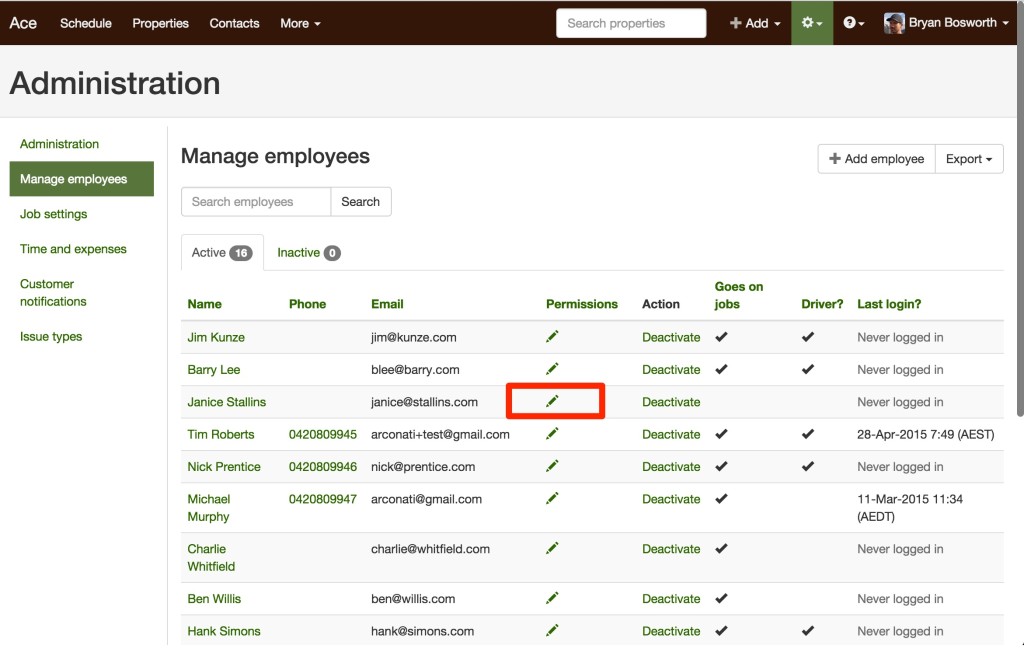
Open Settings → Company → Employees.
-
You will see a list of all employees.
-
In the Permissions column, click the pencil icon for the employee.
-
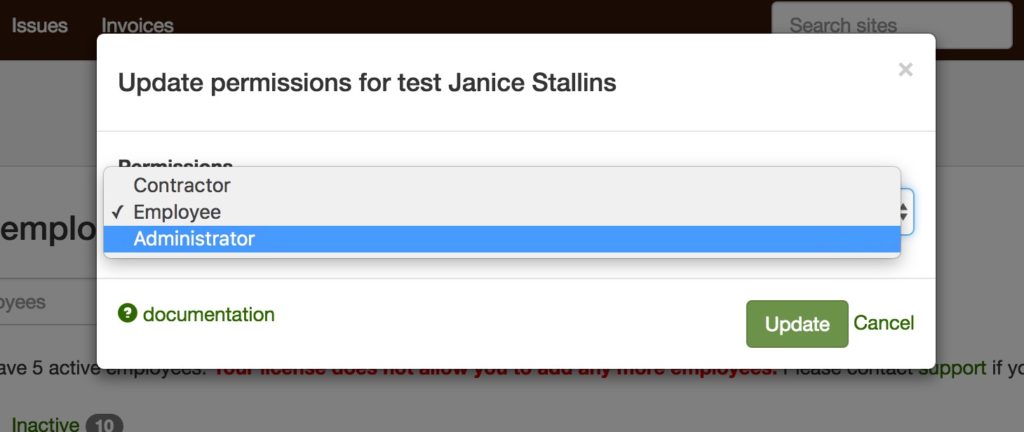
Select the role you want (Administrator, Employee, or Contractor) and click Update.
In the mobile app
Section titled “In the mobile app”Administrators can also change permissions from the SortScape mobile app:
- Log in as an Administrator.
- Open Settings → Company → Employees.
- Tap the employee’s name to open their profile.
- Tap the pencil icon next to Permissions.
- Select the role and tap Update.
On smaller screens, the Permissions column is hidden in the employee list — open the employee’s profile to change their role.
If Settings is restricted
Section titled “If Settings is restricted”If you see a message that settings can only be changed in a browser, sign in to SortScape at app.sortscape.com, open Settings → Company → Employees, and follow steps 3–5 above. This applies to accounts without a current license.