

Setting hourly rates on jobs
Last updated:
Experimental feature
This is an experimental feature. Please contact support to have this enabled on your account.
Fixed-price jobs?
This article is for jobs billed hourly based on time logged. To change the price on one fixed-price job, see Update one job in a repeating series. You can also add a one-off line item while viewing the job. See One-off charges on a single job.
By default, the hourly rate under Settings → Jobs → Job settings is used to calculate the price per hour charged for time and materials jobs. However, if you have this feature enabled, you can customise the hourly rate charged on each time and materials job. The custom hourly rate can be set just for a specific job or for the entire property. For example, if you do a one-off job for a customer outside your regularly scheduled maintenance, you might charge a different rate than you normally charge that customer. In that case, you might want the hourly rate to be specific to that one-off job.
Setting the hourly rate
Section titled “Setting the hourly rate”The “Hourly rates on jobs” setting must first be enabled. Since this is an experimental feature you must first contact support to enable this for your account.
When first creating a job, the hourly rate will default to the hourly rate set for your company on the Job settings page. To charge a different rate for the job, simply type a different rate into the hourly rate field.
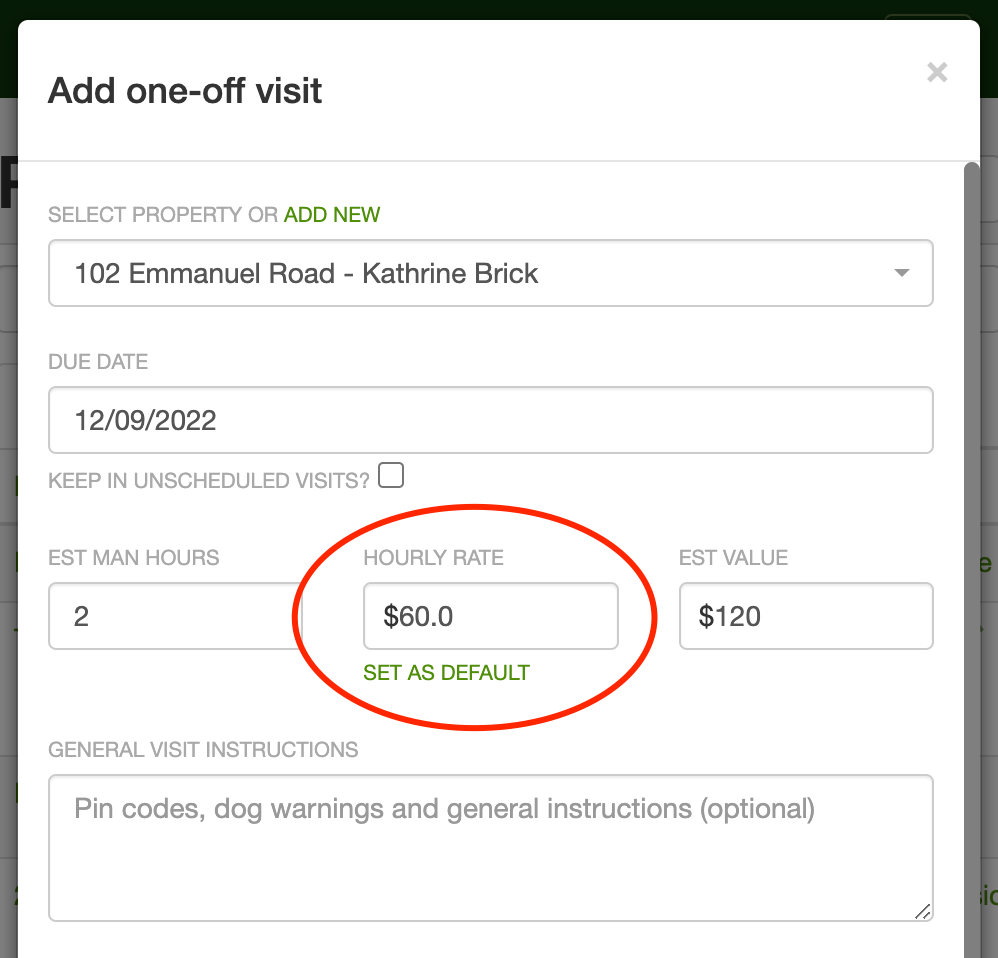
When you change the value in the hourly rate field, the “set as default” link will appear. If the hourly rate is the same as the company’s default hourly rate and the property’s hourly rate is the also the same as the company’s hourly rate the “set as default” link won’t appear.
Now if you click on the “set as default” link, you have the option of making the rate you type into the box the default rate for your entire company or just for the given property as shown below.
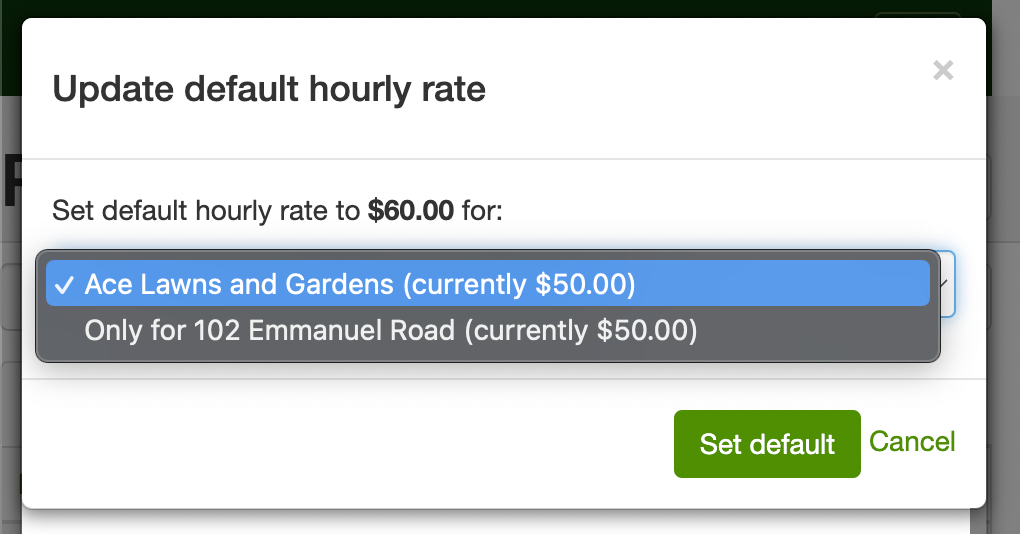
Click the “set as default” link to change the hourly rate for the property or the entire company.
Changing the hourly rate
Section titled “Changing the hourly rate”If a job uses the hourly rate for your company, simply changing the hourly rate for your company will update the hourly rate for your job. Therefore, any job using the hourly rate can be bulk-updated by updating the company hourly rate under Settings → Jobs → Job settings.
If a job uses the default hourly rate for the property, changing the hourly rate for the property will update the hourly rate for your job.
For repeating jobs you can tell which rate a job is using based on its description when looking at the list of repeating jobs on the property:
- If it inherits the company rate, it will say “X hours at company rate …”
- If it inherits the property rate, it will say “X hours at property rate …”.
- If the rate is hard-coded on the job, it will just say “X hours at…” The example below demonstrates this.
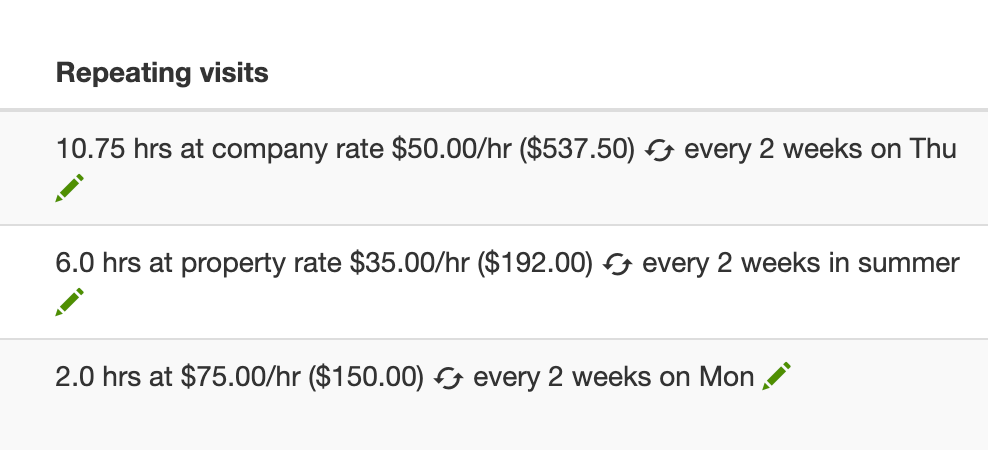
The first job uses the company rate, the second uses the property rate, and the third job has its own rate.