

Automatic job timers
Last updated:
Experimental feature
This is an experimental feature. Please contact support to have this enabled on your account.
This feature requires a subscription to the SortScape Premium plan.
Automatic job timers use GPS on your crew’s phones to start the job timer when they arrive at a property and stop it when they leave, so time on site and timesheets no longer depend on someone remembering to tap. You can choose fully automatic timers, or reminders to start and stop.
iPhone app only for now. Automatic job timers need the SortScape iPhone app, version 1.26 or later, so make sure your crew have updated from the App Store. Android is not supported yet. The account setting is changed by an administrator in a web browser or in the app.
How it works
Section titled “How it works”Each crew member who turns the feature on gets a circle of about 200 metres drawn around every property on their job run for the day. When their phone enters that circle, SortScape treats it as arriving. When it leaves, SortScape treats it as leaving.
What happens next depends on the mode your administrator chose:
- Automatic: arriving starts the crew member’s job timer, and leaving stops it. A notification confirms each one.
- Reminders: arriving and leaving send a notification asking whether to start or stop the timer. The crew member decides.
Either way, the time recorded is the moment the phone detected the crossing, even if the app only sends it to SortScape later. A slow connection does not move the start or stop time.
Only jobs on the run the crew member is assigned to that day get a circle, so an administrator driving past another crew’s stop will not start a timer on it. If nobody is assigned to the run, nothing fires (a one-person account is the exception: every run counts as yours). The property also needs a map location. If an address cannot be placed on the map, an administrator can pin it on the property form.
Setting it up
Section titled “Setting it up”1. Turn it on for your account (administrator)
Section titled “1. Turn it on for your account (administrator)”- Open Settings → Jobs → Automatic job timers.
- Turn on Automatic job timers.
- Choose a mode:
- Start and stop the timer automatically when near a job
- Send reminders to start or stop the timer when near a job
We recommend starting with reminders until your crew have seen it work for a week or two, then switching to automatic.
Accounts that are not on Premium see this page with an upgrade prompt instead of the switch.
2. Each crew member turns it on for their phone
Section titled “2. Each crew member turns it on for their phone”The account setting does not switch anything on by itself. Each crew member opts in on their own phone, so people who do not want it are not affected.
-
In the SortScape iPhone app, open Settings → This device → Automatic job timers and turn it on.
-
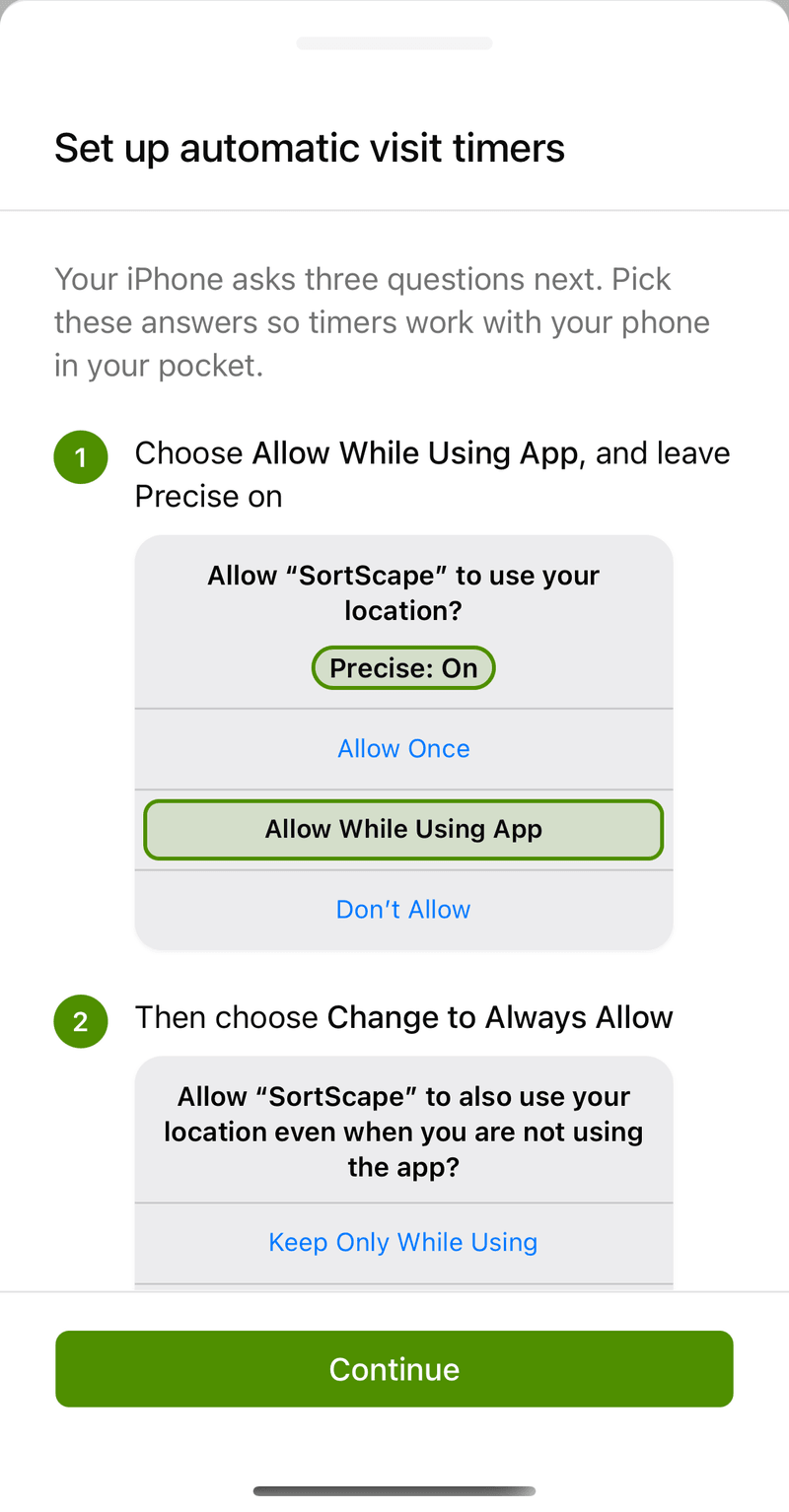
SortScape shows the questions your iPhone is about to ask and the answer to pick in each. Read them, then tap Continue.
-
Your iPhone asks the three questions one after another. iOS asks each one only once, so pick these answers:
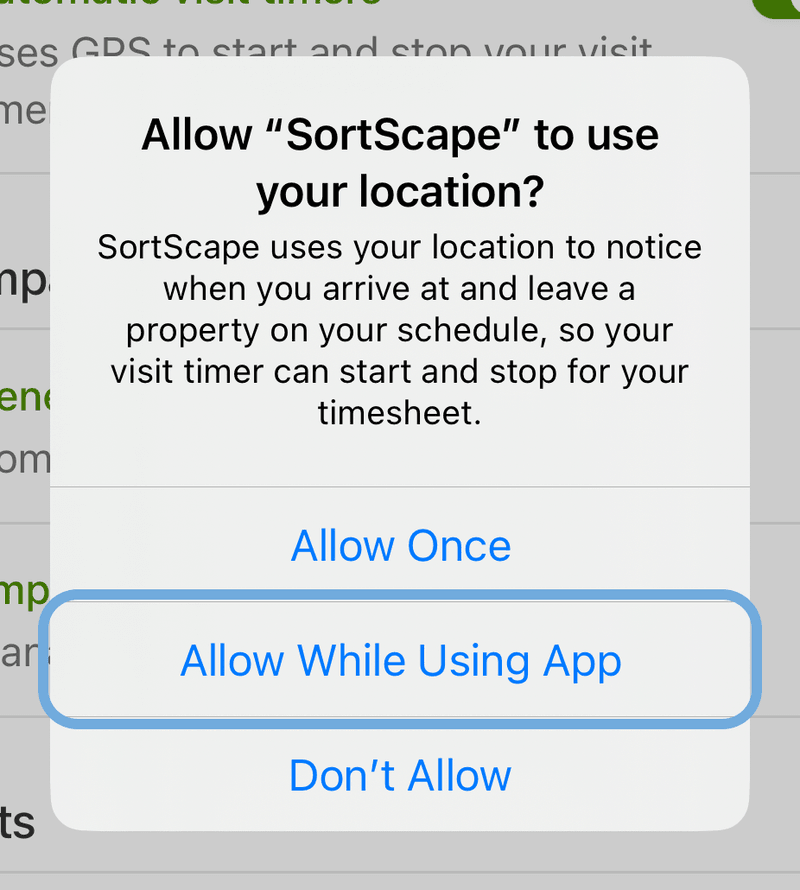
Allow While Using App, and leave Precise on. The circles around each property need your exact position.
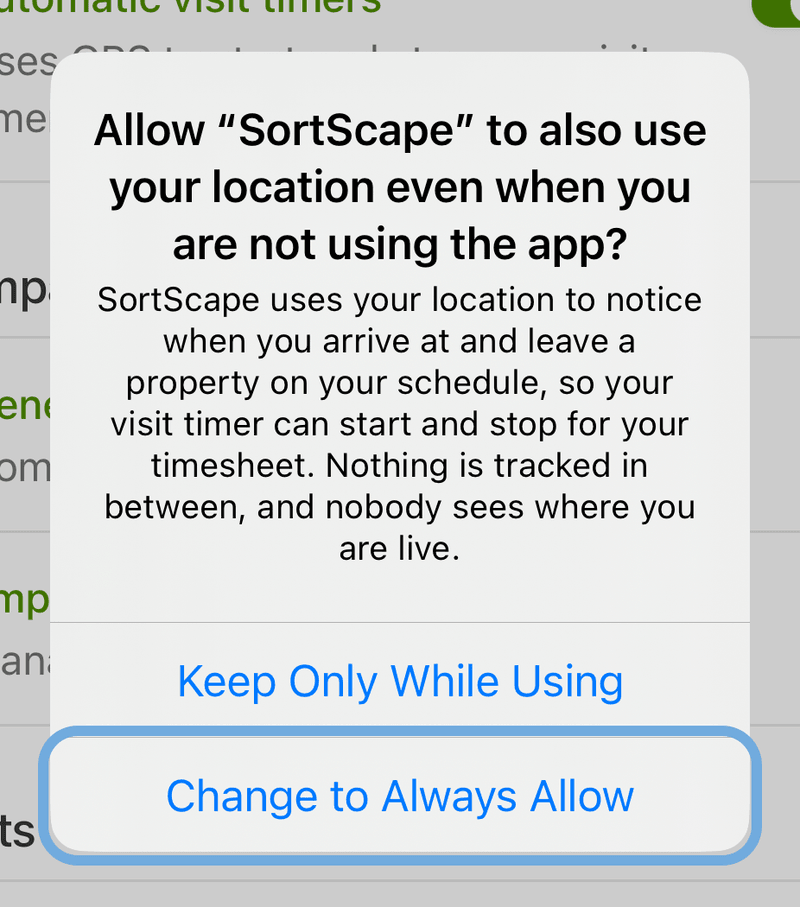
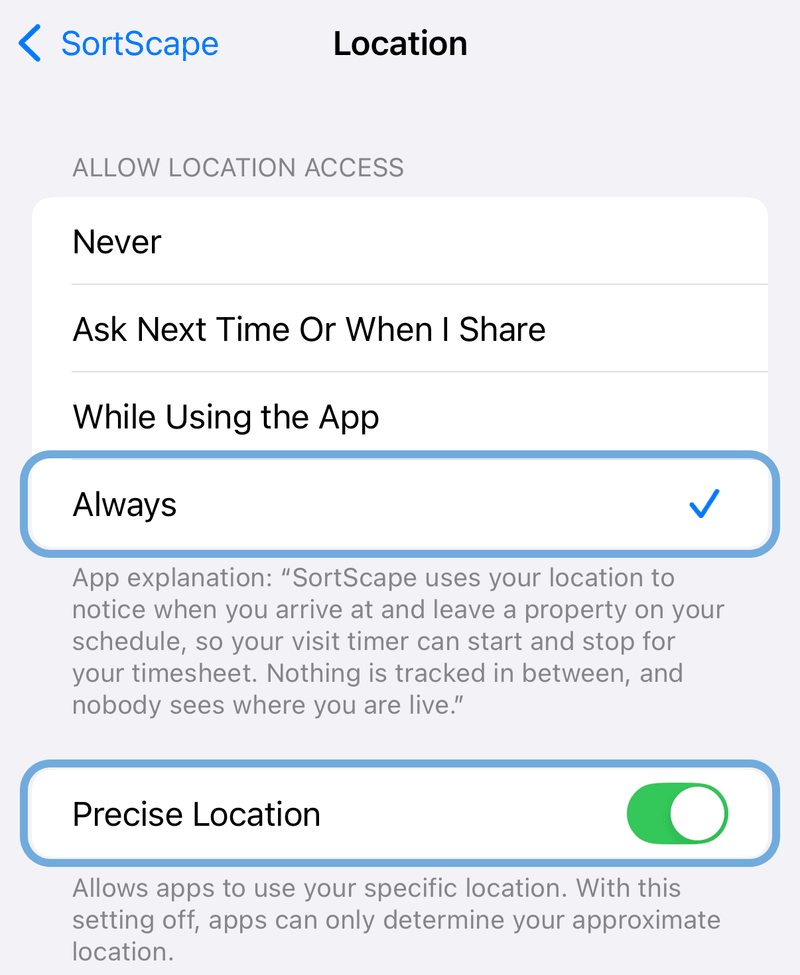
Change to Always Allow. The feature only works with the phone in a pocket if location is set to Always.
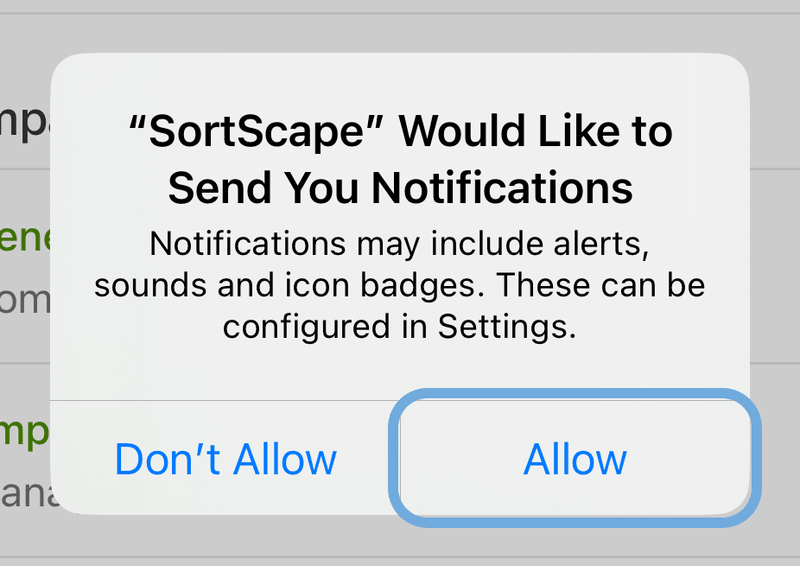
Allow notifications. The arrival and departure notifications are how the feature talks to you.
If you picked a different answer
iOS will not ask again, so the fix is in the phone’s Settings. SortScape shows a checklist under the switch with what is done and what is left. Tap Open Settings on the item that needs it.
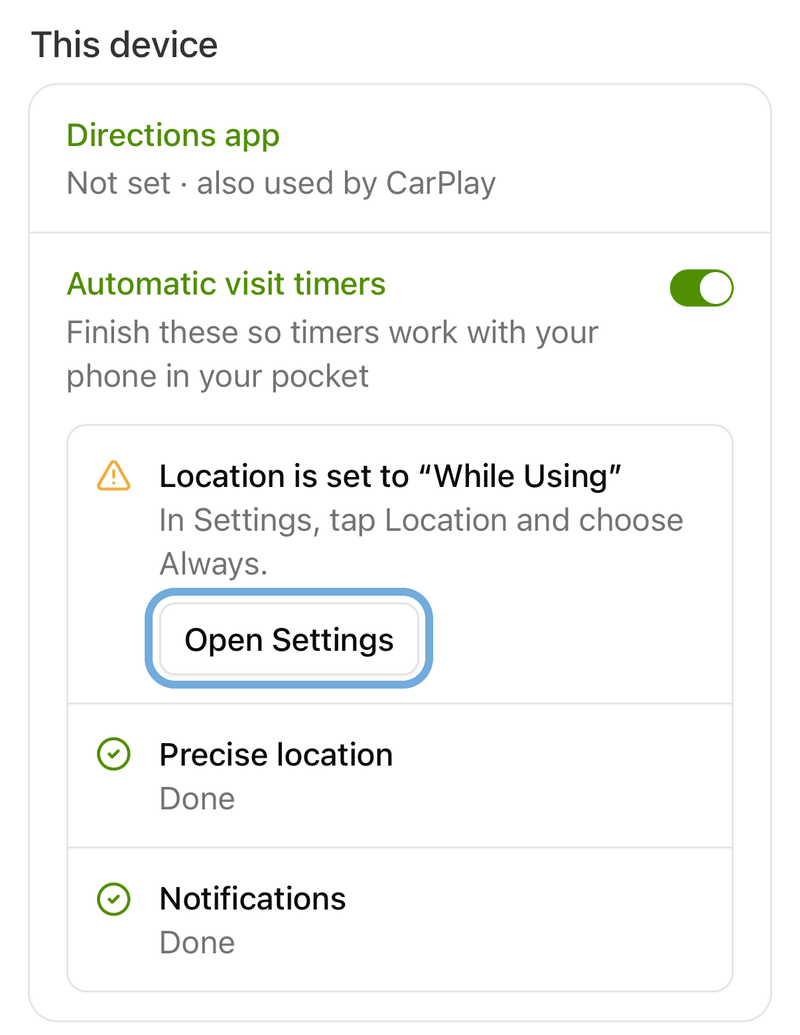
In Settings, tap Location, choose Always and check Precise Location is on. For notifications, tap Notifications and turn on Allow Notifications. Come back to SortScape and the checklist updates by itself, then disappears once everything is done.
The row only appears once an administrator has turned the feature on for the account, and only in the iPhone app.
What the crew sees on site
Section titled “What the crew sees on site”Notifications arrive on the phone the same way other SortScape notifications do. Tap one to open the job, with its usual Start timer and Stop timer buttons. Long-press or pull down on the notification to see its action buttons.
Automatic mode
- Arrived at [property]: Job timer started. Tap Undo if you were only driving past.
- Left [property]: Job timer stopped. Tap Keep running if you have not actually finished, for example you drove to the tip and are coming back. The timer starts again from the moment you left, so no time is lost.
Reminder mode
- Arrived at [property]: Start the job timer? Tap Start timer or Not now.
- Left [property]: Stop the job timer? Tap Stop timer or Keep running.
- If you ignore the departure reminder, a Timer still running nudge arrives 30 minutes later.
Neighbouring properties. When two or more of today’s jobs are within the same circle, the phone never guesses. It asks Which job are you at? with one button per job, in both modes.
While a timer is running, it also shows on the iPhone lock screen (and in the Dynamic Island on phones that have one) as a Live Activity, counting up from when it started. Tap it to open the job. If the timer was started by location while the app was closed, the lock screen banner appears the next time the app is opened. The timer pill on the schedule shows running timers too, like any other.
A few rules worth knowing:
- Leaving stops any running timer the crew member has on that job, including one they started by hand.
- Leaving never marks a job complete. Completing a job is still a deliberate tap, because it can send the customer’s completion notification and feed invoicing.
- The manual Start timer and Stop timer buttons keep working exactly as before. A timer started by hand is stopped when the phone leaves, and a timer started by location can be stopped by hand.
- Timers start for that phone’s user only. Start for whole crew is still a manual action.
- Turning the switch on while already standing at a property counts as arriving.
What the office sees
Section titled “What the office sees”Time recorded this way appears in the job’s Time spent section like any other timer entry, and in timesheets and reports. Each entry also records what started and stopped it (a button, arriving or leaving a property, a reminder, or completing the job) and the phone’s position at the start and the stop. If a customer ever disputes a job, you have a start and a stop that are both time-stamped and location-stamped.
Entries can be edited or deleted like other timer entries, subject to the usual rules in Job timer.
Privacy
Section titled “Privacy”Automatic job timers do not track your crew. Nobody’s live location is shown anywhere in SortScape or stored. The only locations saved are the phone’s position at the moment a timer starts and the moment it stops. The phone uses standard iOS region monitoring to notice arrivals and departures, not continuous GPS tracking.
Limitations
Section titled “Limitations”This is an experimental feature, and GPS on a phone is not perfect. Things to expect:
- Detection can lag by a few minutes, especially without Wi-Fi nearby. iOS reports arrivals once the phone is well inside the circle and departures a little late, so a timer may start a few minutes after you actually arrived and stop a few minutes after you left. Entries can be edited in Time spent afterwards.
- A quick drive past, or a supply run, can trigger an arrival or a departure. That is what Undo and Keep running are for.
- The “timer started” notification appears before the server has confirmed it. Almost always it goes through. If the phone had no signal, see the next point.
- No signal at the property. The circles still work without reception, and the app queues the start or stop. It sends it the next time the app is opened, not automatically when signal returns. A queued start that is more than 15 minutes old is dropped rather than recorded, because it would put a guessed entry on the timesheet. A queued stop that is more than 15 minutes old becomes a Timer still running reminder instead, so the crew member can stop the timer and fix the time by hand.
- Low Power Mode on the phone can delay location events.
- Up to about 19 jobs a day get a circle, nearest first. That is an iOS limit and is more than most runs.
Until your crew trusts it, run in reminder mode and check the Time spent entries at the end of the day.
Troubleshooting
Section titled “Troubleshooting”Nothing happens when a crew member arrives
Work through these in order:
- Open Settings → Jobs → Automatic job timers and check the account switch is on and a mode is chosen.
- On their phone, open Settings → This device and check Automatic job timers is on. If the row is missing, update the SortScape app from the App Store (1.26 or later) and check they are on an iPhone.
- Check there is no checklist under the switch. If there is, follow it: location must be Always with Precise Location on. “While using the app” is not enough.
- Check notifications are allowed for SortScape in the phone’s settings. Without them the reminders cannot appear.
- Check the job is on today’s job run and that the crew member is assigned to that run. Jobs on other crews’ runs, and runs nobody is assigned to, do not get a circle.
- Check the property has a map location. Open the property, click Edit and look at the map-marker button next to the address. If the address could not be placed, pin it by hand.
A crew member has their phone’s location turned off
Nothing fires for them. SortScape cannot see where they are, so the timer behaves as if the feature were off on that phone. They can still start and stop timers by hand.
Timers start or stop at odd times
Low Power Mode, a phone with no Wi-Fi around, or a property on the edge of signal can all delay location events. Try reminder mode, and remember that entries can be edited in the Time spent section afterwards.
The reinstalled app does not notice I am already on site
After reinstalling, turn Automatic job timers off and on again in Settings → This device so the circles are redrawn.