

Sending appointment notifications to customers
Last updated:
SortScape allows you to send SMS’s (i.e. “text messages”) and email notifications to your customers to let them know about an upcoming job or work completed on your last job. Messages are sent using templates which saves you time because you no longer need to type the same message over and over again.
You can send notification messages “manually” from each job or you can schedule automatic reminders to be sent automatically before each job.
Job notifications are sent to the property’s service contact. Invoice messages are separate and use the billing contact. For setup examples (rentals, strata/body corporate, HOA), see Setting up service and billing contacts for rentals, strata, and HOAs.
Reminders do not ask the customer to confirm. To mark which jobs a customer has confirmed, see Job confirmations.
Manual notifications
Section titled “Manual notifications”You can send SMS and email notifications manually to customers from each job. These buttons are on for every account (see Turning customer messages on).
To change which template appears first in the message dialog, see Template order.
Sending an SMS message
Section titled “Sending an SMS message”-
Click on a job to open the job dialog.
-
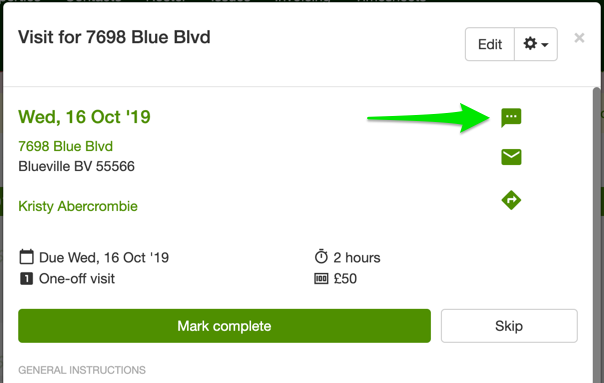
At the top you’ll see a “message” icon in the upper right hand corner.
-
If you have already sent a notification for that job, the icon will have a number badge over it showing how many messages have already been sent for that job.
-
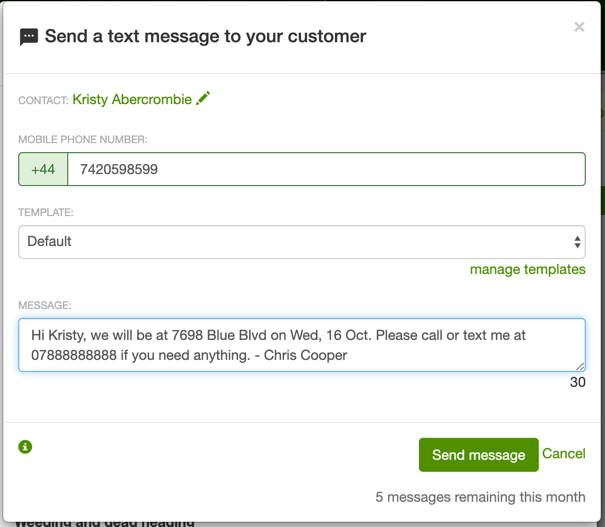
Clicking on the button will open the message dialog.
-
The message will be addressed to the service contact for that property.
-
The mobile field is pre-filled from the contact. If the contact has additional SMS reminder numbers, they appear here separated by commas.
-
You can edit the numbers before sending. Separate multiple numbers with a comma. SortScape sends one text to each number; the credit estimate below the message reflects segments × number of recipients.
-
If the service contact has no mobile number on file, enter one in the dialog. See Saving contact details when you send a message for whether it is saved to the contact.
-
If the contact has no primary mobile, only the primary can be saved back to the contact when you send. Sending to an additional number alone will not replace the contact’s primary mobile.
-
Note - SMS messages are sent from a SortScape number, not your own mobile (see Can I send text messages from my own number?). A customer receives your messages from the same number each time, so they can reply in one conversation. For who is notified of replies, see Text message replies.
-
When you send to multiple numbers, each person receives their own message and can reply independently. SortScape matches replies to the number that received the message.
Multiple mobile numbers for SMS reminders
Section titled “Multiple mobile numbers for SMS reminders”You can send job, quote, and invoice SMS reminders to more than one mobile number on the same contact, for example a spouse, carer, property manager, or second tenant.
Add the extra numbers on the contact with + Add another mobile number (up to three, on top of the primary mobile). Additional numbers only receive reminders when a primary mobile is set. For how to add and label them, see Mobile phone and extra numbers.
Automatic job reminders, manual job texts, bulk texts on a job run, and quote/invoice SMS reminders all send one message per number. Each number uses its own SMS credit(s) (see Multiple numbers multiply credits).
If a customer replies from any of those numbers, SortScape routes the reply using that number. Replies are linked to the contact and job as usual.
Sending an email message
Section titled “Sending an email message”-
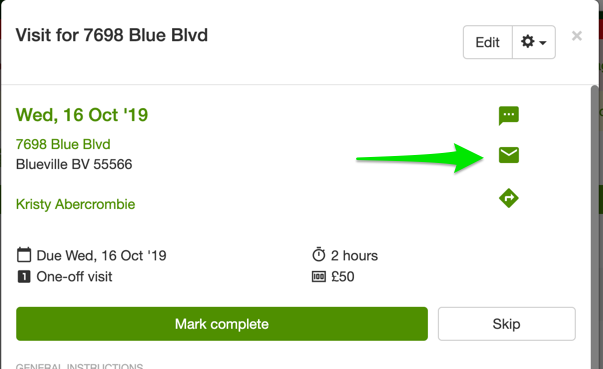
At the top of the job dialog you’ll see an “email” icon in the upper right hand corner.
-
If you have already sent an email for that job, the icon will have a number badge over it showing how many emails have already been sent for that job.
-
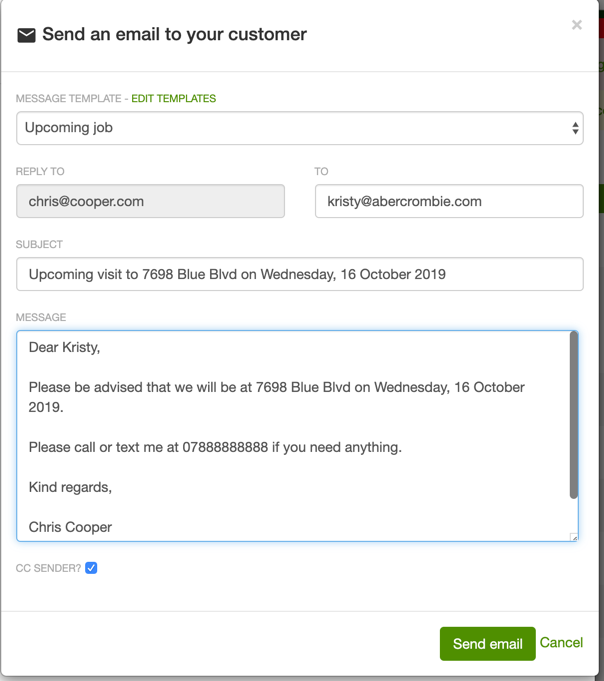
Clicking on the button will open the message dialog. The message will be addressed to the service contact for that property.
-
If the service contact has no email address on file, enter one in the To field. See Saving contact details when you send a message for whether it is saved to the contact.
-
If there are attachments on the job, you can also select which attachments you want to email to the customer. For example, you can show them before and after photos of their property.
-
You can send email notifications to more than one email at once by adding multiple emails to the contact, separated by a comma.
One-off bulk notifications for a job run
Section titled “One-off bulk notifications for a job run”Sometimes you need to message all customers on a job run in one go, for example to send a weather warning or a short reminder before the run.
Bulk emails and texts use the same job selection as moving, completing and invoicing jobs on the Schedule:
- Go to Schedule and open the day that contains the run you want.
- Click Bulk actions… in the … menu at the top of that job run. In day and week view you can also click Select at the top of the run.
- Every job in the run starts ticked. To message only some customers, untick the others (or click Deselect all and tick the ones you want).
- Click Actions… at the bottom of the run, then click Email or Text message.
- Email sends one email to each selected job’s service contact.
- Text message sends an SMS to every SMS reminder number on each contact’s record (primary mobile plus any additional reminder numbers).
- Check the recipient list. Contacts who can’t receive (no email address for emails, no mobile number for texts) are shown with a warning and are skipped. To leave someone out, cancel and untick their job.
- Optionally pick a template, or write your own message. Emails also need a subject. You can use the same notification tags as in your templates (e.g. contact name, property address); they are filled in for each recipient when the message is sent.
- A contact with three SMS reminder numbers counts as three messages (three credits) in a bulk text.
- Click Send (the button shows how many will go, for example Send 6 emails).
- The pop-up closes and a message in the corner shows the progress.
- When it’s done, it says how many were sent. If any failed, it lists them and stays open until you close it.
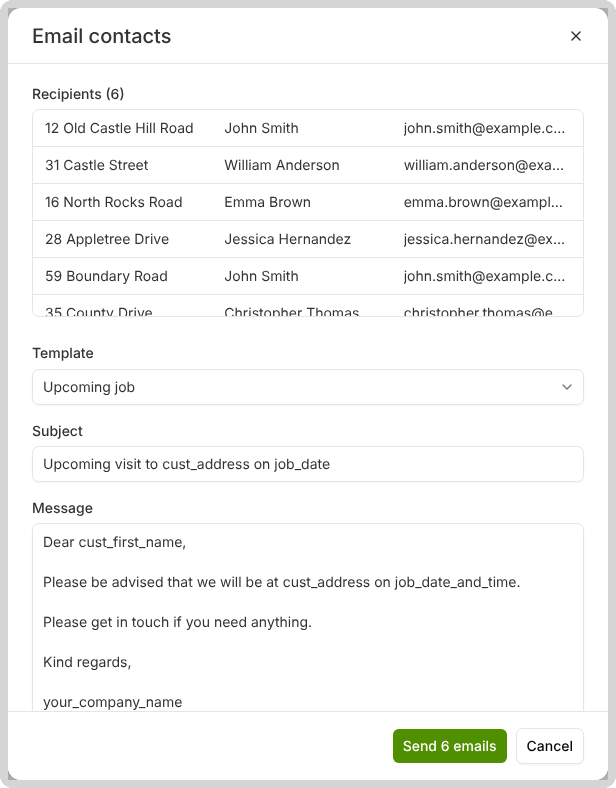
You can also email or text jobs you select in Unscheduled. See Bulk selecting jobs on the schedule.
A manual or bulk text does not replace the automatic reminder
Section titled “A manual or bulk text does not replace the automatic reminder”A text you send from a job, or a bulk text from a job run, does not cancel the automatic reminder. The automatic message still goes on its reminder date.
If a text with the same wording has already gone to that number today, SortScape does not send the automatic reminder as well. That includes a manual text, a bulk text, or another job’s reminder. A different message still goes out. A bulk text you send after the automatic reminder is not held back, so the customer can receive both.
There is no pause for one week of jobs. To stop automatic reminders for a stretch:
- Open Settings → Messaging → Job messages.
- Turn off Send automatic job reminders.
- Turn it back on when you want reminders again.
While it is off, no automatic job reminder goes out, for any job. Turning it back on the same day still sends that day’s texts if you do it before 9:30pm. After 9:30pm, that day’s texts are skipped. Email can still go that night. Reminder dates that have already passed are not sent later. See When reminders send.
Automatic job reminders
Section titled “Automatic job reminders”The Automatic job reminders feature requires a subscription to the SortScape Premium plan
Automatic job reminders allow you to schedule SMS and email notifications to be sent to customers automatically prior each scheduled job. This saves you time because you don’t have to manually send the notifications yourself.
Automatic job reminders are disabled by default. Open Settings → Messaging → Job messages, then enable them.
When reminders send
Section titled “When reminders send”Each reminder has a reminder date and a send time.
The reminder date is the job date minus the days-in-advance setting. It is a calendar day. Reminders only send on that day. If that day has already passed, there is no catch-up. If you turn on Only send reminders on work days, a reminder date that falls on a day off moves to the weekday before.
The send time (for example 9:00am) is the earliest time that day. After that time, today’s batch still goes out on the next send, usually within about 10 minutes.
SMS is the exception: texts only send between 7:00am and 9:30pm. If you turn reminders on after 9:30pm, that day’s SMS batch is skipped. Email can still go that night.
Click Upcoming reminder messages to see what will go out, and finish the next few days of the schedule before you turn it on.
For example, you turn on 2 days before at 9:00am at 4:58pm on Sunday. Tuesday jobs still send Sunday afternoon. Wednesday jobs send Monday at 9:00am. Monday jobs do not send: their reminder date was Saturday.
Only sending reminders on work days
Section titled “Only sending reminders on work days”By default, reminders go out on the reminder date whatever day it is, so a reminder 1 day before a Monday job goes out on Sunday. If you would rather not have customers replying on your days off, turn on Only send reminders on work days in Settings → Messaging → Job messages. It is off until you turn it on.
When it is on, a reminder that would go out on a day off goes out on the weekday before instead, at the usual send time. A day off is:
- Saturday or Sunday. This stays true even when Week days worked includes the weekend (see Week days worked). A Monday to Saturday week still sends Monday’s reminders on Friday, not on Saturday.
- A blocked day, including public holidays added automatically. A blocked weekday counts too.
For example, with reminders 1 day before, Friday sends the reminders for Saturday, Sunday and Monday jobs. If Monday is a public holiday, Friday also sends Tuesday’s reminders. Nothing goes out on Saturday, Sunday or the holiday.
Week days worked only controls which days appear on the schedule. Leave it as it is if you work weekends. Changing it moves incomplete weekend jobs onto a weekday.
The same setting applies to automatic invoice reminders sent before the due date, by text and by email. It does not change follow-ups. Click Upcoming messages to check which day each reminder will go out.
Things to know:
- Jobs added on a day off. If you add or move a job on a day off, and its reminder should have gone out on the weekday before, it does not get an automatic reminder. For example, on Saturday you add a job for Monday. Friday’s reminders have already gone, and nothing sends over the weekend. Send that customer a manual message instead.
- Change the setting on a weekday, early in your week. If you turn it off on a day off, or on the last weekday before one after reminders have gone out, some customers can get the same reminder twice. For example, Friday sends Monday’s reminders, you turn the setting off on Saturday, and Sunday sends Monday’s reminders again. Turning it on during a day off works the other way: the weekday before has already passed, so some jobs get no reminder.
New contact subscription management
Section titled “New contact subscription management”
When you enable automatic job reminders, you also have control over how new contacts are handled:
- Automatically subscribe new contacts: When enabled (default: ON), newly created contacts will automatically be subscribed to job reminders. When disabled, new contacts will need to be manually subscribed. This setting allows you to control the default subscription behavior for new contacts while preserving your ability to manually adjust subscriptions for individual contacts as needed.
Bulk contact management
Section titled “Bulk contact management”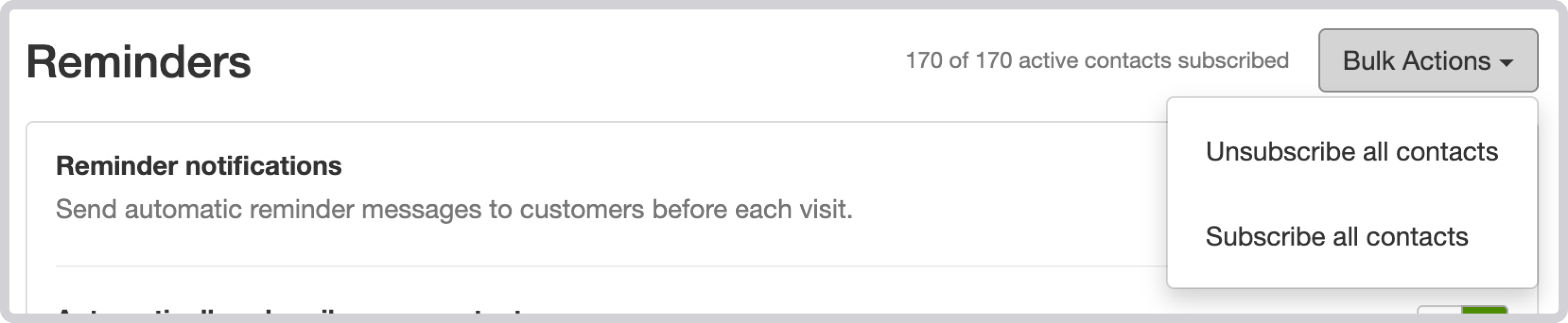
You can also manage existing contact subscriptions in bulk from the … menu at the top of the page:
- Subscribe all contacts turns reminders on for all existing contacts
- Unsubscribe all contacts turns reminders off for all existing contacts. You can re-subscribe individual contacts afterwards.
Message configuration
Section titled “Message configuration”By default we have created two reminders for you, one SMS and one email. In the example below, customers automatically receive both an email and an SMS at 9:00am from Lawrence Blake the day before their scheduled job.
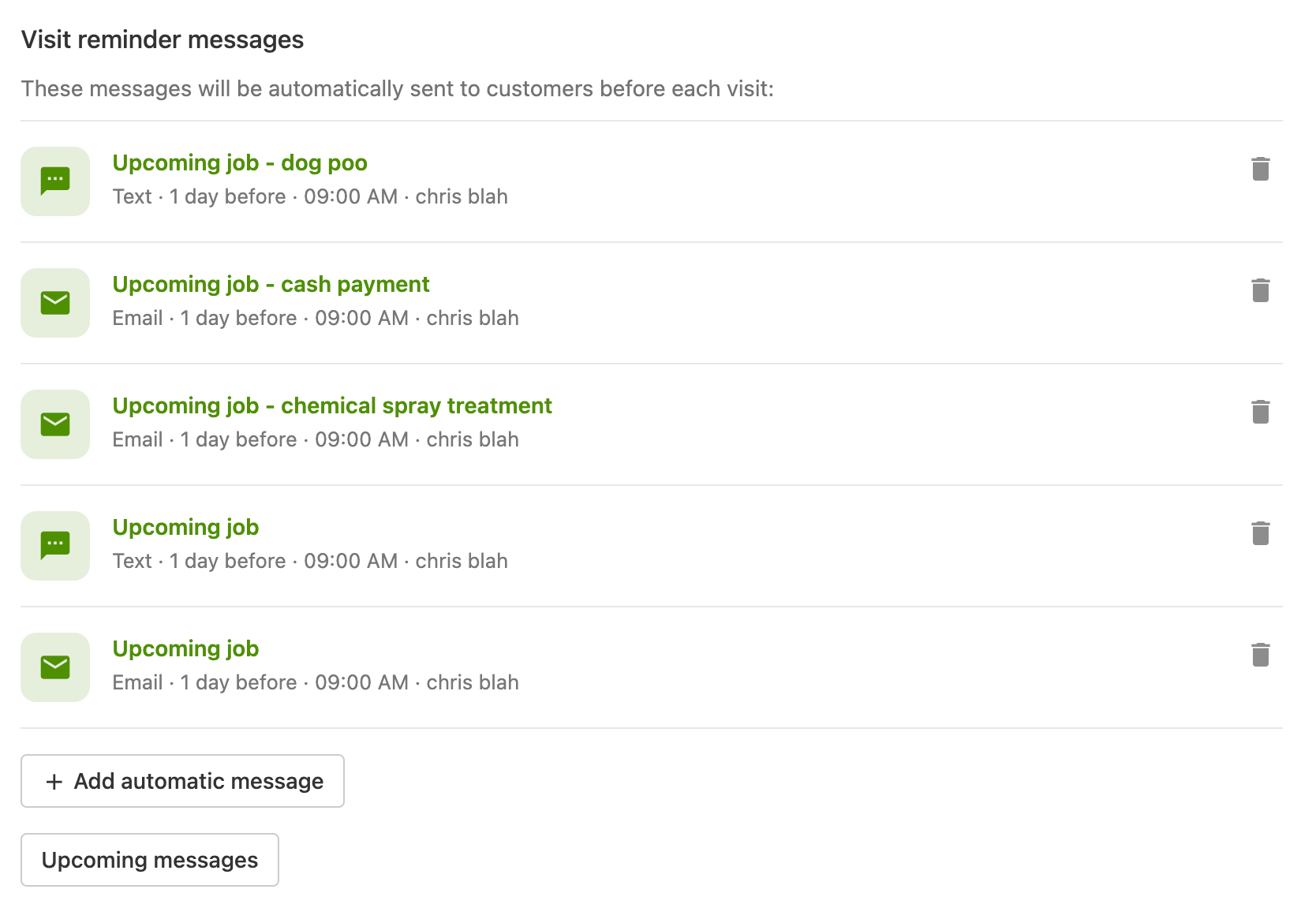
You can add more. On Settings → Messaging → Job messages, click Add automatic message under Job reminder messages.
You can have up to 12 automatic job reminders. Email and SMS count toward the same limit. Six emails and six texts is fine. Twelve emails and no texts is fine too. Each reminder can use its own template, send time, and days in advance (up to 21 days before the job).
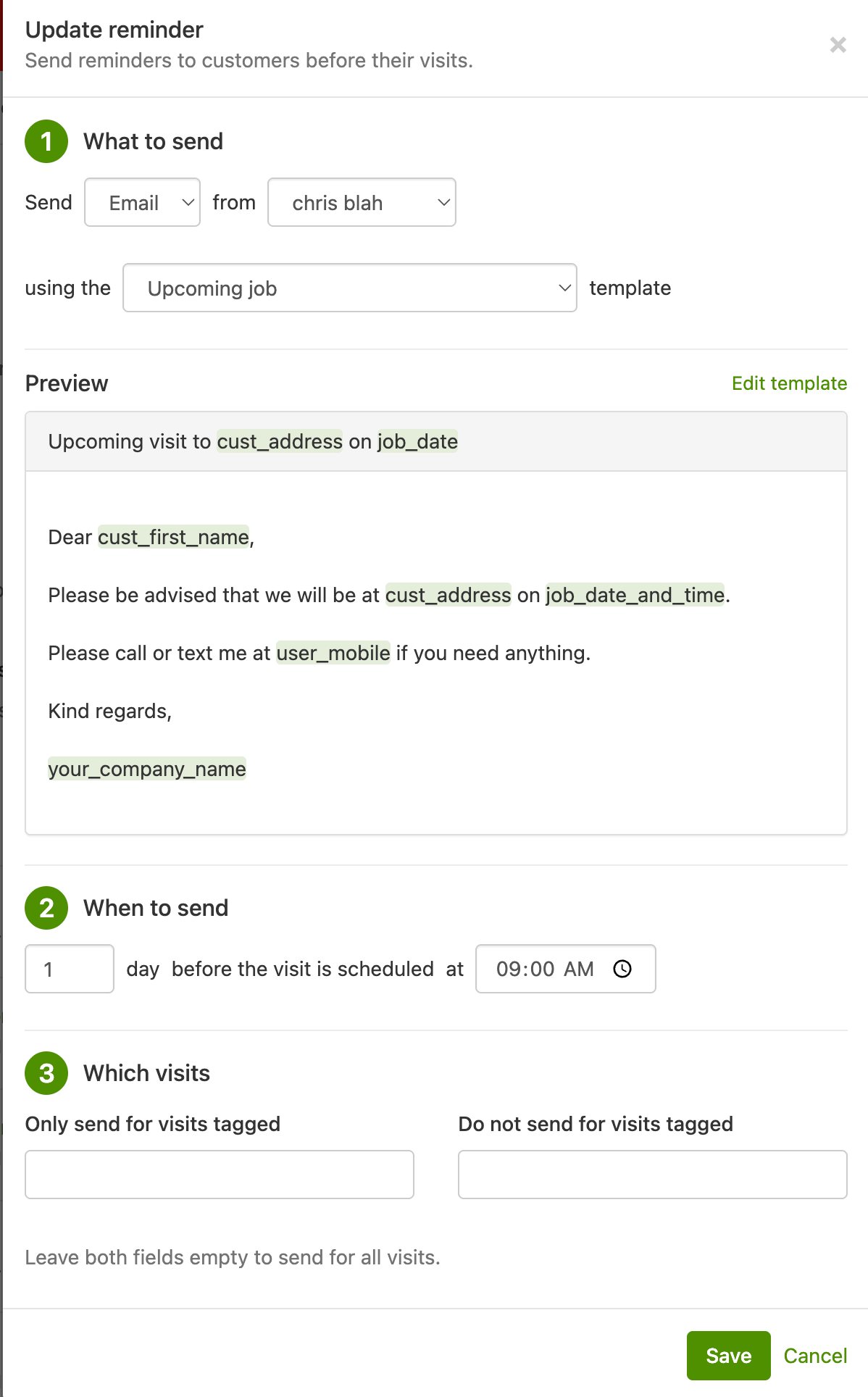
You can delete a reminder completely or edit an existing reminder to change the following fields:
- What time to send it
- How many days in advance
- Who it is sent from: this user’s profile details fill sender tags such as
user_mobile,user_first_name, anduser_last_namein the template. See Theuser_mobiletag. - Message type (email or sms)
- Which template to use
- Which jobs the reminder applies to (see below) Click on the Upcoming reminder messages link to get a preview of upcoming messages scheduled to be sent. If two jobs would send the same email or SMS after the template tags are filled in, that preview shows the message once, matching what the customer will actually receive. See If two jobs would send the same reminder.
Filtering reminders by job tags
Section titled “Filtering reminders by job tags”Each reminder can be limited to specific types of jobs using job tags.
When creating or editing a reminder, you can define:
-
Only send for jobs tagged The reminder will only be sent for jobs that include at least one of the selected tags.
-
Do not send for jobs tagged The reminder will not be sent for jobs that include any of the selected tags.
If both filters are used:
- The job must match at least one included tag
- The job must not match any excluded tags If both fields are left empty, the reminder will be sent for all eligible jobs (default behaviour).
This allows you to send different reminder messages for different types of work. For example:
- Dog waste reminder: Tag jobs with Dog and create a reminder using your dog waste template, set to only send for jobs tagged Dog.
- Gate access reminder: Tag jobs with Gate and create an SMS reminder using your gate access template, set to only send for jobs tagged Gate.
- Different services: Tag jobs (e.g. Mowing, Spraying) and create separate reminders with different templates, each filtered to its matching tag.
- Avoid duplicate messages: If you have a general reminder for all jobs, set it to Do not send for jobs tagged (e.g. Dog, Gate) so those jobs only receive their specific reminder. Use this when one job would otherwise match both a general reminder and a tagged one. If two jobs would send the same text, see If two jobs would send the same reminder.
How automatic job reminders work
Section titled “How automatic job reminders work”- Messages are sent to the service contact for a job’s property
- Emails are sent to the contact’s email address, and SMS messages to all SMS reminder numbers on the contact (primary mobile plus any additional numbers)
- On the contact’s Subscriptions section, if multiple numbers are configured, you’ll see a note such as: “Reminders will be sent to 2 mobile numbers (uses 2 SMS credits per reminder).”
- Messages are not sent if the required contact details are missing
- New contacts are subscribed to reminders unless you turn off Automatically subscribe new contacts (see New contact subscription management)
- You can disable reminders for individual contacts
- To turn reminders off for all existing contacts, use Unsubscribe all contacts (see Bulk contact management)
- Reminders go out at the send time you set, not at the job’s time. The
job_date_and_timetag includes a time only when the job has a start time entered on it. Smart ETAs from route optimization are not used in reminders. - Reminder date, send time, and the SMS 7:00am to 9:30pm window are covered in When reminders send. For jobs that move off that date, see Schedule changes.
- If a notification fails, the system will retry until it succeeds or the day ends
- If two jobs would send the same email or SMS to the same person on the same day (after the template tags are filled in), only one is sent. See If two jobs would send the same reminder.
If two jobs would send the same reminder
Section titled “If two jobs would send the same reminder”If a property has two jobs on the same day, SortScape still builds an automatic reminder for each job. It then compares the message after it fills in the template tags: the email subject, the email or SMS body, and who it is going to.
If those match, the customer gets one email and one SMS, not two copies of the same thing. A common case is a regular mow plus a one-off extra job on the same day, using a template like “we’ll be at 14 Garden Street tomorrow” that does not mention the work.
If the messages are different after the tags are filled in, both go out. That happens when the template includes a tag that differs between the jobs, for example:
work_required(mow on one job, pull weeds on the other)job_date_and_timewhen the two jobs have different start times
There is no setting for this. SortScape does it automatically.
Each extra mobile number on the contact still gets their own SMS. Only an identical message to the same number is skipped. You are charged SMS credits for the messages that actually send.
The sent message is stored on one of the jobs. The other job can look like nothing was sent. After send, check Recent messages if you need to confirm what went out.
Manual texts and emails you send from a job are not skipped this way. Neither are bulk messages from a job run. A text already sent today can still stop an identical automatic reminder. See A manual or bulk text does not replace the automatic reminder.
Disable automatic reminders for one contact
Section titled “Disable automatic reminders for one contact”To stop automatic job text messages (and emails) for a single customer:
- Open Contacts from the main menu and find the contact.
- Click Edit.
- In the Subscriptions section, uncheck Job reminders.
- Click Save.
You can also open the contact from a job: click the contact name, then Edit.
The Contacts list is only on the web. On the mobile app, open the property, tap the service contact name, then uncheck Job reminders under Subscriptions.
Unchecking Job reminders stops automatic reminders for that contact until you check it again. Checking it again on a day a reminder is due still sends that day’s texts if you do it before 9:30pm. To stop reminders for every contact for a stretch, see A manual or bulk text does not replace the automatic reminder.
That contact will no longer receive automatic job reminders. You can still send manual text messages from a job if customer text messages are enabled account-wide.
Do not Skip the job just to stop a reminder. Skip cancels that job. Only skip if the job itself should not happen.
To block all text messages to a number (including manual messages), the customer can reply STOP. See SMS opt-out and resubscribe.
Schedule changes
Section titled “Schedule changes”Automatic reminders respond to schedule changes:
-
Late-added jobs If a job is added after the scheduled send time, the reminder will still be sent. For example, say customers are meant to be notified at 9AM the day before a job. If it’s 12pm and a job gets added to the schedule for tomorrow, that customer will still receive an automatic notification even though it’s past the 9AM scheduled send time. If the new job would send the same message as one already sent to that person that day, SortScape does not send it again.
-
Rescheduled jobs If a job is moved to another day, the customer may receive another reminder for the new date. For example, say customers are meant to be notified at 9AM the day before a job. It’s now 12pm so all customers with jobs scheduled for tomorrow have received their notifications. If you move one of tomorrow’s jobs to the next day, they will then get notified again tomorrow at 9am telling them to expect a job the next day. If you move the job closer and the reminder date is already in the past, no automatic reminder is sent.
-
Missed reminder date Automatic reminders only send on the reminder date itself (the job date minus the days-in-advance setting, moved to the weekday before if you only send reminders on work days). If that date has already passed, SortScape does not send a catch-up message.
For example, reminders are set for 9:00am, 2 days before the job. You move a job from 3 days away to 1 day away. The reminder date is already in the past, so that job will not get an automatic reminder. You can still send a manual message from the job.
Turning reminders on later the same day, or adding a job onto today’s reminder date after the send time, follows the same rules. See When reminders send.
-
Skipped jobs Automatic reminders only go out for jobs that are still open. If you Skip a job before the reminder send time, that reminder is not sent. Hiding skipped jobs on the schedule does not change this. It only changes what you see. If the reminder already sent, skipping later will not recall it.
Important notes
Section titled “Important notes”- Tag filters apply per reminder
- The same tag cannot be used in both include and exclude lists
- If no tags are specified, reminders behave as they did previously
Message history
Section titled “Message history”To review sent email and SMS messages, see Recent messages.
SMS text message credits
Section titled “SMS text message credits”Every text uses your monthly text message credits, once per number it goes to. See SMS text message credits.