

Setting hourly rates on jobs
Last updated:
Default rate for one client: experimental
You can type an hourly rate on any job charged hourly, with no setup. Saving that rate as the default for one client (Set as default) is an experimental feature. Contact support to have it turned on for your account. If your account was created before October 2024, the hourly rate field on a job also needs this feature.
Fixed-price jobs?
This article is for jobs billed hourly based on time logged. To change the price on one fixed-price job, see Update one job in a repeating series. You can also add a one-off line item while viewing the job. See One-off charges on a single job.
A job charged hourly uses your company rate from Settings → Jobs → Job settings unless you give it a different one. You can set a rate for one job, for example a one-off clean-up you charge more for than the client’s regular mowing. With Set as default turned on, you can also save a rate for one client so all their hourly jobs use it.
Set the hourly rate on a job
Section titled “Set the hourly rate on a job”- Open the job. If it is already marked complete, click Reopen first.
- Click the ⋯ menu, then Edit.
- Under Invoice settings, tick Charge hourly based on time logged. The Hourly rate field appears with the rate the job uses now: the client’s rate if they have one, otherwise your company rate.
- Type the rate for this job and click Update. On a repeating job, SortScape asks whether the rate applies to this job only or to later jobs as well.
When you create the invoice, each employee’s logged hours are charged at this rate. See What each line item description says.
Make a rate the default for a client
Section titled “Make a rate the default for a client”Set as default is for administrators, and only shows when the experimental feature is turned on for your account.
- Follow steps 1 to 3 above and type the rate in Hourly rate. A Set as default link appears under the field when the rate differs from the client’s rate or your company rate.
- Click Set as default.
- Choose who the rate is for:
- This client: this client’s hourly jobs use the rate unless a job has its own.
- All clients without their own rate: changes your company rate, the same setting as in Job settings.
Each choice shows the rate it has now. A choice that already matches the rate you typed is greyed out.
Changing the hourly rate
Section titled “Changing the hourly rate”If a job uses the hourly rate for your company, simply changing the hourly rate for your company will update the hourly rate for your job. Therefore, any job using the hourly rate can be bulk-updated by updating the company hourly rate under Settings → Jobs → Job settings.
If a job uses the default hourly rate for the property, changing the hourly rate for the property will update the hourly rate for your job.
For repeating jobs you can tell which rate a job is using based on its description when looking at the list of repeating jobs on the property:
- If it inherits the company rate, it will say “X hours at company rate …”
- If it inherits the property rate, it will say “X hours at property rate …”.
- If the rate is hard-coded on the job, it will just say “X hours at…” The example below demonstrates this.
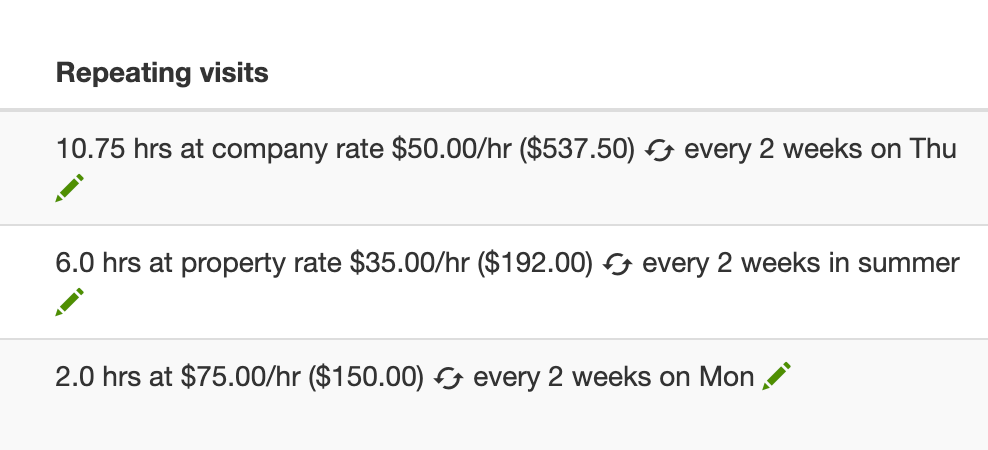
The first job uses the company rate, the second uses the property rate, and the third job has its own rate.