

Sending timesheets to Xero Payroll
Last updated:
Admin access required
You must be logged in as an administrator to send timesheets to Xero.
Labs feature
Sending timesheets to Xero Payroll is a Labs feature. An administrator turns it on in Labs, as described in Setting it up.
Once your team’s hours are approved in SortScape, you can send them to Xero Payroll as timesheets. Xero then uses them in your pay run, so nobody has to type the hours in again.
Before you start, check that:
- SortScape is already connected to Xero. See Integrating with Xero.
- Your Xero organisation is in Australia and uses Xero Payroll for Australia. New Zealand and UK organisations aren’t supported yet.
- Each employee has a pay calendar and an ordinary earnings rate in their Xero pay template.
What gets sent
Section titled “What gets sent”- Approved hours only. Hours that are unsubmitted or waiting for approval aren’t sent, and that person’s timesheet waits until they are approved.
- One timesheet per person per pay period. SortScape uses the pay periods from your Xero pay calendar (weekly, fortnightly, monthly and so on), not your SortScape timesheet week, so the two don’t need to line up.
- Daily totals. Xero gets the total hours for each day. All hours go on the employee’s ordinary earnings rate. If you pay overtime, leave or other rates, add those lines in Xero before you approve the timesheet.
- Travel time, if you count it. If your timesheet settings add travel time between jobs to timesheet hours, the same travel time is included, so the totals in Xero match the Timesheets screen.
- Recent pay periods only. You can send pay periods that ended in the last 60 days, the current period and the next one. Look up or change older timesheets in Xero.
Setting it up
Section titled “Setting it up”You only do this once. After you turn it on in Labs, everything happens in Send timesheets to Xero, which opens over the Timesheets screen.
- Open Settings → System → Labs and turn on Send timesheets to Xero Payroll. It’s only listed once SortScape is connected to an Australian Xero organisation.
- Click Set up sending to Xero on the card. Later, you can open it from Timesheets by clicking Send to Xero, or from Settings → Integrations → Payroll timesheets.
- Click Grant payroll access. This reconnects SortScape to Xero once so you can approve the extra payroll permissions: reading employees and pay calendars, and creating timesheets. If you cancel, your Xero connection stays as it was.
- Sign in to Xero if asked, choose the same organisation SortScape already uses, and click Allow access. Xero sends you back to Send timesheets to Xero.

SortScape then fetches your employees and pay calendars from Xero. This takes about a minute. If it says Employees haven’t been fetched from Xero yet, click Refresh employees.
Linking your team to Xero employees
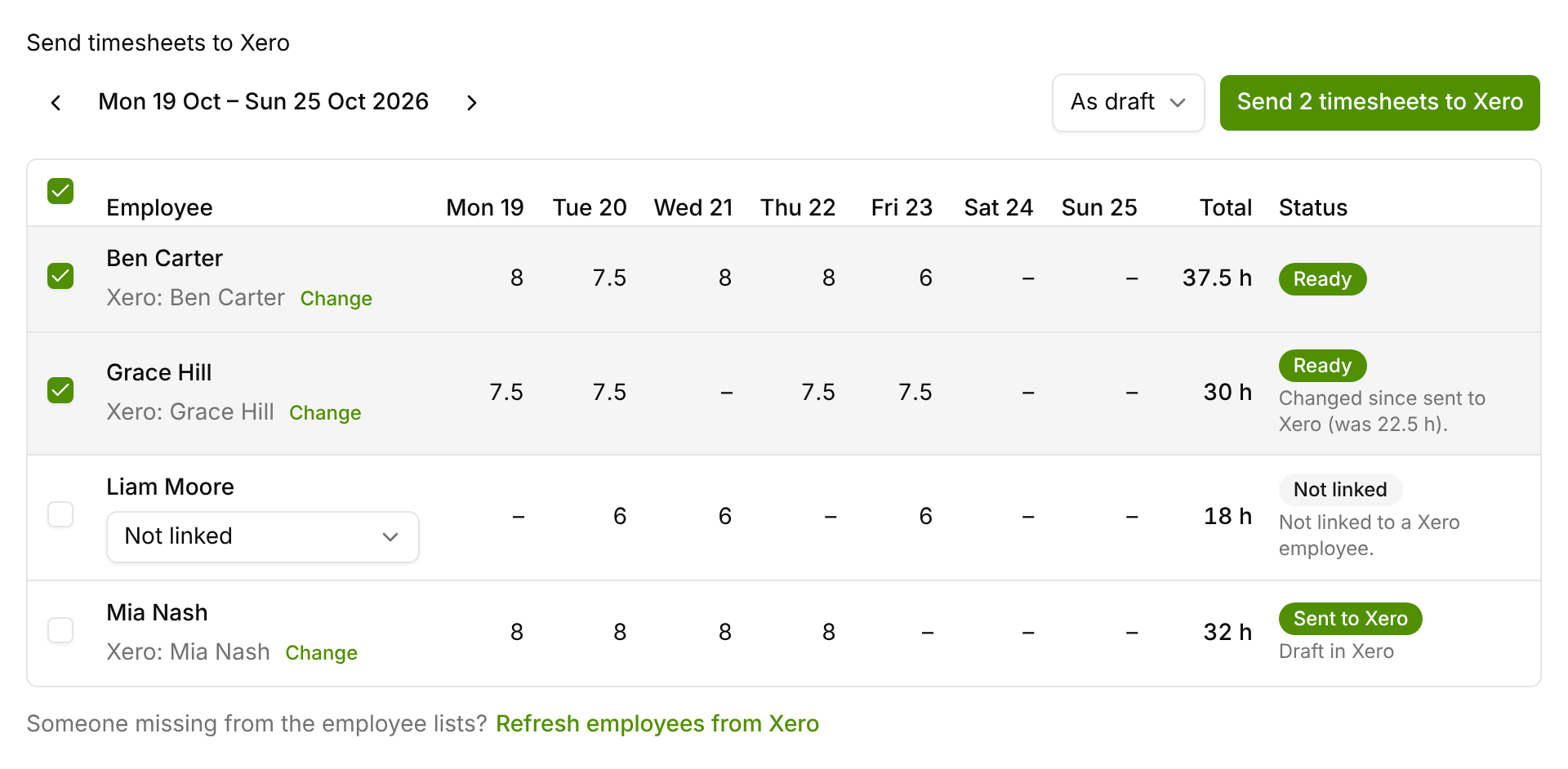
Section titled “Linking your team to Xero employees”Each person with hours in the pay period gets a row. The first time, each row has a Not linked list under the person’s name.
- Open the list and pick the matching Xero employee. If SortScape finds a match by email address or name, it is marked (suggested).
- Once linked, the row shows Xero: and the employee’s name. Click Change to link a different employee.
Each Xero employee can be linked to only one person in SortScape. Employees already linked to someone else show (already linked).
If someone is missing from the list, add them in Xero, then click Refresh employees from Xero under the table.
To stop sending timesheets to Xero, turn it off in Labs. Send to Xero disappears from Timesheets. Timesheets already in Xero stay there, and your employee links are kept if you turn it back on.
Sending timesheets
Section titled “Sending timesheets”- Open Timesheets and click Send to Xero.
- Use the arrows to choose the pay period. If your Xero organisation has more than one pay calendar, choose the calendar too.
- Check the hours. Rows marked Ready are ticked for you. Untick anyone you don’t want to send yet.
- Choose As draft or As approved. Draft lets you check and adjust the timesheets in Xero before the pay run. Approved skips that step.
- Click Send N timesheets to Xero.
Each row shows Queued, then Sending, then Sent to Xero with Draft in Xero or Approved in Xero underneath. You can close Send timesheets to Xero while they send.
If a row needs fixing on Timesheets first (for example Unapproved hours), close Send timesheets to Xero, approve the hours, then click Send to Xero again. It picks up the change.
What each status means
Section titled “What each status means”| Status | What it means | What to do |
|---|---|---|
| Ready | All of this person’s hours for the period are approved and haven’t been sent yet, or have changed since they were sent. | Send it. |
| Not linked | The person isn’t linked to a Xero employee. | Pick their Xero employee in the list on the row. |
| Unapproved hours | Some of their hours in this period aren’t approved yet. | Approve them on Timesheets, then come back. |
| No earnings rate | Their Xero pay template has no ordinary earnings rate. | Add one in Xero, then click Refresh employees from Xero. |
| No hours | Nothing to send for this period. | Nothing. |
| Invalid hours | An entry can’t be added up, for example a start or end time is missing. | Fix the entry on Timesheets. |
| Sent to Xero | Xero has these hours, as a draft or approved timesheet. | Nothing, unless the hours change. |
| Failed | Xero didn’t accept the timesheet. The reason is shown under the status. | Fix the cause and send again. |
| Locked in Xero | The hours changed after the timesheet was approved or processed in Xero, so SortScape can’t send the change. | See below. |
More than one pay calendar. Each person appears only on the pay calendar they’re paid on in Xero, so choose a calendar next to the dates to see its people. If someone with hours in the period is paid on another calendar, a line under the table says so, for example “Chris Kiehl is paid on another pay calendar in Xero. Show Fortnightly Calendar”. Click the link to switch to that calendar. If it says to refresh employees instead, their calendar was added in Xero after SortScape last fetched your calendars: click Refresh employees from Xero.
Most statuses have a short message underneath that says why. Every message is listed in Messages and what to do.
After sending
Section titled “After sending”Once a timesheet is approved in Xero, SortScape can’t change it. This applies whether you sent it as approved or approved it in Xero later. While the hours match, the row just shows Sent to Xero with Approved in Xero underneath. If you then change those hours in SortScape, the row shows Locked in Xero. To send the change:
- Revert the timesheet to draft in Xero, then send it again from SortScape.
- If it is already part of a processed pay run, it is final. Make any correction in Xero.
Sending the same person and period again never creates a second timesheet in Xero. It updates the one you sent before.
If hours change after you send them, the row goes back to Ready and shows what Xero has, for example “Changed since sent to Xero (was 30 h).” Send it again to update the draft in Xero. An edited entry usually needs approving again first, so the row may show Unapproved hours until it is.
If all of someone’s hours are removed after you send them, the row says “All hours removed since sent to Xero”. Send it again to clear the hours in Xero.
Changing hours on the Timesheets screen. When a week you’re looking at overlaps a pay period that was already sent, Timesheets shows a reminder with a Review in Send to Xero link. Changes you make there aren’t sent to Xero until you send the period again.
Messages and what to do
Section titled “Messages and what to do”These are the messages that can appear under a row’s status, word for word. Dates and hours in them change to match the row.
Before sending
Section titled “Before sending”| Message | What it means | What to do |
|---|---|---|
| Not linked to a Xero employee. | SortScape doesn’t know which Xero employee this person is. | Pick their Xero employee in the list on the row. |
| No ordinary earnings rate in Xero. Add one to this employee’s pay template in Xero, then refresh employees. | SortScape puts every hour on the employee’s ordinary earnings rate, and their Xero pay template doesn’t have one. | Add an ordinary earnings rate to their pay template in Xero, then click Refresh employees from Xero. |
| An entry on Tue 8 Sep is missing a start or end time. Fix it on Timesheets. | One of their approved entries that day can’t be added up. | Open Timesheets, add the missing time to that entry, then send again. |
| Has unapproved hours for this period. | Some of their hours in the period are unsubmitted or waiting for approval. SortScape only sends a person’s timesheet once all of it is approved. | Approve the hours on Timesheets, then send again. |
| No hours recorded for this period. | They have no approved hours in this pay period. | Nothing to send. |
| Changed since sent to Xero (was 30 h). | Their hours changed after you sent them. Xero still has the old total shown in brackets. | Send again to update the draft in Xero. |
| All hours removed since sent to Xero (was 30 h). Send to clear them in Xero. | All of their hours for the period were removed after you sent them. Xero still has the old ones. | Send again. Xero’s timesheet is cleared to zero hours. |
While sending and after
Section titled “While sending and after”| Message | What it means | What to do |
|---|---|---|
| Queued to send to Xero. | Waiting its turn. SortScape sends one timesheet at a time. | Nothing. You can close Send timesheets to Xero. |
| Sending to Xero… | Being sent now. | Nothing. |
| Draft in Xero | Sent, and waiting in Xero as a draft. | Check it in Xero before your pay run. You can still change the hours in SortScape and send again. |
| Approved in Xero | Sent, and approved in Xero. | Nothing. See After sending if the hours need to change. |
| Already approved in Xero, so it can’t be changed from SortScape. To send again, revert it to draft in Xero first. | The hours changed, but Xero has approved this timesheet, so it won’t take the change. | Revert the timesheet to draft in Xero, then send again. |
| Already processed in a Xero pay run, so it can’t be changed from SortScape. | The timesheet is part of a processed pay run, which is final. | Make any correction in Xero. |
When Xero doesn’t accept a timesheet
Section titled “When Xero doesn’t accept a timesheet”The row shows Failed with one of these messages. A row can also fail with one of the messages above, when something changed between clicking Send and SortScape sending it, for example hours that were un-approved in the meantime.
| Message | What it means | What to do |
|---|---|---|
| Sending to Xero timed out. Send again. | SortScape didn’t hear back while sending. | Send it again. |
| Xero rejected SortScape’s access token. Please reconnect to Xero. | SortScape’s connection to Xero has expired or was removed. | Reconnect to Xero from Settings → Integrations → Xero, then send again. |
| Xero did not allow payroll access. Reconnect to Xero to grant payroll permissions, and check that the connecting Xero user is a Payroll Admin and the organisation has an Australian payroll subscription. | Xero refused the payroll permissions. | Click Grant payroll access in Send timesheets to Xero, signing in to Xero as a user with payroll admin access, then send again. |
| Xero rate limit exceeded. 60 seconds until the next attempt is allowed. | Xero limits how often apps can send. SortScape waits and retries for a while before showing this. | Wait a few minutes, then send again. |
| Could not reach Xero (Timeout). Please try again in a few minutes. | Xero didn’t respond. The word in brackets is the kind of network error. | Wait a few minutes, then send again. |
| Xero could not find the requested payroll record. It may have been deleted in Xero. | The timesheet or employee SortScape sent to was deleted in Xero. | Click Refresh employees from Xero, check the row’s linked employee, then send again. |
| Xero reported: … | Xero refused the timesheet and gave its own reason after the colon. | Fix what Xero describes, usually in the employee’s Xero record, then send again. If it isn’t clear, contact SortScape support with the message. |