

Schedule map view
Last updated:
Efficient routing is essential for lawn and garden maintenance businesses. Minimizing driving time not only saves on fuel costs but also allows you to serve more clients each day, maximizing your profits. However, visualizing and optimizing routes can be challenging when you’re only looking at a list of scheduled jobs.
The schedule map shows your upcoming jobs on a map, colour-coded by job run, so you can see where routes overlap and which jobs sit closer to a different run.
Web browser only. Open Schedule and click Map view. This is not in the iOS or Android app. If you are on your phone, sign in at app.sortscape.com in a browser.
Which map to use
Section titled “Which map to use”SortScape has three maps. They look alike but do different jobs.
| Schedule map view | Route optimization map | Properties map | |
|---|---|---|---|
| Open it from | Schedule → Map view | The map button on a job run | Properties → View as map |
| Shows | Upcoming jobs, coloured by job run, a few days at a time | The jobs on one job run, in order | Your customer properties, with no runs or dates |
| You can change | Which job run a job is on | The order of the jobs on that run | Nothing. Click a pin to open the property |
| Use it to | Group clients who are near each other onto the same run | Get the shortest drive and arrival times for a day | See where your customers are and spot gaps in coverage |
To organise clients by area, start here in the schedule map view: group the runs first, then optimise each run. The Properties map is an overview only and cannot move jobs.
Group nearby jobs into the same run
Section titled “Group nearby jobs into the same run”Use this when a run looks messy and jobs that are close together are split across different runs or days. The map does not auto-group jobs. You move them one at a time.
- Open Schedule.
- Click Map view.
- In the sidebar, tick the job runs you want to compare. Pins use each run’s colour.
- Look for a pin that sits closer to another run’s cluster. Turn on Flag stray jobs below the map to have these marked for you, and Outline runs to see the area each run covers.
- Click that pin, then Change job run, and pick the run that matches that area.
- For a repeating job, tick Also apply to future jobs if that customer should stay on that run going forward.
Work through the outliers until each run is a tight geographic group. Then use route optimization on each run to reorder the stops. That map (the map button on a job run) only changes order inside one run. It does not move jobs between runs.
Do not use Clear schedule to regroup a run. That permanently deletes upcoming jobs from a date onward.
Benefits
Section titled “Benefits”- Visual Overview: Get a geographic display of all your scheduled jobs.
- Color-Coded Job Runs: Each job run is assigned a unique color for easy identification.
- Enhanced Efficiency: Quickly spot jobs that could be reassigned to different job runs to optimize routes.
How to optimize your routes
Section titled “How to optimize your routes”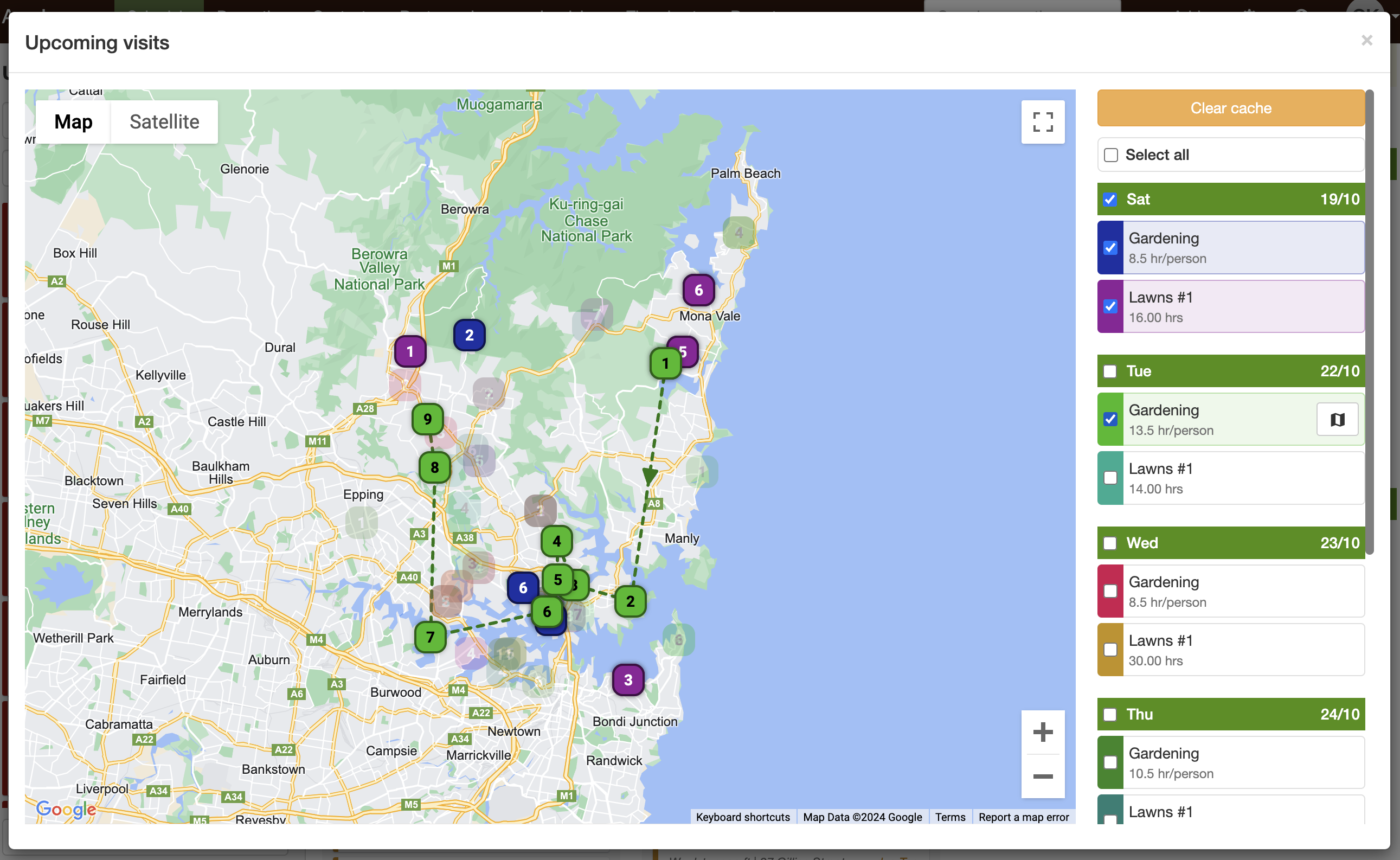
Access the schedule map view
Section titled “Access the schedule map view”- Open Schedule.
- Click Map view.
Select job runs to highlight
Section titled “Select job runs to highlight”- In the side bar on the map view, you’ll see a list of your job runs.
- Click on the job runs you want to highlight. Their associated jobs will appear on the map in their dedicated colors.
Hover to see job order
Section titled “Hover to see job order”- Hover over a job run in the side bar.
- The map will display lines connecting the jobs in that job run, showing the order in which they are scheduled.
Identify jobs for reassignment
Section titled “Identify jobs for reassignment”- Look for job pins that are closer to a different job run.
- These jobs might be more efficiently serviced by another team or on a different route.
Change the job run for a job
Section titled “Change the job run for a job”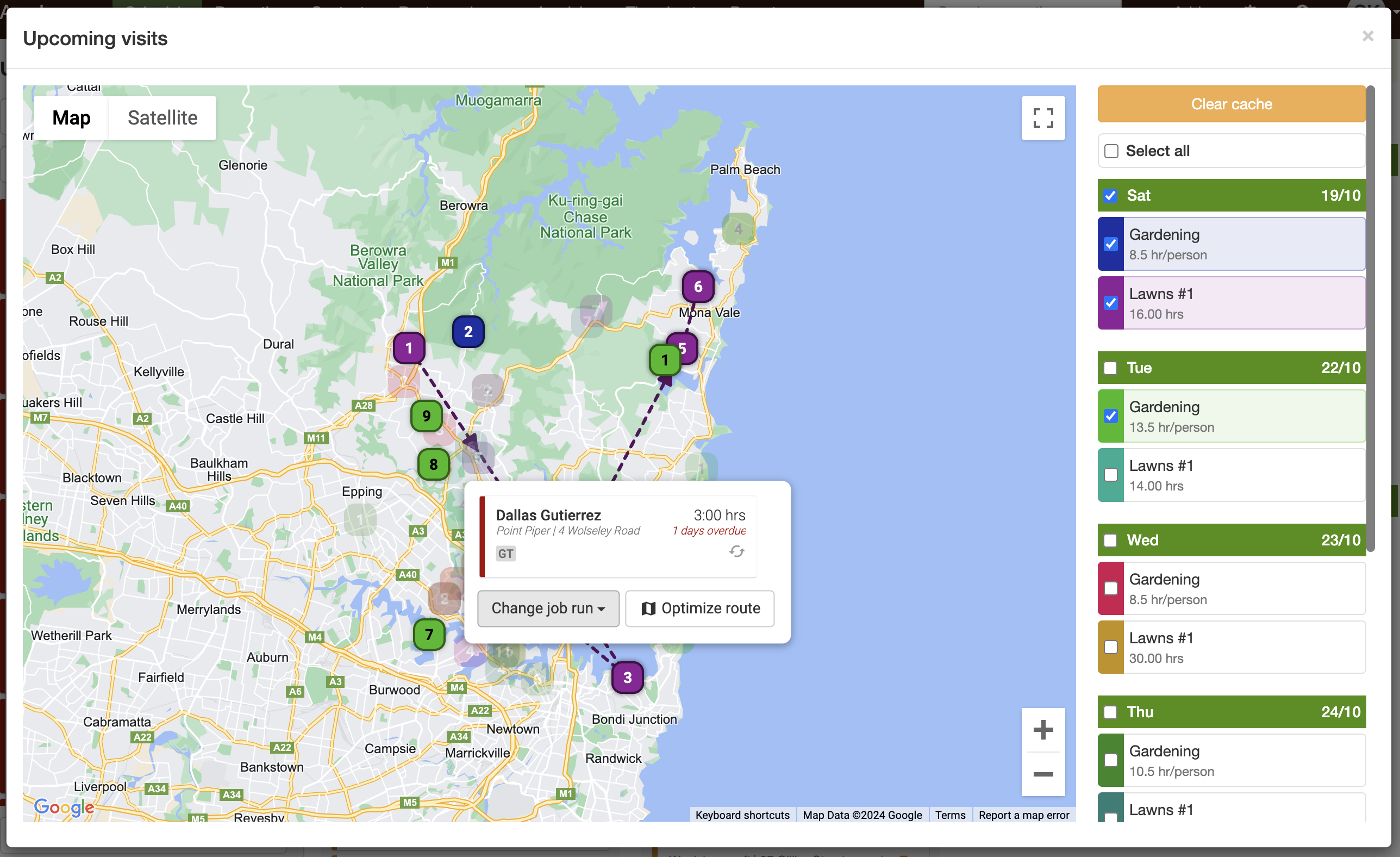
- Click on the job pin you want to reassign.
- In the job details popup, click Change job run.
- Select the new job run you want to assign the job to.
- For a repeating job, tick Also apply to future jobs if later jobs in the series should stay on that run.
- The job pin updates to the colour of the new job run.
Repeat as necessary
Section titled “Repeat as necessary”- Continue reviewing and adjusting jobs until each run is grouped by area.
Tips for maximizing efficiency
Section titled “Tips for maximizing efficiency”- Regular Reviews: Make it a habit to review your routes weekly using Map view.
- Team Communication: Inform your team about any changes in their job runs to ensure a smooth workflow.
- Consider Traffic Patterns: Take into account peak traffic times when optimizing your routes.
Using the Schedule Map View in SortScape empowers you to make data-driven decisions about your routes. By visually mapping out your jobs and utilizing the color-coded job runs, you can easily identify and implement changes that reduce driving time and increase profitability.