

Setting employee availability on the roster
Last updated:
SortScape also allows you to maintain an employee roster so you know who is available to be added to the schedule on any given day. This screen is for administrators and employees. Contractors cannot open it; they see only their own assigned jobs on the schedule instead. See Managing employee permissions for role details.
To show up on the roster, an employee needs to:
- Be added to the system as an employee.
- Have the “goes on jobs” checkbox ticked on their employee profile.
Use roster availability for employee availability, not crew changes
Roster availability is best used when an employee really cannot work on a certain day, such as annual leave, sick leave, or a regular day they do not work. It prevents that employee from being scheduled on that day.
It does not change which crew is assigned to a recurring job run. If you are trying to replace one crew with another crew for future repeating jobs, do not use roster availability. See How to effectively use crews in job management for how to swap crews.
Mark an employee unavailable
Section titled “Mark an employee unavailable”SortScape assumes employees are available to be scheduled every weekday. However, employees sometimes go on holidays, call in sick, only work part time, the business is closed, it is a public holiday or it rains.
Unavailable employee example
Let's say Mark is planning a 3-day weekend and has asked for Monday off. In this case you’ll want to mark him on "annual leave" for Monday so you don't accidentally schedule him for a job run.
To mark Mark as being on annual leave:
-
Go to the “Roster” tab at the top of the screen. You’ll see a weekly view of the roster.
-
Find Mark in the list.
-
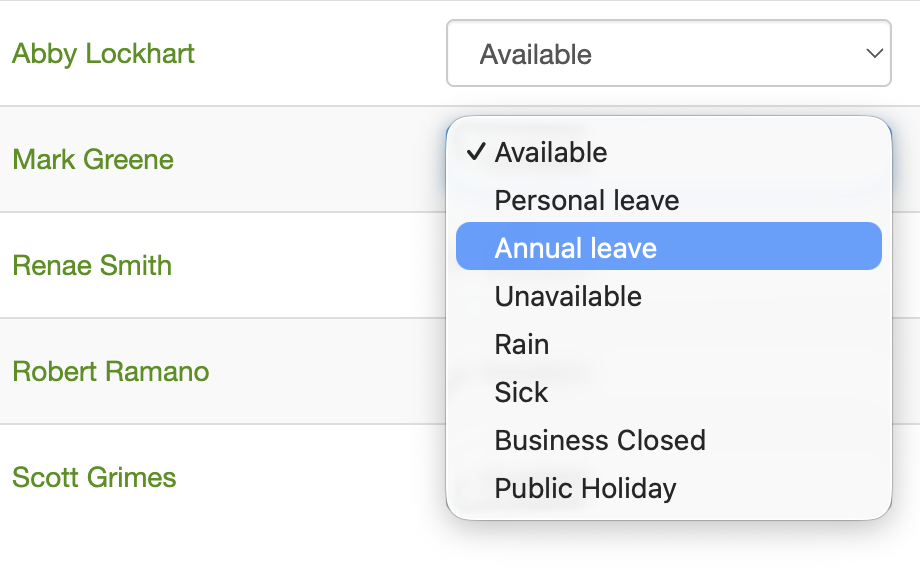
Go to the column for Monday and choose the “annual leave” option from the dropdown.
-
When prompted, choose the end date (for example, Friday). SortScape marks each day in that range as annual leave.
-
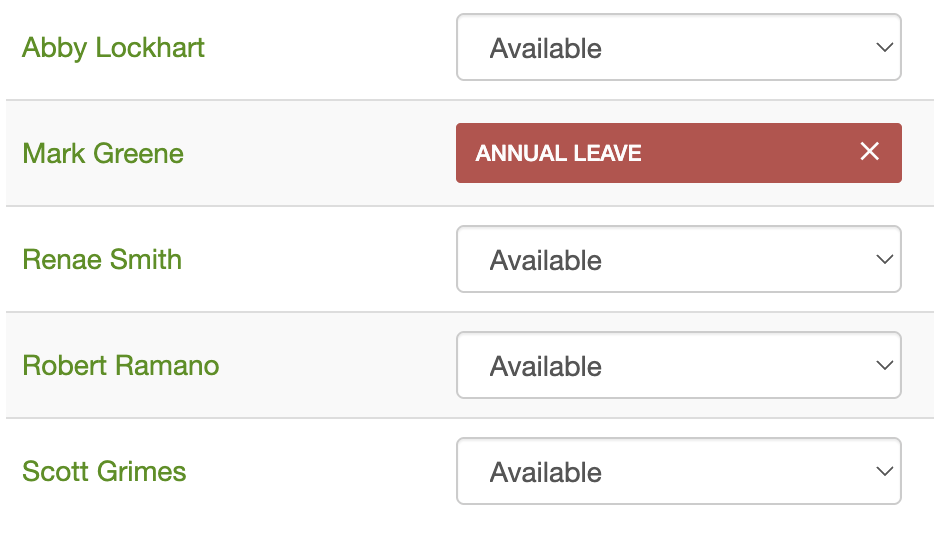
This will automatically make him unavailable on those days so he doesn’t get scheduled for a job run.
-
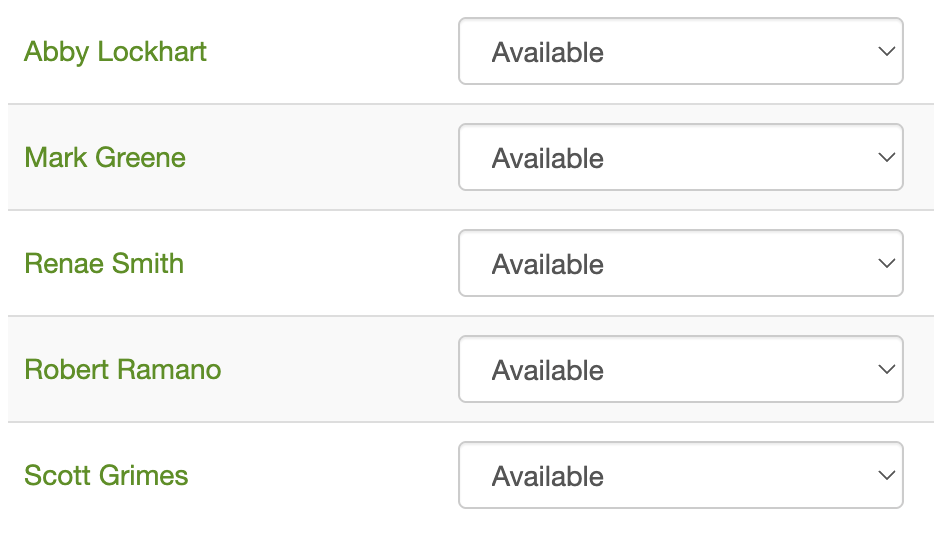
To make Mark available again click the “x” in the “annual leave x” lozenge.
-
If the annual leave covers multiple days, SortScape asks if you want to remove just that day or remove the whole range.
What you will see on the Schedule
Section titled “What you will see on the Schedule”Roster leave is shown on the Roster (for example a red annual leave lozenge). The Schedule does not get a matching “on leave” colour for jobs.
If you were already assigned to job runs on those days, SortScape can remove you from those runs. The jobs and job runs stay on the calendar until someone moves or cancels them. Job run titles may still show the crew (for example Crew 1) even when no employee is assigned.
There is no confirm step beyond saving leave on the Roster, and leave does not block adding more jobs to those days.
If you are taking a week off and need to move booked work, see Taking a week off (sole trader or one crew).
Seeing who is away from the schedule
Section titled “Seeing who is away from the schedule”Leave does not change job colours on the calendar. To see who is off that day, and why:
- Open Schedule and go to the day you care about.
- On a job run, click Assign employees (the people icon), or open … and choose Assign employees.
- Scroll to Unavailable employees at the bottom of the dialog.
Each person shows their roster status, for example annual leave or sick leave. Administrators and employees can open this dialog. Contractors cannot.
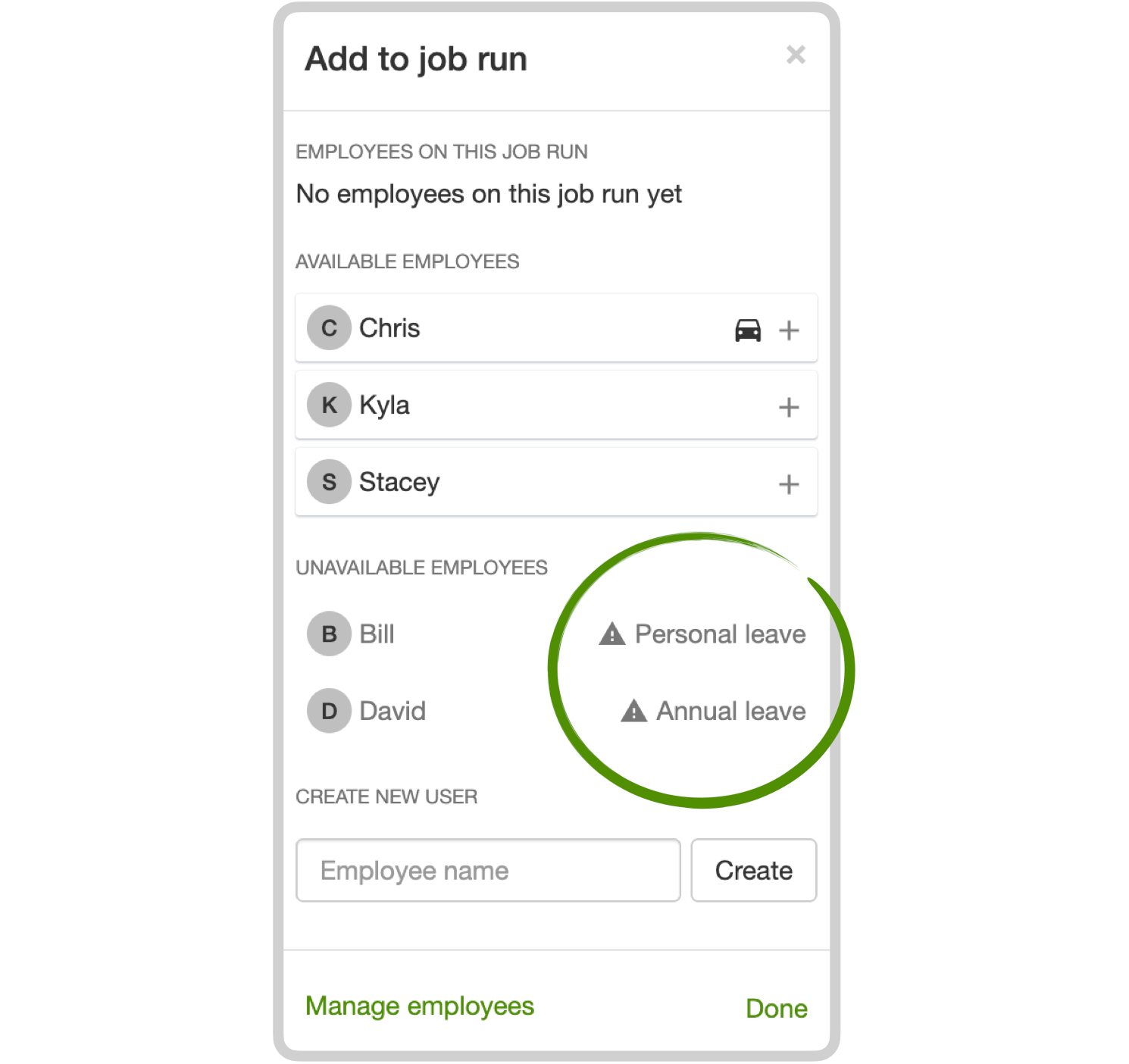
On day view, desktop also lists unavailable people in the Unavailable sidebar. Week and month view do not have that sidebar, so use Assign employees instead.
The experimental Dashboard People away this week list is an administrator overview for the current week. It is not shown to the rest of the team.
See Adding employees to a job run for how to assign someone who is covering.
Half-day availability (Morning only / Afternoon only)
Section titled “Half-day availability (Morning only / Afternoon only)”When someone is working a half day, marking them on annual leave or unavailable for the whole day is misleading. It can also stop you from scheduling the jobs they will still do.
Use Morning only or Afternoon only on the roster instead. These flag that the employee is only working part of the day, but they stay available to schedule on that day.
Half-day example
Sarah has school pickup every Wednesday afternoon, so she only works Wednesday mornings. Mark her as Morning only on the roster for Wednesdays so she stays on the morning job run, and the team can see she is not available after lunchtime.
To mark a half day:
- Go to the Roster tab.
- Find the employee in the list.
- Go to the column for that day and choose Morning only or Afternoon only from the dropdown. These appear below the leave options, after a separator line.
- When prompted, choose whether it applies to:
- This [day] only (for example, this Wednesday only), or
- This and every future [day] (for a regular part-time pattern, such as every Wednesday afternoon).
The flag shows on the schedule next to the employee’s name (for example, Sarah (Afternoon only)). That makes it clear they are not finishing early when their job list is lighter.
To remove a half-day flag, click the x on the lozenge on the roster, the same way you remove annual leave.
How this differs from leave and unavailable:
- Morning only / Afternoon only — employee stays schedulable; flag is visible on the schedule
- Annual leave, sick leave, unavailable — employee is blocked from being scheduled that day
For employees who never work certain full days (for example, every Friday), use repeating unavailability below instead.
Manage custom unavailable options
Section titled “Manage custom unavailable options”If you need options beyond the standard ones (e.g. RDO, TOIL, Training, Jury Duty), admins can add custom options:
- On the Roster page, click the ellipsis (⋯) next to “Add employee”.
- Select “Manage unavailable options”.
- Enter one option per line (up to 10 options, 50 characters each).
- Save. Custom options appear in the dropdown after the standard options.
Repeating unavailability
Section titled “Repeating unavailability”Sometimes your staff are not available to work every day of the week. For example, you might have employee students or other part-time staff who don’t work full time. In those cases, you can set weekly repeating unavailability for those employees.
If Mark in the example above is not able to work on Fridays, you can go to the roster and:
-
Find Mark in the list
-
Go to the column for Friday and choose the “Unavailable” option from the dropdown. (“Unavailable” is the only option that can repeat)
-
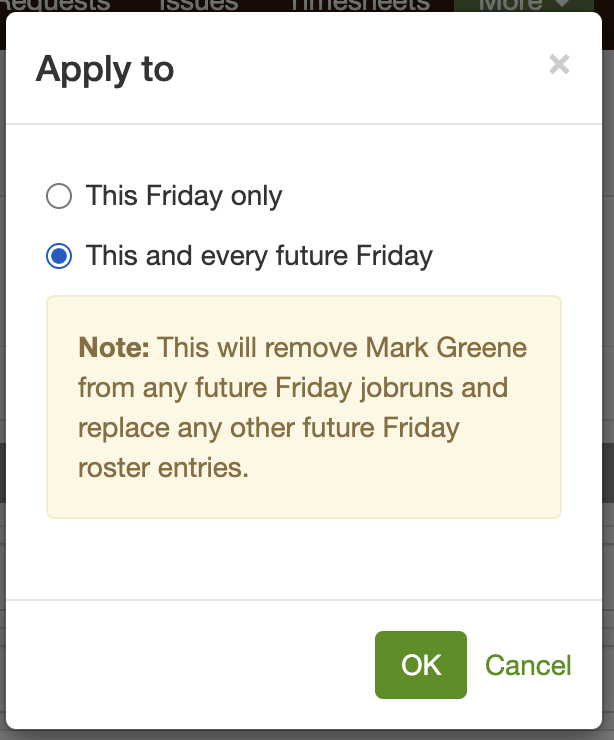
When you select “unavailable” you should see a pop-up asking whether to:
- Apply to this Friday only or
- Apply to this and every future Friday
-
If you choose “This and every future Friday” then Mark will be set to unavailable to every Friday going forward. Repeating unavailability only controls whether that employee can be scheduled on those days. It does not remove or replace the crew on a recurring job run. To swap crews, see How to effectively use crews in job management.