

Integrating with Xero
Last updated:
Xero integration requires the SortScape Premium plan. Accounts created before 29 May 2025 on a legacy plan keep Xero on that plan. See Legacy plan features and plan changes.
You can link SortScape to Xero account so that information is synchronised between the two systems. Connecting SortScape with Xero will enable the following features:
- Syncing between SortScape contacts and Xero customer contacts
- Syncing between SortScape materials and Xero products and services
- The ability to create Xero invoices from SortScape jobs
- The ability to email or text those invoices from SortScape, including after the invoice has been created. Texts always come from SortScape. Emails come from SortScape only while Email Xero invoices from SortScape is on. When it is off, Xero sends the email using its own invoice template, so wording you add to SortScape’s invoice email template is not used. See Note to Xero customers.
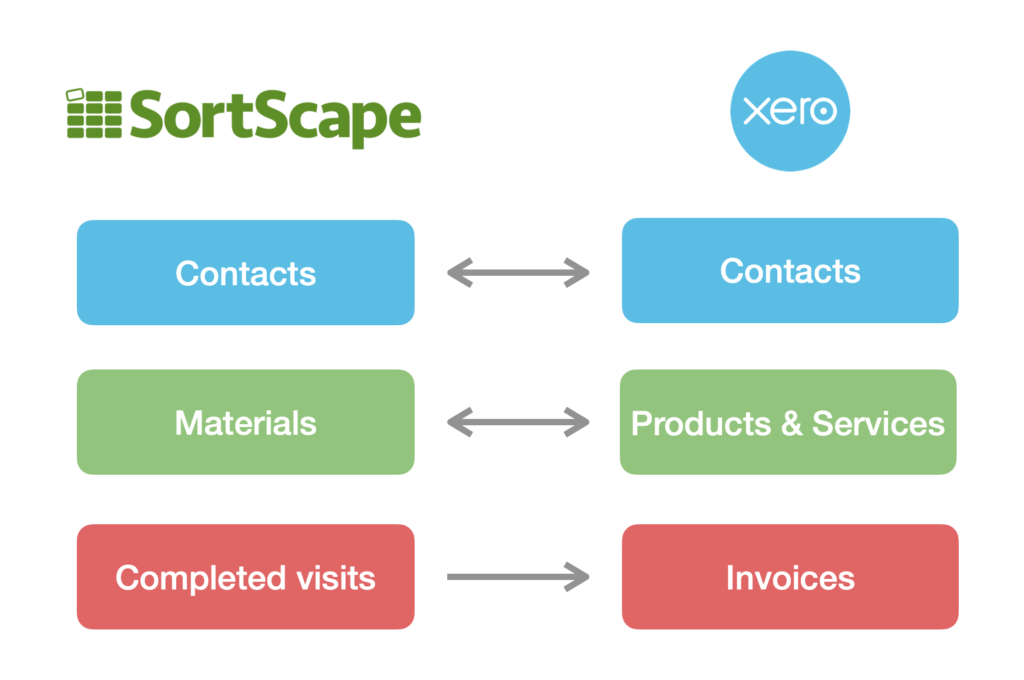
Summary of syncing process
Section titled “Summary of syncing process”When you connect SortScape to Xero, SortScape imports your Xero customer contacts as SortScape contacts and your Xero products/services as SortScape materials. For a full overview of importing customers and properties, see How do I import my existing customers into SortScape?.
Contact synchronization
Section titled “Contact synchronization”- Automatic Contact Import from Xero: Upon connection, SortScape imports your Xero customer contacts and products/services, allowing you to manage these elements within SortScape.
- Exporting SortScape Contacts to Xero: To prevent data clutter in your Xero account, SortScape contacts are NOT automatically exported to Xero. Instead, a new Xero contact is created from SortScape in two specific scenarios:
- When Creating an Invoice: Automatically, when you generate a Xero invoice for a contact within SortScape.
- Manual Creation: If you need to create a Xero contact before creating a Xero invoice (for example, generating a quote), you can manually add a contact to Xero by:
- Navigating to the desired contact in SortScape using a web browser.
- Clicking on the dropdown menu in the upper right corner of the contact record.
- Selecting “Create contact in Xero.” After linking, contacts sync two-way, ensuring any changes in one system reflect in the other.
Material and product synchronization
Section titled “Material and product synchronization”- One-Way Sync for Materials: Post-import, any Xero updates to products/services automatically refresh the linked material in SortScape. This sync is one-way; linked materials must be edited in Xero.
- Creating New Materials: Manually created materials in SortScape won’t add to Xero as products/services until used in a Xero invoice. This structure ensures clarity and succinctly communicates how both systems interact, addressing the key processes for managing contacts and materials/products synchronization.
Enabling Xero integration
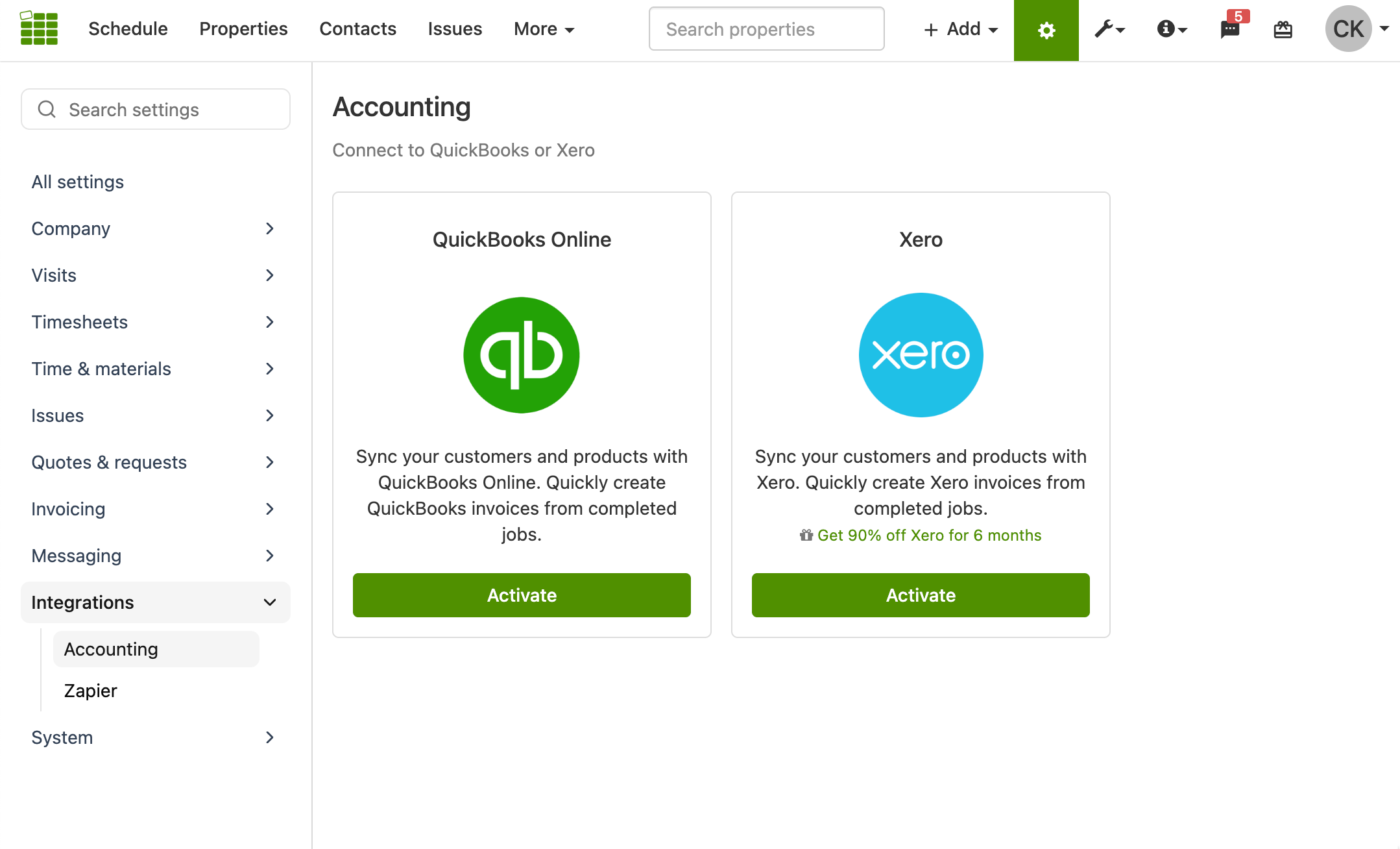
Section titled “Enabling Xero integration”To enable Xero integration, you must be logged in as an Administrator. Open Settings → Integrations → Accounting, then click Activate in the Xero box.
Once you click this button, you will be redirected to the “Xero Integration” settings screen.
Connecting to Xero
Section titled “Connecting to Xero”Before syncing with Xero you must first connect SortScape to Xero as follows:
- Open Settings → Integrations → Xero.
- Click on the “Connect to Xero” button and follow the prompts to sign into your Xero account.
- If your Xero account has access to multiple companies, choose the company which you’d like to sync with SortScape.
- At the end of the process you will be redirected to SortScape.
- Once you are redirected back to SortScape, your first sync will begin. To switch to QuickBooks Online or SortScape built-in invoicing instead, see Switching invoicing method.
Connecting to a different Xero organisation
Section titled “Connecting to a different Xero organisation”SortScape stays linked to one Xero organisation. To move to another one (for example a new Xero file for a new business), you reset the link and connect again. You can do this yourself. You don’t need to ask us to clear anything.
- Open Settings → Integrations → Xero and click Disconnect.
- Click Connect to Xero.
- Sign in to Xero with the login that has access to the new organisation, then pick it from the list.
- SortScape sees that this is a different organisation and shows Reset Xero Integration. Read the warning, then click Reset Xero Integration.
- Click Connect to Xero again and choose the new organisation. The first sync starts straight away.
If Xero only offers your old organisation: Xero shows the organisations your Xero login can see, and it remembers the last login you used in that browser. If the new organisation is under a different email, sign out of Xero first (or use a private browser window), then click Connect to Xero and sign in with the new login. If the new organisation is under the same login and still isn’t listed, check in Xero that your user has been added to it.
What the reset changes:
- Your SortScape contacts, properties, materials and jobs are not deleted.
- Links to the old organisation are removed: contacts to Xero contacts, materials to Xero products and services, and SortScape invoices to the Xero invoices they created.
- Invoices already in the old Xero organisation stay there. Nothing is moved or deleted in Xero.
- Old invoices are not imported from either organisation. SortScape never imports invoices from Xero.
- The first sync imports the new organisation’s contacts and products/services, matching them to existing SortScape contacts and materials where it can (see Preventing duplicate contacts).
- When you invoice a contact that isn’t linked yet, SortScape creates them as a contact in the new organisation. If a similar Xero contact already exists, SortScape asks whether to link to it instead.
- Check your Xero invoice settings (default account and branding theme) on the Xero integration screen, because they belonged to the old organisation.
Synchronising with Xero
Section titled “Synchronising with Xero”Once connected, SortScape will automatically sync with Xero every 30 minutes. You can also manually sync at any time by clicking the “Sync with Xero” button on the Xero Integration screen.
As part of that sync, SortScape also refreshes linked invoice status (Draft, Sent, paid, amounts, and due dates) from Xero about every 12 hours. If you send invoices from Xero, they may still show as Draft in SortScape until the next status sync. See Invoice status when using Xero or QuickBooks Online for details.
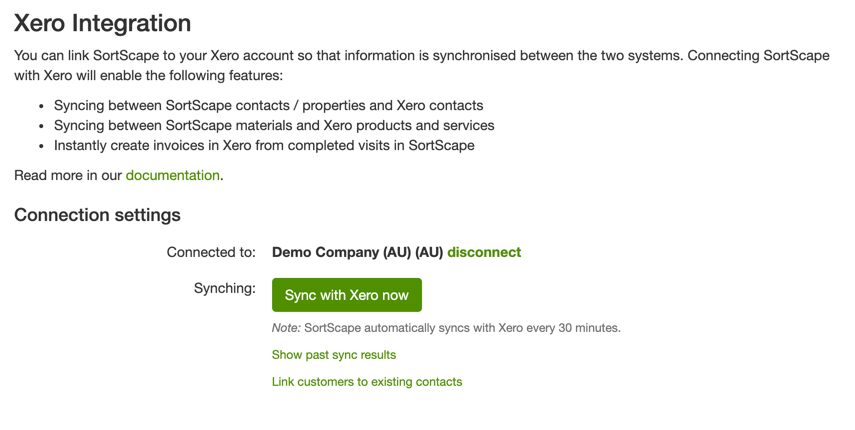
Click “Sync with Xero” to manually sync
Syncing Xero Contacts
When syncing SortScape with Xero, all Xero customer contacts are imported into SortScape as contacts.
- If a Xero contact has a delivery address, SortScape will create a property using the delivery address.
- If no delivery address is specified, SortScape will create a property using the billing address. SortScape only uses the Xero address when the property is first created.
After a property has been created in SortScape, changes made to the contact’s address in Xero will NOT update the property address in SortScape. This behaviour is intentional to prevent accidental changes to scheduled job locations.
If a customer’s service address changes, you will need to manually update the property address in SortScape.
We import the following Xero contacts in SortScape:
- Xero customer contacts
- Xero contacts that are neither customers nor suppliers If SortScape imports a contact that you don’t want imported, you can archive the contact in SortScape and it won’t affect the contact in Xero.
Once a Xero contact is imported as a SortScape contact that Xero contact and SortScape contact will be kept in sync going forward – Any changes to the name, email, phone number or company name for that contact will update the related Xero contact on the next sync and vice-versa. Properties created from Xero contacts do not get synced with the source Xero contact going forward – it’s just a one-time import.
Any SortScape contacts that don’t exist as a Xero contact will get added as a new Xero contact when added to a Xero invoice (see below)
Contacts with more than one email address
Section titled “Contacts with more than one email address”Xero allows one email address per contact. If a SortScape contact has several comma-separated addresses, SortScape sends the first one as the Xero contact’s email. When SortScape creates a new Xero contact, it adds the other addresses as contact people in Xero, set to be included in emails. For a contact that is already linked, only the first address is kept in sync. Add any other addresses as contact people in Xero yourself.
If Xero reports Email address must be valid, the first address on the contact is not valid. Correct it in SortScape and create the invoice again.
Preventing duplicate contacts
Section titled “Preventing duplicate contacts”If a Xero contact does not appear in SortScape, check the latest sync results before you change that contact in Xero.
Open Settings → Integrations → Xero and click Show past sync results. In the newest result, look for the contact’s name.
This line means SortScape treated the contact as a possible duplicate and did not import them:
Xero customer 'Name' seems to already exist as a SortScape contact. Consider linking them manually.
SortScape will not create the contact until you decide. That line links to the Xero settings page. Click Link customers to existing contacts under Sync with Xero now. If it is the same person, click Accept values and link. If it is a different person, click Create new contact from Xero.
Skipped items sync - cache not refreshed can appear in the same result, often on the next line. That note is about products and services. It is not the reason the contact was held back.
If other Xero contacts import but one does not, this is usually what happened. SortScape will not create a second contact automatically.
SortScape looks for an existing unlinked contact with the same display name, full name, email, mobile, or home phone. A match on any one of those is enough to stop SortScape creating a second contact.
If SortScape finds exactly one contact with no conflicting details, the next sync links them automatically. A blank field on either side is not a conflict. SortScape copies missing values from Xero onto the SortScape contact. You can confirm the link by clicking Show past sync results on Settings → Integrations → Xero.
If two filled-in details disagree (for example the same email but a different name), or more than one SortScape contact has no conflicts, the Xero contact stays unlinked. You must be an Administrator. Open Settings → Integrations → Xero and click Link customers to existing contacts under Sync with Xero now. You can also open Link customers to existing contacts directly.
Find the Xero contact on that list. If you have many unlinked Xero customers, use the page links at the bottom. Then click Accept values and link if it is the same person (pick the right SortScape contact from the dropdown if there is more than one), or Create new contact from Xero if it is a different person.
Do not rename the Xero contact or change its email to force an import. Resolve it on this screen.
Contacts marked only as suppliers in Xero are a different case and will not import. See Why would a Xero supplier get imported into SortScape?.
The Link customers to existing contacts link sits under Sync with Xero now:
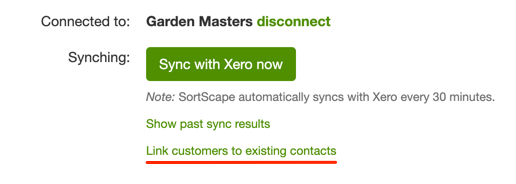
This takes you to a screen listing all possible matches. Each possible match will show three columns:
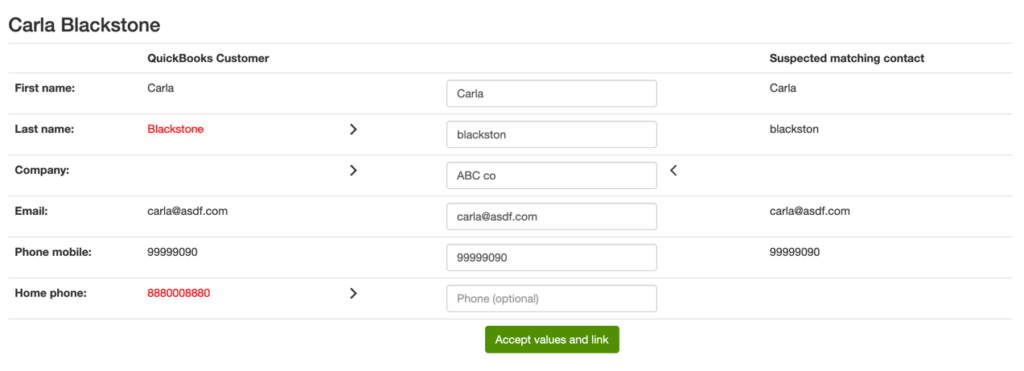
On the left side are the values from the Xero contact, on the right side are the values from the suspected matching SortScape contact. In the middle are the proposed values. If there is more than one potential matching SortScape contact, use the dropdown above the SortScape contact to pick the right one.
Archiving contacts
Section titled “Archiving contacts”If a contact gets marked as inactive in Xero the sync will automatically try to archive the linked contact in SortScape including its properties. If there are any pending jobs or open issues for any properties associated with that contact the sync won’t archive that contact in SortScape until those jobs and issues are either resolved or deleted.
Syncing Xero products and services
Section titled “Syncing Xero products and services”When syncing SortScape with Xero we import all your Xero Products and Services into SortScape as materials.
To prevent duplicate records, SortScape will first look to see if a material with that same name already exists before importing a Xero Product / Service and vice-versa. If such a material or product/service already exists, we won’t import it. We will instead create an automatic link between the material and that Xero product/service for future syncing.
Once all the Xero products and services are imported into SortScape they will remain linked so that any updates made in Xero will flow through to the related SortScape material.
Materials in SortScape linked to Xero products/services cannot be edited in SortScape. They need to be managed in Xero.
The Xero item description is the SortScape Sales description. That is the text that fills in when you pick the item as a line item. Change it in Xero, not in SortScape, then sync. If the description is blank or the same as the item name, the invoice description repeats the name. Set a description that is different from the name. See Editing items (name, price, and sales description).
Any SortScape materials that don’t exist as a Xero product or service will get added as a new product in Xero when the material added to a Xero invoice (see below)
Linking an item to a Xero account
Section titled “Linking an item to a Xero account”The sales account is set on the Xero product or service, not on the SortScape item. To use a particular Xero account:
- In Xero, edit the product or service and change its sales account, or create one with the correct account.
- Open Settings → Integrations → Xero and click Sync with Xero now.
- Open Settings → Time & materials → Items catalogue, edit the SortScape item, and choose that Xero product/service.
The dropdown only lists Xero products and services that are not already linked to another SortScape item. If it only shows Don’t Link, create or update the product in Xero, then sync again.
Creating Xero invoices
Section titled “Creating Xero invoices”Once SortScape is connected to Xero, you can then create Xero invoices from SortScape jobs. You can email or text a Xero invoice when you create it, or later from the invoice in SortScape. This is further described in Invoicing customers. To change a Xero invoice after it has been created, including one that has already been emailed, open it in SortScape and click View in Xero. See Editing an invoice after it has been emailed. To create many Xero invoices in one go, see Bulk invoicing. To create a Xero invoice without a job (experimental), see Standalone invoices.
If Xero rejects the invoice with The TaxType code 'EXEMPTEXPENSES' cannot be used with account code, the contact Sales tax is set to an expense tax type. Use GST Free Income, not GST Free Expenses. See Invoice tax handling in Xero.
You have reached the limit of invoices you can approve
Section titled “You have reached the limit of invoices you can approve”If creating an invoice fails with this error:
Xero reported the following error: You have reached the limit of invoices you can approve.
Xero refused the invoice because that organisation has used the invoice allowance on its subscription. This applies to Xero Ignite (the plan previously sold as Starter) and to a Xero trial. Xero Ignite includes 20 invoices and quotes a month. Approving an invoice counts, and sending one counts too. Invoices created through a connected app, including SortScape, count toward that allowance. Xero says so on its pricing plans. For more than 20 invoices a month, Xero points you to the Grow plan.
SortScape removes the invoice. The jobs go back to the pending invoicing list. When you invoice through Xero, that list is Invoicing → Completed.
What to do:
- In Xero, open the organisation’s subscription and check the plan. Ignite, or a trial, is the plan with this allowance.
- Upgrade to Grow or a higher plan, or wait until the monthly allowance resets.
- In SortScape, create the invoice again from Invoicing → Completed.
Approving invoices that are already waiting in Xero uses more of the same monthly allowance.
By default, SortScape creates each Xero invoice as Approved, so Xero counts it as soon as it accepts the invoice. You can set Default invoice status to Draft in SortScape (not in Xero) under Settings → Integrations → Xero (click Edit next to Invoice settings). See Xero invoices. New invoices then stay unapproved until someone approves or sends them in Xero. Approving or sending is what counts toward the Ignite allowance.
If a customer paid you in cash and you do not want to create a Xero invoice, you can still clear the job in SortScape using Mark invoiced. See Recording cash payments.
Quotes and Xero
Section titled “Quotes and Xero”SortScape does not sync quotes between SortScape and Xero.
We intentionally keep quoting as a an early, top-of-the-funnel (pre-job) activity that lives in SortScape rather than in your accounting system. Quoting typically happens before work is scheduled, completed, and invoiced, which aligns more closely with CRM workflows than financial reporting.
Because of this:
- Quotes created in SortScape will not sync to Xero
- Quotes created in Xero will not import into SortScape If you already use Xero for quoting, you can absolutely continue to do so — just be aware those quotes will remain in Xero only. For the smoothest workflow, we recommend creating quotes in SortScape, scheduling the work, and then generating Xero invoices from SortScape jobs when you are ready to bill. See Invoicing customers for invoicing before or after marking jobs complete.
This separation helps keep Xero focused on accurate financial records, while SortScape handles quoting, scheduling, and job management end-to-end.
Disabling or switching away from Xero
Section titled “Disabling or switching away from Xero”You can disable Xero integration yourself if you want to use QuickBooks Online or SortScape built-in invoicing instead. If you are connected to Xero, disconnect first, then disable the integration under Settings → Integrations → Xero or Settings → Integrations → Accounting.
See Switching invoicing method for step-by-step instructions.