

Using SortScape with Apple CarPlay
Last updated:
SortScape on Apple CarPlay shows today’s jobs and notes on the car screen. You can get directions, call the customer, and mark a stop complete without picking up your phone.
CarPlay is in the SortScape iOS app. It is not in the Android app or in a web browser.
What you need
Section titled “What you need”- An iPhone with the SortScape app installed, and you signed in
- A car that supports Apple CarPlay
- iOS 16 or later
How to open it
Section titled “How to open it”- Sign in to SortScape on your iPhone.
- Connect the iPhone to CarPlay (USB or wireless, depending on the car).
- Open SortScape from the CarPlay home screen.
You see today’s run for the crew you are assigned to. If the screen says you are not assigned to a crew run today, ask someone to add you to the job run. See Adding employees to a job run.
The Today tab is your list for the day. Each row shows the property (or note title), estimated duration, customer, and tags. If the list is longer than the screen, use the arrows on the left to scroll.
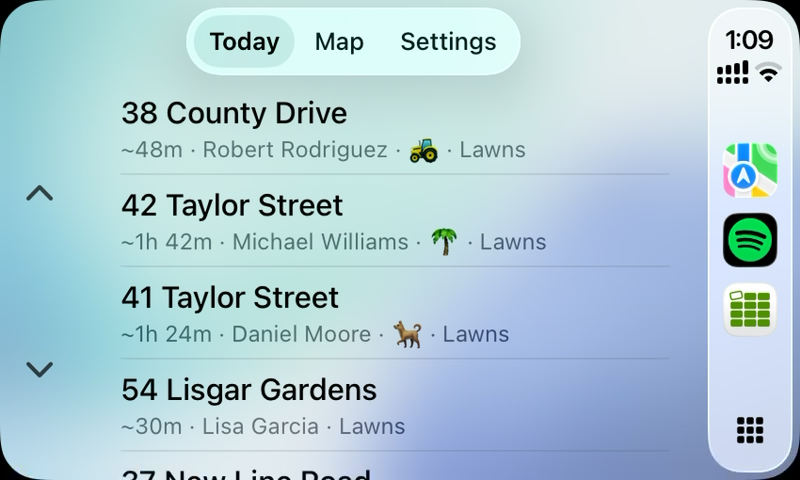
Tap a row to open the stop.
Jobs with a set start time sit at the top when the day has both timed work and anytime work. Finished stops move into a Completed section at the bottom. They stay on the list so you can reopen one if you marked it complete by mistake.
Schedule notes appear in the same list, in the same order as on your phone. A note with an address is a stop you can drive to. A note with no address (for example “Lunch”) still shows in the list, but it has no Go button.
When every job is done, a banner at the top says All jobs completed for the day.
A stop
Section titled “A stop”The detail screen shows the address, duration or start time, tags, and customer.
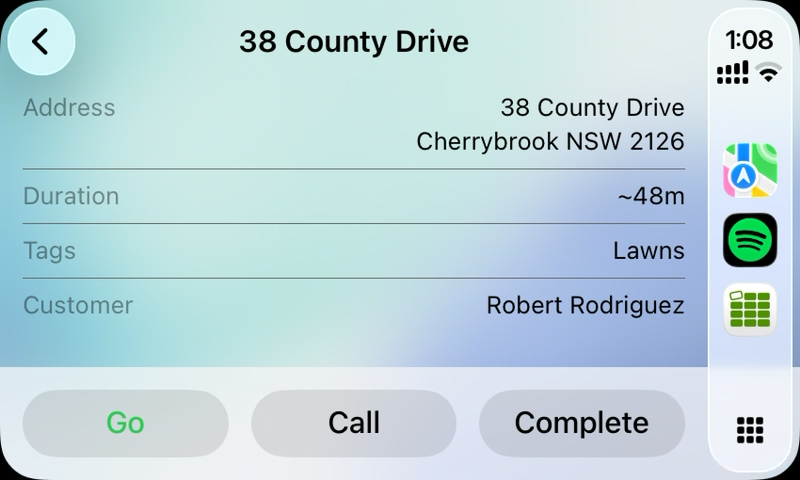
Three buttons sit at the bottom:
- Go opens turn-by-turn directions in the maps app you chose in Settings.
- Call rings the customer. SortScape asks Call this customer? first, so a slip of the finger does not place the call.
- Complete marks the stop done. If the stop is already completed, this button is Reopen.
Notes do not have Call. A note with no address has Complete only.
Completing a stop
Section titled “Completing a stop”SortScape asks Mark this job complete? (or Mark this note complete?) before it saves.
You cannot tick checklist items from the car. If the job still has open tasks, the confirmation says so (for example 3 tasks not ticked). You can complete it anyway, or pick up the phone and tick the list first.
If you finish a job, get back in the car, and tap Go on the next anytime stop without completing the one you just left, SortScape asks Mark your last stop complete? Tap Complete to mark it done and start directions, or Not yet to leave it open. It only asks once per stop, and it does not ask when you drive to a job that has a set start time.
Completing a stop on CarPlay updates the schedule on the phone sitting next to it. Completing it on the phone updates CarPlay too.
The Map tab shows today’s open stops as pins, with the same list in a panel on the side.
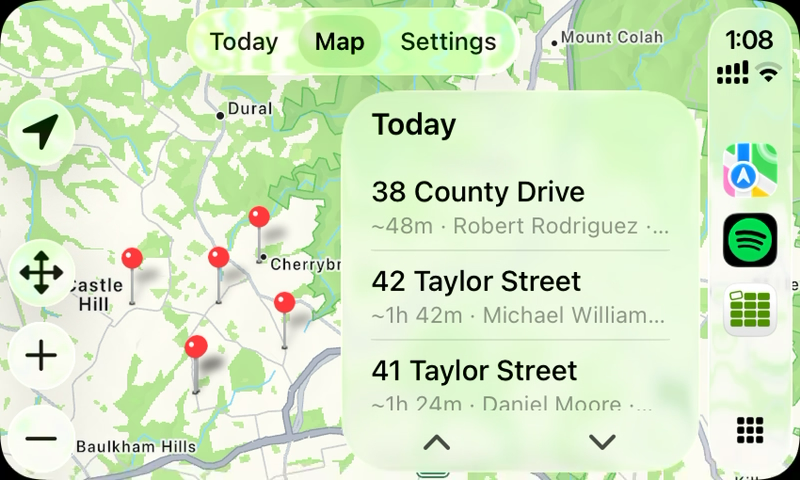
Tap a pin or a row, then Go for directions or Details for the same screen as Today (where Call, Complete, and Reopen live).
Completed stops are not on the map. The map is for what is left to do, and it can show up to 12 pins.
A stop that is not on the map yet still appears in the panel as No map pin. A note with no address shows as No address.
You cannot zoom this map. Apple CarPlay does not give SortScape a zoom control, so the car frames all of today’s pins at once.
Which maps app opens
Section titled “Which maps app opens”Open the Settings tab. Under Open directions with, tap Apple Maps, Waze, or Google Maps. Waze and Google Maps only appear if they are installed on the iPhone.
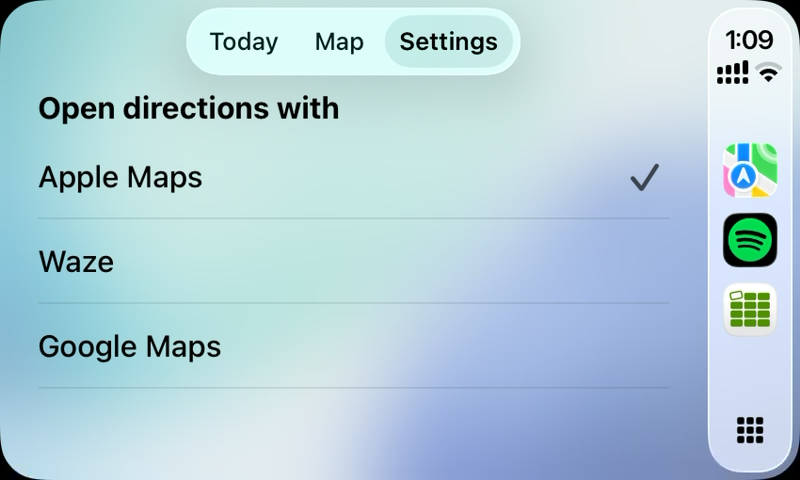
Apple Maps is the default. Your choice stays on this phone.
The first time you tap Go, if Waze or Google Maps is installed, SortScape tells you that Go opens Apple Maps, so you know you can change it here.
This is the same choice as Settings → This device → Directions app in the SortScape iPhone app. Changing it on the phone or on this Settings tab changes both. See How to get turn by turn directions to your next job.
Keeping the list up to date
Section titled “Keeping the list up to date”CarPlay refreshes on its own about once a minute, and when you switch tabs. There is no pull-to-refresh on the car screen. If a dispatcher just moved a job, switch from Today to Map (or back) to pull the latest run.
The last loaded schedule stays on the screen if you lose reception, so you can still see today’s stops. Completing a stop needs a connection.
What CarPlay does not do
Section titled “What CarPlay does not do”CarPlay is a driving view of today, not the full app.
- Only today. There is no day picker.
- You cannot tick checklists, add photos, edit jobs, or change the rest of the schedule.
- You cannot zoom the map.
For those, use SortScape on your iPhone. See Does SortScape have a mobile app?.