

How to effectively use crews in job management
Last updated:
Many lawn and garden businesses assign repeating jobs to the same “team” or “crew” each time so they can provide consistent service and build a sense of ownership among staff. SortScape helps support this practice with its “Crews” feature.
The “Crews” feature allows you to automatically assign jobs to a crew so that you spend less time arranging your schedule each day. If there are any jobs due for a crew on a given day, SortScape will automatically create a job run for that crew, add those jobs to the job run, and add the crew’s default employees (unless they are marked unavailable on the roster).
Crews do not have their own weekly timetable. Repeating jobs do. A job run appears for a crew only on days when that crew has jobs due.
If your account does not have Crews yet, see Migrating to crews before you ask support to turn it on. Turning Crews on is permanent.
How job runs get created (important)
Section titled “How job runs get created (important)”Job runs do not repeat on their own. You do not need to copy a run each week for regular lawn or garden work.
The usual setup is:
- Create a repeating job for each customer (weekly, fortnightly, monthly, or a seasonal schedule).
- Assign those jobs to the same crew (for a sole trader, that is often Crew 1).
- On days when several of those jobs are due for that crew, SortScape creates the job run automatically and puts those jobs in it.
Job tags help you label or filter jobs. They do not create runs.
Copy job run is only for irregular one-off batches (for example snow runs). See How to copy a job run.
Putting a crew on a day with nothing due
Section titled “Putting a crew on a day with nothing due”There is no setting that adds a crew to every weekday. A crew’s job run is created only on days when that crew has something due.
For a single day, open Schedule, go to that day, click Add job run and pick the crew. The job run is created empty, the crew’s default employees are added, and it stays on that day until you delete it.
To have a crew on the schedule every work day, give it something that is always due: add a note with Crew set to that crew and Repeats set to daily, with a title like “Start of day”. Daily repeats skip the days outside your work days, so a Monday to Friday business gets the crew Monday to Friday. Only do this for a crew whose job runs would otherwise be empty most days. On a day the crew already has jobs due, the note just sits in that job run.
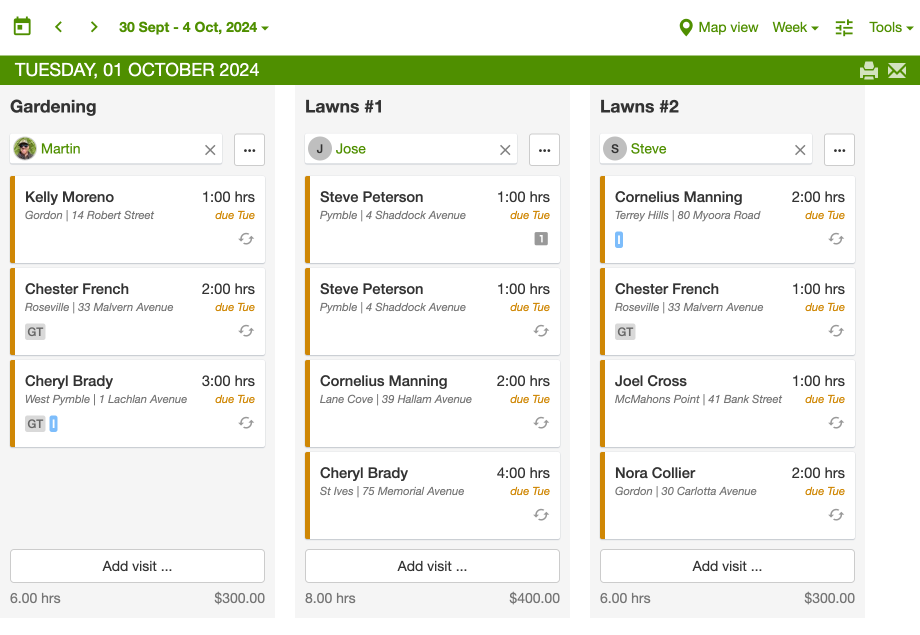
Below is an example of job runs for 3 different Crews.
Naming your crews
Section titled “Naming your crews”Typically, a crew represents a group of one or more employees. In the example above, the crews are named by number (e.g. Crew #1, Crew #2, etc) but every business has different naming conventions so feel free to use whatever names make sense to you and your staff.
Here are some some examples of different naming strategies that have proven effective for our customers:
- Existing Names: If the crew already has a name, then use that. For example, “Team Blue”, “Team Red”.
- Type of Work: You can also name them by the type of work they do. For instance, “Lawns 1”, “Lawns 2”, “Gardening”.
- Vehicle Identifier: You can also use the name or number plate of a vehicle. It is generally not recommended to name crews by location or service type. Crews are for teams of people, not for naming North and South runs. To label suburbs or areas, use job tags. To put nearby jobs on the same run, use schedule map view and Change job run.
We also don’t recommend naming crews after employees. We have found that this can create issues in the long term if other employees take over that crew. A better way is to assign employees to that crew instead and stick with a name like “Crew 1”.
Adding a new crew
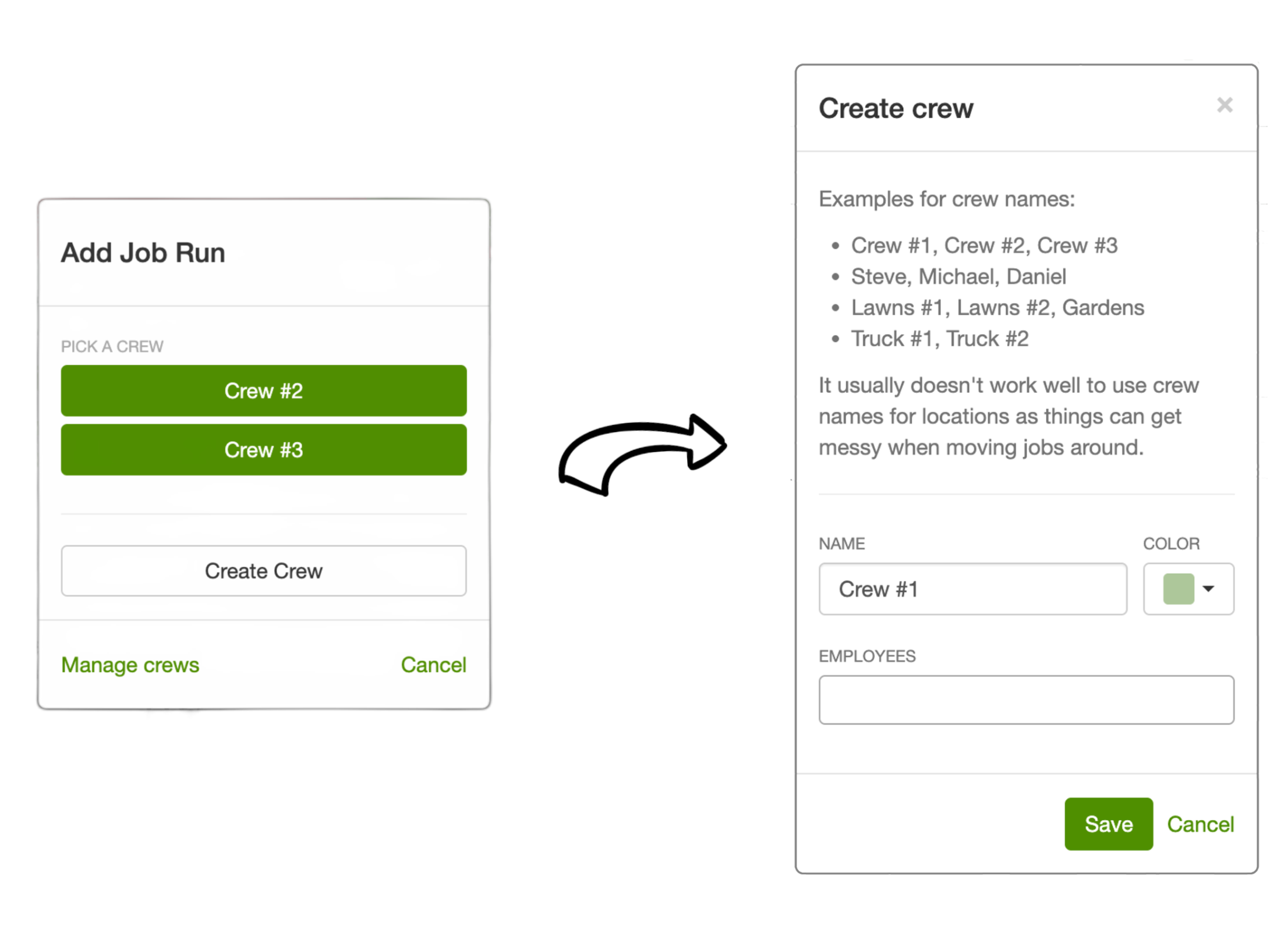
Section titled “Adding a new crew”You can create new crews when creating a new job run. This allows you to easily assign a crew to a job run at the same time you’re setting up the job run.
You can also create a crew by opening Settings → Jobs → Crews, then clicking Add a crew.
Assigning a crew to jobs
Section titled “Assigning a crew to jobs”When adding or editing a job, you can specify the crew for that job so that it’s automatically assigned to that crew on the schedule. If it’s a repeating job, all future jobs will get assigned to that crew as well.

You can also update the crew for a job through drag-and-drop. If you drag a repeating job to a different crew on the schedule, SortScape displays a prompt at the bottom of the screen: Apply to future jobs in this series.

If you click Confirm, all future jobs for that series are assigned to the new crew as well.
Can I remove the crew from a job?
Section titled “Can I remove the crew from a job?”Not from the job form. Once a job has a crew, Crew only lists your crews, so you can swap crews but you cannot clear the field. Change crew on the job run … menu works the same way, and it only offers crews that do not already have jobs that day.
Do not delete a crew to get jobs off it, and do not park a repeating series in Unscheduled. Deleting has no undo, and applying an Unscheduled move to the series deletes the future jobs.
To choose the crew when the work comes up instead, use an Unassigned crew.
Using an Unassigned crew
Section titled “Using an Unassigned crew”Every job needs a crew, so new jobs land on your first crew automatically. There is no setting to turn that off. Give them somewhere neutral to land instead:
- Open Settings → Jobs → Crews and add a crew named Unassigned. Leave its employee list empty.
- Edit the job and set Crew to Unassigned. This applies to future jobs in the series as well.
- On Schedule, drag the job onto the crew doing the work that day. Do not click Confirm on Apply to future jobs in this series, or the whole series moves onto that crew and stops coming back to Unassigned.
You need at least one other crew to drag onto.
If the jobs can stay on their usual crew and you only want to choose the people, use Assign employees on the job run instead.
Renaming a crew
Section titled “Renaming a crew”Job run titles come from the crew name. There is no separate “job run title” field.
To rename a crew:
- Open Settings → Jobs → Crews.
- Click the crew you want to rename (or open its actions menu and choose Edit).
- Change the Name and click Save.
The new name shows on that crew’s job runs on the schedule.
The job run … menu has Change crew, which swaps which crew is on the run. It does not rename the crew.
Crew order on the schedule
Section titled “Crew order on the schedule”Job runs on the schedule follow the order of your crews. They do not follow the order you created the crews, and they do not sort by crew name.
You cannot drag job-run columns around on the Schedule itself. To change the order:
- Open Settings → Jobs → Crews.
- Drag a crew up or down to set its order.
- Open Schedule. That crew’s job run now appears in the new position.
This order is saved and used every day. If a crew has no jobs due on a day, SortScape does not create a job run for that crew (you can add one yourself). The other crews stay in the same relative order.
Only administrators can change crew order. If you are searching the Crews list, clear the search first so you can drag crews.
Do not rename crews with numbers, asterisks, or extra punctuation just to force a sort order. Drag them instead.
Managing existing crews
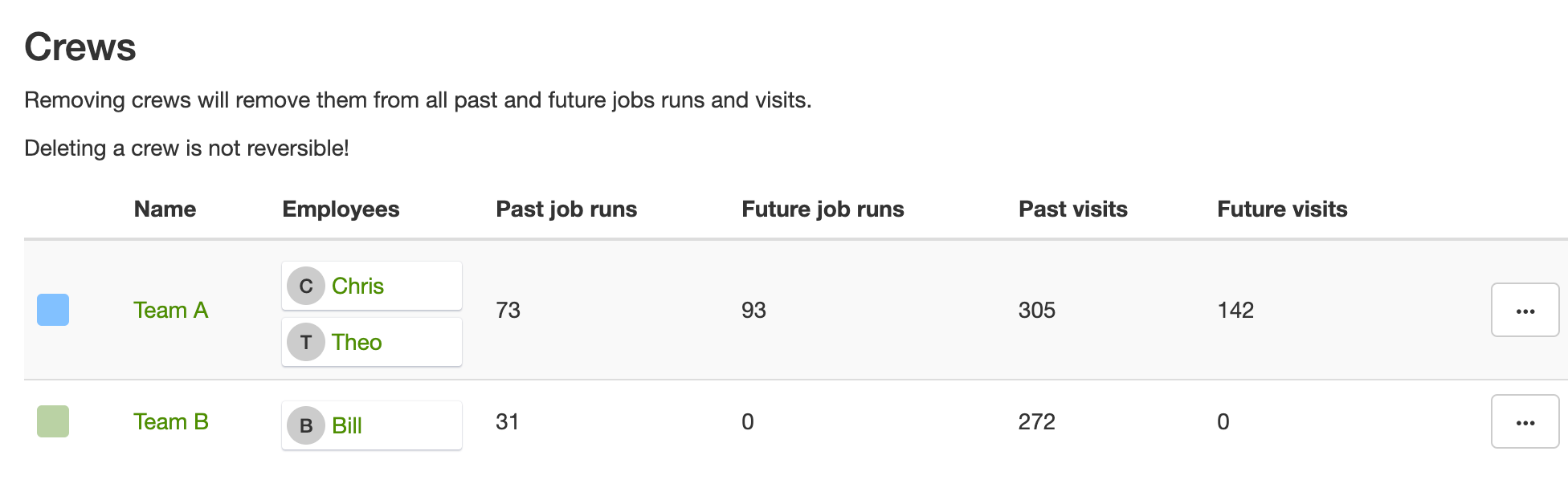
Section titled “Managing existing crews”Open Settings → Jobs → Crews. On this screen, you can
- rename a crew
- change the colour for a crew
- assign employees to a crew
- drag crews to set the order they appear on the schedule You can also see which crews are still in use, delete them if they are obsolete, or merge them if there are duplicates. Regularly reviewing and updating your crew list will ensure that your crew assignments remain relevant and effective.
Crew colours on the schedule
Section titled “Crew colours on the schedule”Each crew has a colour you can set when you create or edit it in Settings → Jobs → Crews. That colour helps you tell crews apart at a glance on the schedule, calendar view, and schedule map view.
To show those colours on job run titles in day, week, and month views, turn on Crew colors in the Schedule display settings.
Important: Only delete a crew if it is truly obsolete. Deleting a crew is not a way to remove that crew from one day, one recurring day, or one job run.
What happens when you delete a crew?
Section titled “What happens when you delete a crew?”Deleting a crew does not delete the job runs or jobs themselves, but it does remove the crew assignment from every past and future job run and job that used that crew.
When you delete a crew:
- All past and future job runs that used the crew become No Crew job runs.
- All jobs that were assigned to the crew become unassigned from that crew, including future repeating jobs.
- Employees assigned to the crew are removed from that crew.
- Any empty job runs for that crew may be removed. There is no automatic undo for deleting a crew. If you still use the crew on other days, do not delete it. If you are trying to swap a crew on a recurring job run, follow Changing the crew on an existing job run below instead. If you want somewhere neutral to hold repeating work, use an Unassigned crew.
Adding employees to a job run
Section titled “Adding employees to a job run”Use this when you want someone on one job run only, not on every future job run for that crew. For example, you might add someone for a single day to cover for someone who is away.
You can add employees directly to a specific job run on the schedule:
- Open Schedule and go to the day with the job run.
- On the job run, click Assign employees (the people icon), or open the … menu and choose Assign employees.
- In the dialog, click the employee under Available employees.
Scroll past Available employees to Unavailable employees if you need to see who is on leave that day, and why. See Seeing who is away from the schedule.
This schedules them on that job run for that day only. It does not add them to the crew, and they will not automatically appear on future job runs. If you want someone on every future job run for a crew, add them to the crew instead (see Adding employees to crews below).
On day view, you can also drag an employee from the Employees panel on the right onto the job run. That panel only appears in day view, on a wide enough screen. It is not the Employee Filter in Schedule display settings.
If the panel is taking up too much room, switch the schedule to Week or Month. The panel itself cannot be collapsed.
The person must already exist as a user in SortScape. If you are an administrator adding yourself, make sure your account is set up as a user you can schedule. See Adding employees if you need to create a new user from the schedule.
One job run per person per day
Section titled “One job run per person per day”Each person can be on only one job run on a given day. Once they are on a job run, they no longer appear under Available employees for any other job run that day. You also cannot put a person on a single job. People belong to the job run, and they are linked to every job on it.
This decides what each person sees:
- The Employee Filter in Schedule display settings shows only the job runs that person is on.
- Users with the Contractor role only see the job runs they are on.
When people split up during the day, build the job runs around who goes where:
- Put every job a person attends that day on their job run, including jobs they share with someone else.
- Put jobs they do not attend on a different job run, so they do not see them.
- If someone also helps on a job in another job run, they can still log their hours on that job. Hours can be added for any employee on any job, whatever job run they are on.
Administrators and employees see the whole schedule anyway, so this matters most for contractors.
Adding employees to crews
Section titled “Adding employees to crews”You can add employees to a crew so they are automatically scheduled when that crew has a job run.
Crew membership does not put someone on the schedule every weekday. SortScape creates a job run for a crew only when that crew has jobs due on that day. When that happens, default crew members are added to the job run.
If a crew has no jobs due on a day, no job run is created for that crew, and crew members are not scheduled that day, unless you add a job run for that day yourself.
To add employees to a crew, open Settings → Jobs → Crews, then edit the crew.
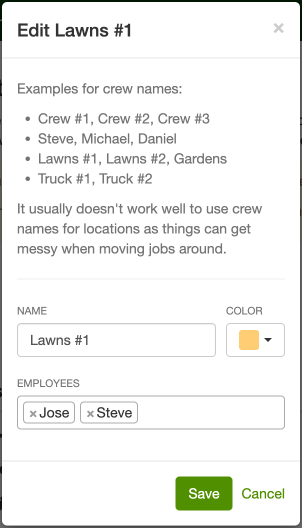
When you add employees to a crew, they will be instantly scheduled on that crew’s future job runs (days where that crew already has jobs due).
If the user had set themselves as unavailable in the roster on a given day (for example, if they are on annual leave, sick, etc), then they wouldn’t get automatically scheduled for those days.
If you remove a user from a crew, then they will be instantly removed from that crew’s future job runs.
There is no way to keep someone on a crew but stop that automatic scheduling. If you want to pick the staff on each job run, leave the crew’s employee list empty and use Assign employees on the day.
A user can only be added to one crew.
Staff who swap between crews
Section titled “Staff who swap between crews”If people move between crews from day to day, add each person to the crew they work with most. On a day they work with another crew, move them on the schedule:
- Open Schedule and go to that day.
- Drag the person’s name from their usual job run onto the other crew’s job run.
You can also click the x on their name to take them off their usual job run, then use Assign employees on the other one. Either way, the change is for that day only. Their crew, and their other days, stay the same.
If your crews change so often that nobody has a usual crew, leave the crews’ employee lists empty and pick the people for each job run with Assign employees.
Changing the crew on an existing job run
Section titled “Changing the crew on an existing job run”Change crew swaps which crew owns a job run, including from a chosen date onward. Use it when the new crew does not already have jobs that day, for example moving a No Crew run onto a real crew when you are migrating to crews.
If the destination crew already has jobs that day, do not use Change crew. Use Moving one crew’s future jobs onto another crew instead.
- Open Schedule and go to the day where the change should start.
- On the job run, open the … menu and click Change crew.
- Choose the New crew. Crews that already have jobs that day are not listed.
- Under Apply this change to, choose This and following jobs if future repeating jobs should use the new crew, or Just this job run for that day only.
- Choose whether to use the new crew’s default employees or keep the current employees, then click Change crew.
This and following jobs stays unavailable until you pick a new crew. It is also unavailable if some jobs on the run are not due that day (for example they were moved from another day). In that case you can still change the crew for this job run only.
After the jobs are on the new crew, you can delete the old crew from Settings → Jobs → Crews only if it is no longer used on any other days. Do not delete a crew as a way to swap crews. Do not merge crews if you still want the old crew on past jobs.
Moving one crew’s future jobs onto another crew
Section titled “Moving one crew’s future jobs onto another crew”Use this when one crew is finishing and you want its work to land on a crew that already has jobs, without merging or deleting crews.
- Open Schedule and go to the first day the change should start.
- On the source crew’s job run, click Bulk actions… in the … menu. Every job in the run starts selected.
- Drag them as a group onto the destination crew’s job run.
- When the prompt appears (Apply to future jobs in these series), click Confirm.
That moves those repeating series onto the new crew from that day onward. Repeat for each other weekday that still has source-crew work, and for any fortnightly or odd days that do not fall on the start date.
See Bulk selecting jobs on the schedule.
Migrating to crews
Section titled “Migrating to crews”Older SortScape accounts might not have Crews enabled yet. Newer accounts and free trials already have it on.
Turning Crews on is a one-way change. Once support enables it on your live account, it cannot be turned back off. If you want to try Crews first without changing your live schedule, start a free trial. New trials already have Crews enabled, so you can set up a few crews and see how repeating jobs land before you switch your main account.
How scheduling changes
Section titled “How scheduling changes”Without Crews (older workflow)
Repeating jobs for a day all land in the first job run. That run is full of the day’s work. You then build the schedule by spreading those jobs across other job runs for that day. You often redo a lot of that layout each week.
With Crews
Each repeating job gets a permanent crew. When that job comes due again, it shows up on that same crew’s run by default. You can still move jobs around on the day if staff, weather, or workload means you need to. The schedule starts from a repeating pattern, instead of one full first run that you redistribute every time.
The upside is that the same crew tends to keep the same jobs, so you spend less time reallocating and the schedule is clearer for the team.
Mixing different repeat frequencies on the same crew (for example weekly and fortnightly) can make some days feel crowded when those cycles overlap. That is normal. You can always reshuffle, and most people use crews as a solid starting point, then rebalance as needed. See How to avoid overlapping jobs when mixing repeat frequencies.
Steps to migrate
Section titled “Steps to migrate”Contact SortScape support to enable Crews on your live account once you are ready. Then:
- Create crews that suit your business, following the naming advice above.
- On the schedule, open each No Crew job run, choose … → Change crew, pick the crew, and select This and following jobs so future repeating jobs stay on that crew.
- Choose whether to use the new crew’s default employees or keep the staff already on that run, then click Change crew.
Work through your usual days this way until there are no more No Crew runs with repeating work. After that, SortScape creates the right crew job runs automatically when those jobs come due again.
If the crew you want already has jobs that day, use Moving one crew’s future jobs onto another crew instead of Change crew.