

Changing a property billing contact
Last updated:
For each property, you can select or create a billing contact that is different from the service contact. This is useful when, for example, a tenant is the service contact and a landlord or property manager is the billing contact. When creating invoices or quotes for that property, the billing contact is used by default. When several properties share one billing contact, you can combine their completed jobs onto a single invoice from the Invoicing screen. See Invoicing customers.
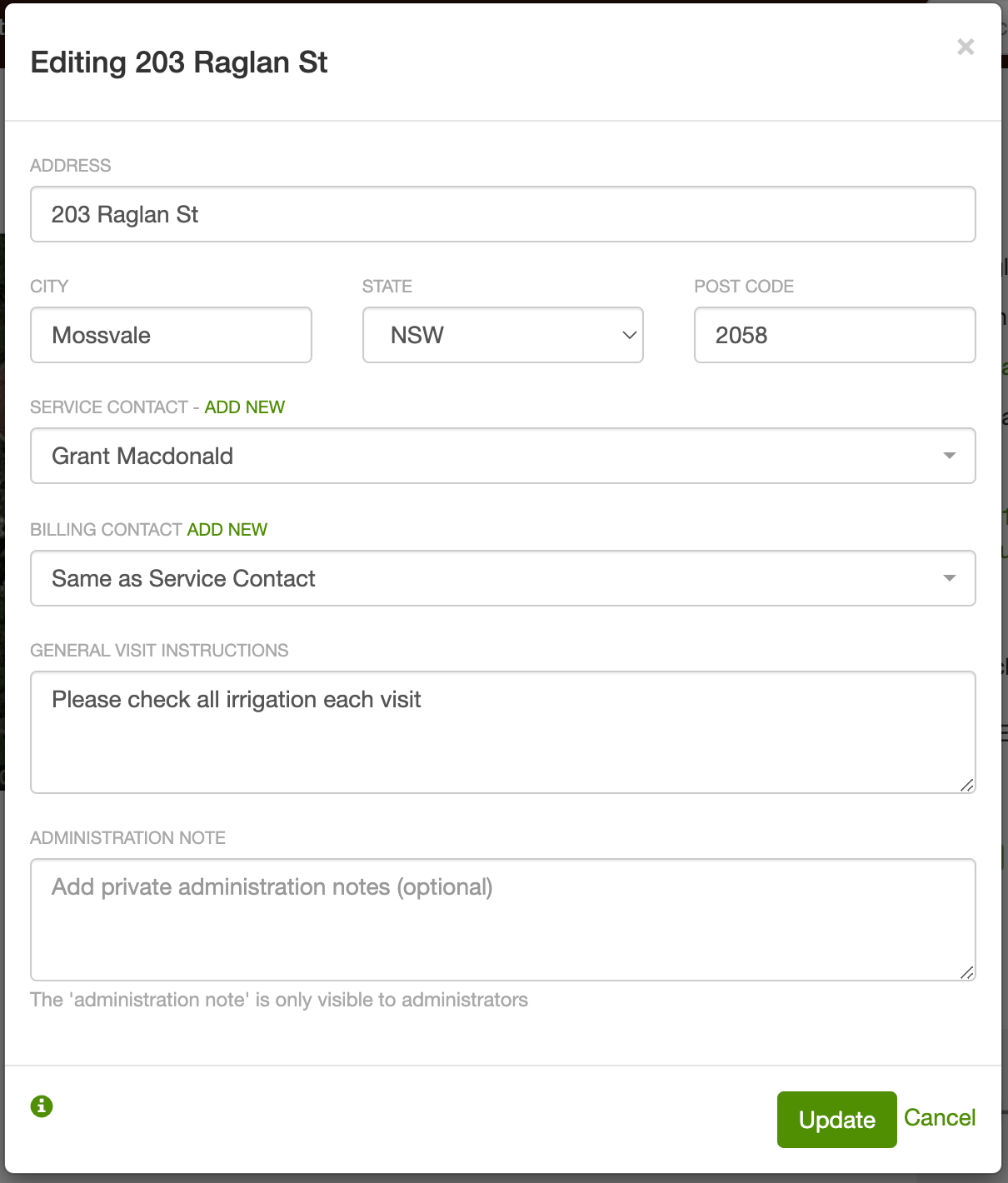
By default, the billing contact for a property is the same as the service contact.
Looking to stop a job prompting for an invoice after complete? That is Requires invoicing on the job, not a property setting. See Remove a job from Jobs pending invoicing.
If you want guidance on which contact should be service vs billing for rentals, strata/body corporate, and HOA-style setups, see Setting up service and billing contacts for rentals, strata, and HOAs.
If you do not see the Billing contact field while editing a property, invoicing may not be enabled on your account yet (see Steps to enable invoicing below).
To change the billing contact for a property:
-
Go to the property and click Edit in the upper right-hand corner of the screen.
-
Select a different billing contact in the “Billing contact” dropdown or click the Add New link to create a new billing contact.
Note: If you are connected to Xero or QuickBooks Online, you currently can’t edit a contact’s billing address in SortScape. Update the billing address in Xero or QuickBooks Online, then wait for it to sync to SortScape. You can still change the billing contact in SortScape.
The visibility of the Billing contact field is not restricted by plan level. For example, Basic plan users can still access it when invoicing is enabled.
If you have already created or sent the invoice, see Correct billing contact or address after an invoice is created in Invoicing customers.
Handling multiple payers (e.g. landlord + tenant or insurance + client)
Section titled “Handling multiple payers (e.g. landlord + tenant or insurance + client)”In some cases, the person who usually pays for the work isn’t the one paying for everything.
For example, you might regularly service a property where the landlord or an insurance company pays for the ongoing work. But every now and then, the tenant asks you to do an extra job — like a clean-up or some additional gardening — and they want to pay you directly for that work.
In SortScape, the billing contact on the property determines who the invoice goes to by default. So in this example, your invoices will normally go to the landlord or insurer.
When you need to invoice the tenant instead, you can simply change the billing contact at the time you create the invoice. At the top of the New invoice screen, choose a different option in the “Select billing contact” dropdown. This won’t permanently update the billing contact for the property — it only applies to that invoice.
If you find yourself doing this regularly, a cleaner option is to set up a second property for the same address. One property can have the landlord or insurer as the billing contact for the regular work, and the other can have the tenant as the billing contact for tenant-paid jobs. This way, invoices will always default to the correct person without needing to change anything each time.
The same approach works when two people regularly pay for different services at one address (for example, the tenant pays for lawn service and the landlord or property manager pays for garden maintenance). If SortScape says the address is already used, see I get a message saying “address is already used for another property”.
Notifying more than one person about invoices
Section titled “Notifying more than one person about invoices”A property still has only one billing contact. If you need invoice emails or texts to reach more than one person, add those details on that billing contact:
- Open the property and click the billing contact’s name, then Edit.
- In Email, enter multiple addresses separated by commas (for example,
accounts@agency.com, owner@example.com). - For text messages, enter the primary mobile, then use + Add another mobile number to add extra mobiles (each can have a short label, such as “Owner” or “Manager”). The left-hand Primary field is a label for the main mobile, not a separate person’s name. See Mobile phone and extra numbers.
This sends invoice notifications to those emails and mobiles. It does not create a second billing contact, and the invoice “Bill to” name remains the one billing contact. Every mobile gets the same message text (see Multiple mobile numbers on one contact).
If you use QuickBooks Online, only the first email address gets the invoice. See Emailing invoices.
If two different people take turns paying (different invoice ownership), use the options under Handling multiple payers above instead.
Steps to enable invoicing
Section titled “Steps to enable invoicing”To make the Billing contact field visible, you need to enable invoicing for your account. This can be done in one of the following ways:
- Enable SortScape invoicing: Open Settings → Invoicing → Invoices and activate invoicing for your account.
- Connect an accounting system: Open Settings → Integrations → Accounting, activate Xero or QuickBooks Online, then connect it under:
- Settings → Integrations → Xero, or
- Settings → Integrations → QuickBooks Online
Once invoicing is enabled, the Billing contact dropdown becomes available when editing a property.