

Job checklists
Last updated:
You must have the Job checklists setting enabled for this feature to work
Sometimes you want employees to follow specific steps when they go on a customer job, and you want to know that each of those steps was completed. For this scenario, SortScape allows you to add checklists to your jobs.
To add a checklist to a job, simply start any line in the “Work Required” field with a dash (”-”). Each line that started with a dash will then turn into a checklist item when you save the job.
For example, typing something like this:

Type a dash at beginning of each line to make a checklist
…will yield something like this when you save the job:
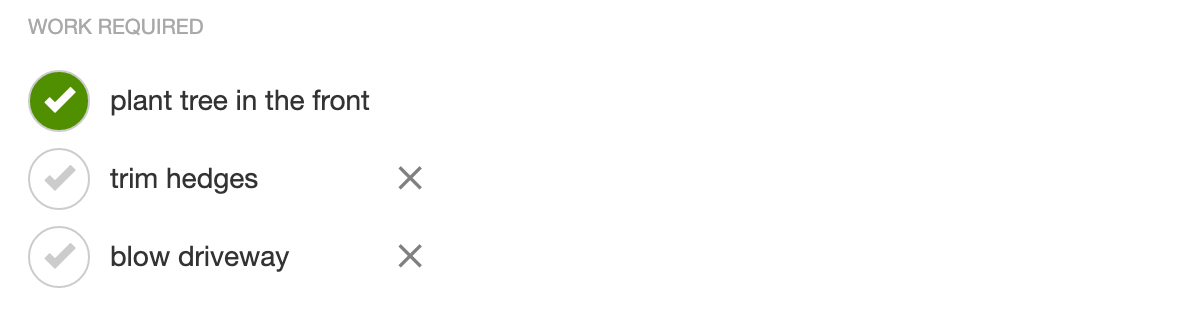
When a user “ticks off” one of the checklist items it will turn green and also appear in the “work done” section at the bottom of the job so you’ll know what’s been completed.
Please note
Section titled “Please note”Once you mark a job invoiced, the job is locked: you can no longer tick or un-tick checklist items, add or remove logged time or materials, or change invoice line items. To make changes after invoicing, use Remove invoiced status on the job. See Editing time or line items after a job has been invoiced.
If the checklist items are not getting added to your job after saving, make sure you are entering the checklist items in the “work required” field rather. (Sometimes people mistakenly add their checklists to the “General Instructions” field.)
If you add job checklists to a repeating job, the checklists will on every future job in that repeating series. If you need a checklist item that only appears on a specific job and doesn’t show up on future repeating jobs once completed, please consider using Issues instead.