

Rescheduling jobs in SortScape
Last updated:
Scheduling in the lawn and garden maintenance business is very weather dependent. SortScape allows you to reschedule jobs quickly and easily to get around changes in weather.
Moving individual jobs
Section titled “Moving individual jobs”Drag and drop
Section titled “Drag and drop”Probably the simplest way to move a job to another jobrun is by drag and drop. You can drag a job to a jobrun on the same day or a different day.
When you drag a repeating job to a different day, only that job moves. Future jobs in the series stay on their usual day.
A prompt also appears at the bottom of the screen: Apply to future jobs in this series. Click Confirm if you want every later job in the series to move to the new day as well. Leave it if this is a one-off move.

Applying the move to future jobs ends the old series and starts a new one from the moved job, so an end date appears on the old series. See Moving repeating jobs and understanding end dates for worked examples and how to choose.
Editing a job
Section titled “Editing a job”You can also change the date by editing the job and changing its Due date. Unlike dragging, this always moves the later jobs in the repeating series to match the new date.
For example, if you edit a job that repeats every week on a Monday by changing the due date to a Tuesday, all future jobs in the series move to Tuesday.
Moving to another day without dragging
Section titled “Moving to another day without dragging”To send a job to another date and keep it with the same crew, select it on its job run (… → Bulk actions…, then untick the jobs you want to leave) and use Actions… → Move jobs. SortScape puts it on that crew’s job run for the new date, and creates one if the crew has none that day. See Moving selected jobs to another day for the full steps.
This is quicker than moving the job to Unscheduled and then choosing Add to schedule, which lists every crew’s upcoming job runs, not just yours.
Moving a job to unscheduled
Section titled “Moving a job to unscheduled”If you want to remove a job from its job run without deleting it, move it to the Unscheduled column.
Drag and drop to Unscheduled
Section titled “Drag and drop to Unscheduled”On desktop, drag the job from its job run into the Unscheduled column on the left of the schedule.
On the mobile app, rotate your device to landscape mode to show the Unscheduled column, then drag the job across. See How can I view the list of unscheduled jobs? for a screenshot of the mobile layout.
Completed jobs cannot be moved to unscheduled.
Do not use Unscheduled as a holding column for a repeating series. Moving one job there only unschedules that day, and applying the move to the series deletes the future jobs. To keep repeating work on the schedule and choose the crew on the day, use an Unassigned crew.
From the job modal
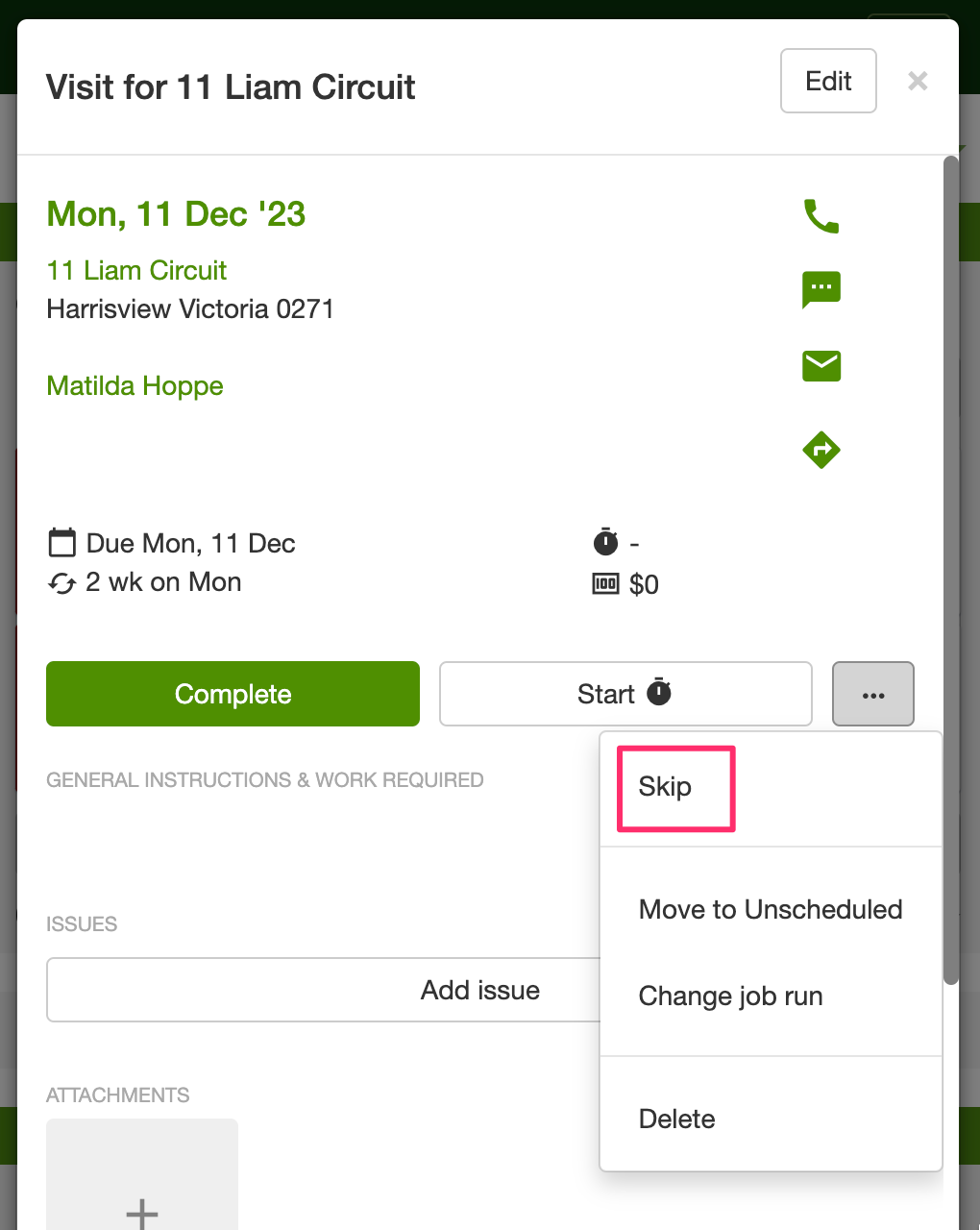
Section titled “From the job modal”Open the job and tap the dropdown menu to the right of the Start timer button. Choose Move to Unscheduled to remove it from its current job run.
Extra materials after you reschedule
Section titled “Extra materials after you reschedule”Rescheduling a job does not change its line items or whether they apply once or repeat. If extra materials appear on later jobs in the series, see One-off charges on a single job to remove the repeating line and add it to one job only.
Skipping jobs
Section titled “Skipping jobs”If a customer cancels one job (or you need to clear a single occurrence of a repeating series), Skip that job. Open the job, tap the dropdown menu to the right of the Start timer button, then choose Skip.
Skipping only affects that job. Future jobs in the series stay scheduled. Skipped jobs remain in the property’s job history, so you can still see that a job was booked and then cancelled.
After you Skip, that job stays on the schedule by default, crossed out. If you do not want skipped jobs on the schedule at all, an administrator can turn off Show skipped jobs and notes in the schedule in Settings → Jobs → Job settings. That hides every skipped job and skipped note for the company, not just one. It does not delete them. See Show skipped jobs on the schedule?.
Move to Unscheduled only takes the job off that day. It still shows in the Unscheduled column.
Prefer Skip over Delete whenever you want a record of the cancellation. Delete on a repeating job also removes later jobs in the series.
Skipping a job also stops automatic job reminders for that job. If you skip it before the reminder send time, the customer will not get the usual SMS or email. If the reminder already went out, SortScape cannot unsend it. See Automatic job reminders.
Reviewing skipped jobs
Section titled “Reviewing skipped jobs”Skipped jobs stay on that property’s Jobs tab. They do not appear on Invoicing → Jobs pending invoicing, and there is no account-wide skipped-jobs list.
To report skipped jobs for one client with several properties, go to Invoicing → ⋮ → Export completed jobs, leave Property blank, tick Include skipped jobs, then filter the spreadsheet on Contact and Status. Leaving Property blank exports every property in the account, not just that client. See FAQ - How do I export job information for a specific customer?.
Cancelling a job
Section titled “Cancelling a job”SortScape has no Cancel button. Use:
- Skip (preferred for a cancelled job; see Skipping jobs above). Skipped jobs stay on the schedule unless you hide them.
- Move to Unscheduled to keep the job but clear it from the day. The job still appears in the Unscheduled column.
- Delete only when the customer is ending the service. Deleting a repeating job also removes the jobs after it, and deleted jobs do not stay in the property history. See Stop a repeating job for deleting a series, or ending it with an end date instead. Use the activity log if you need to find deleted jobs later.
Deleting a job run is different: it clears a whole day column and moves jobs to Unscheduled. That is not how you cancel one customer job. See What happens when I delete a jobrun?.
Moving entire job runs
Section titled “Moving entire job runs”Sometimes when it rains you need to bulk move all jobs in a jobrun to a different day. In this case you can move an entire job run. To move an entire job run, click on the ”…” button at the top of the job run. Then click the “move job run” link in the dropdown.
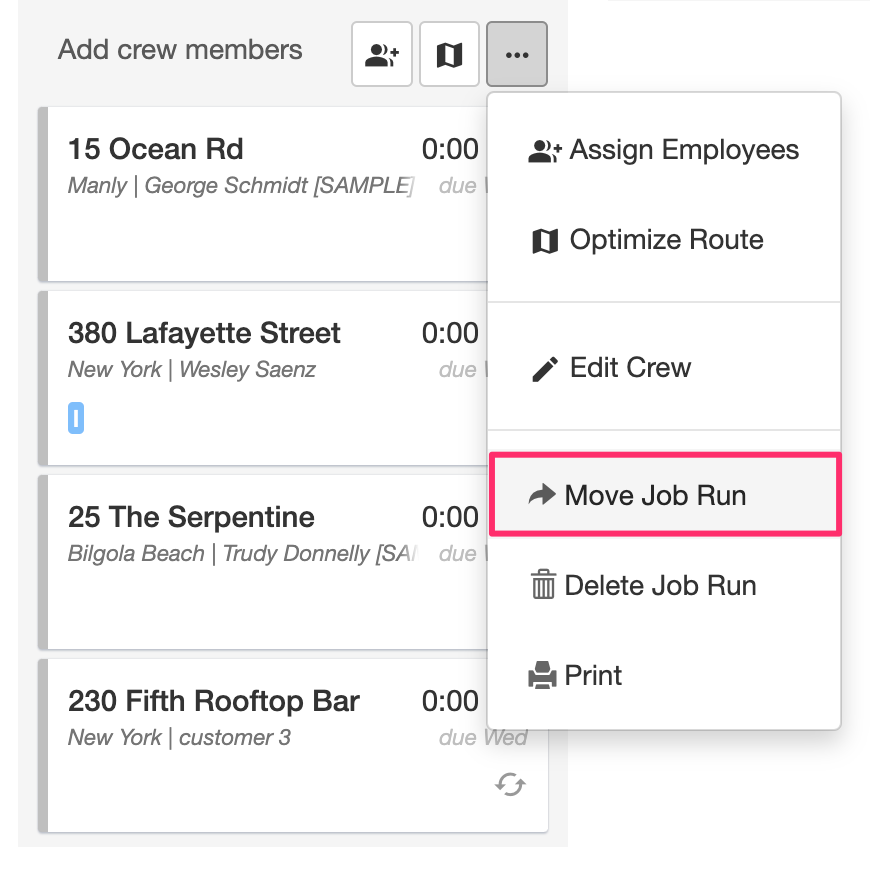
You will be prompted to select a new date for the jobrun.
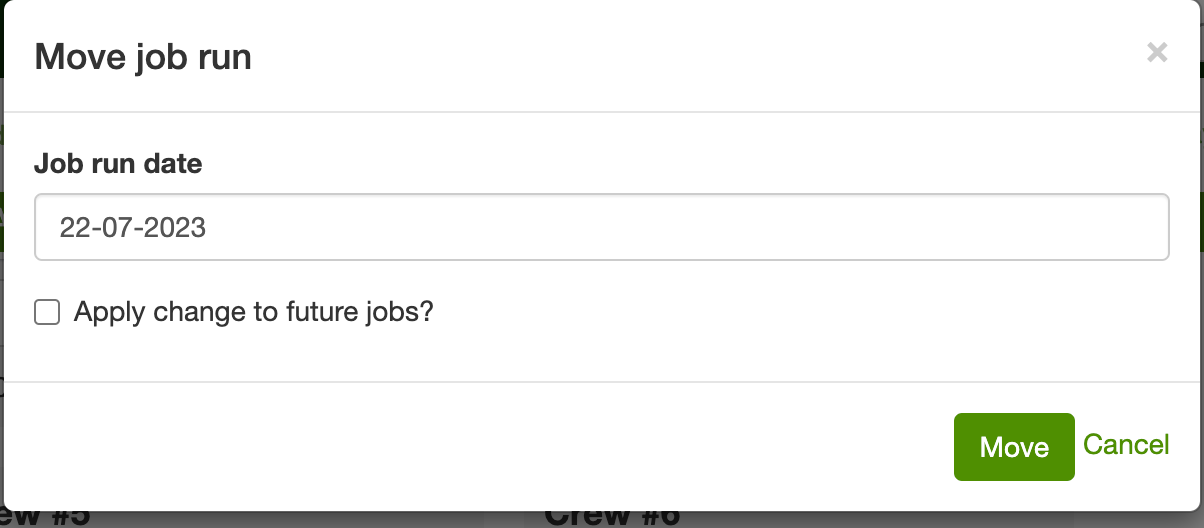
If any jobs in the job run are repeating jobs, future jobs will not be moved to a different day unless you tick Apply change to future jobs?. Ticking it is the same as confirming Apply to future jobs in this series after a drag (see Drag and drop above).
Shifting out the schedule
Section titled “Shifting out the schedule”If you need to push many jobs forward at once (for example, you are taking a week off), use Shift schedule. It is only on the web schedule: the Tools menu is not in the mobile app.
Shift schedule vs Move job run:
- Shift schedule moves every job scheduled on or after an Effective date forward by a set number of days. Use it when you want to delay your whole schedule from a point forward. It has no end date and cannot target a single week only.
- Move job run (described above) moves one day’s column at a time. Use it when you only need to move a specific week or a few rainy days.
- Open Schedule in a web browser.
- Click Tools, then Shift schedule.
- Set Effective date. All jobs scheduled on or after this date move forward. Jobs before it stay where they are. There is no end date.
- Set Number of days to move. For example, enter 7 to move them out by one week.
- Click Shift schedule and confirm.
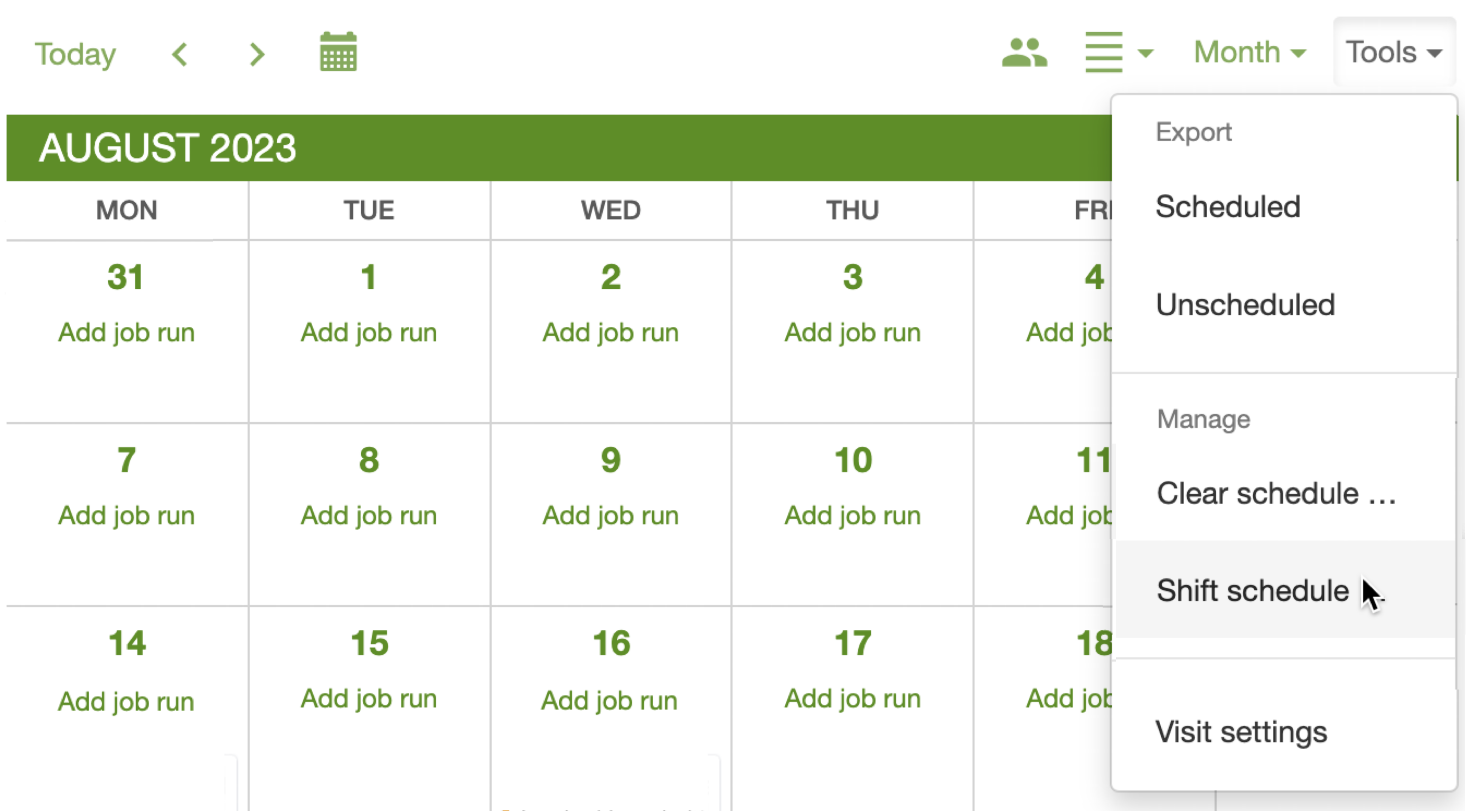
This cannot be undone. One run moves every job on or after the effective date, so you do not need to run it once per day.
Do not run Shift schedule once per day to cover a week. Each run affects all future jobs from that date onward, so multiple runs can move the same jobs twice. To move just one week, use Move job run for each day in that week instead.
For taking leave as a sole trader or one crew, see How can I pause my repeating jobs?.