

Can I copy a job?
Last updated:
Yes. You can copy a one-off job by:
- Clicking on the one-off job
- Clicking on the ”…” button to the right of the “start” button which will open a dropdown.
- Clicking the “copy” link in the dropdown as shown below.
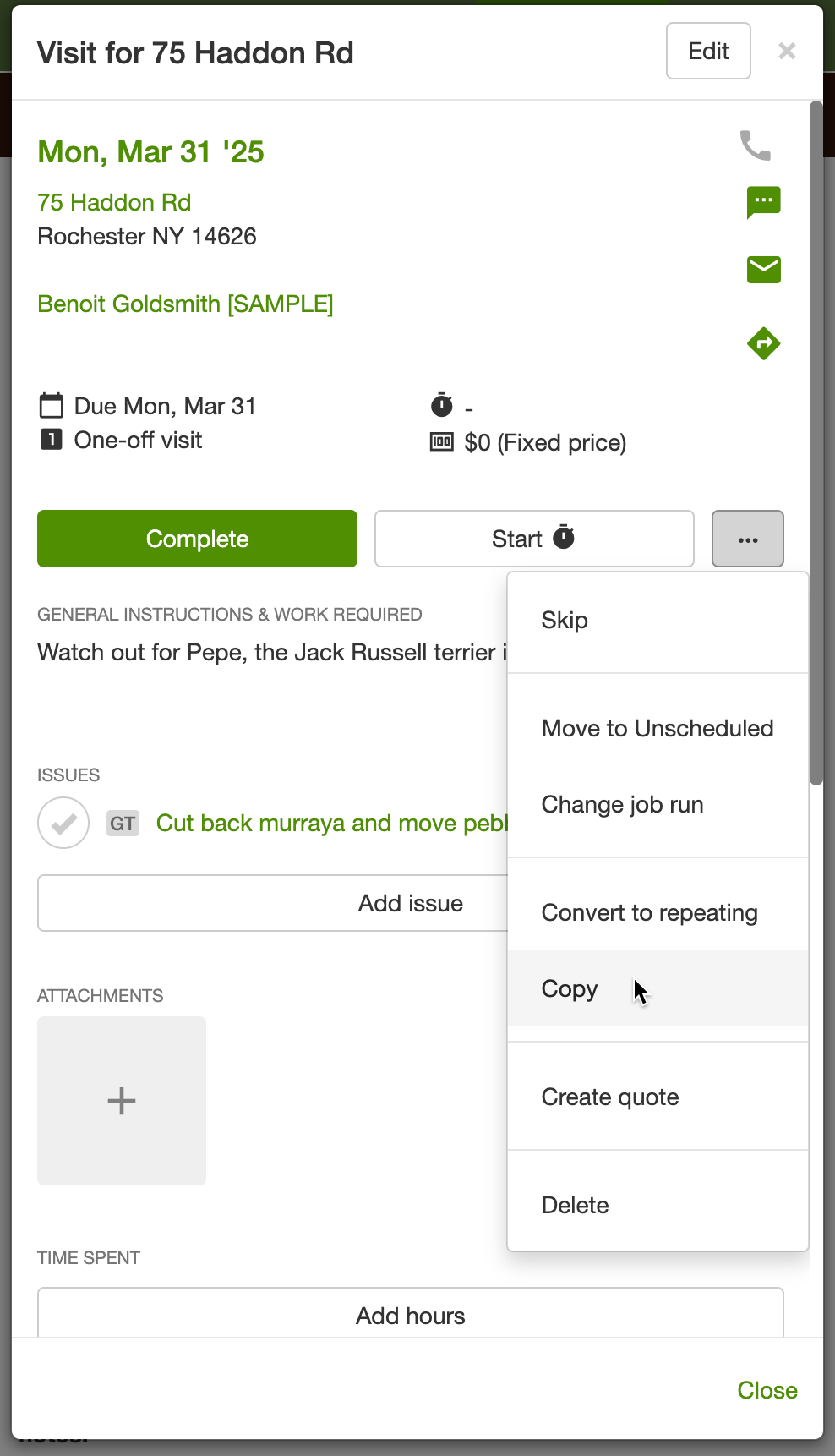
Please note: You cannot copy repeating jobs…only one-off jobs.
What happens when you click Copy
Section titled “What happens when you click Copy”Copy opens a new job form filled in from the job you copied: the property, crew, work required, estimated time and line items (with their prices). Nothing is saved until you click Create, so you can change anything first.
This makes Copy a handy way to repeat a job for a customer who calls back. Open their last job, even a completed and invoiced one, and copy it. The new job brings across the work and prices from last time, and when you invoice it the line items are already there.
The date starts as the next work day after the original job’s date. If you’re copying an older job, change the date to the day you plan to do the work.
Where the copy goes
Section titled “Where the copy goes”When you click Create, the new job goes onto the schedule on its date, in the same crew as the original.
If you don’t know the day yet, tick Keep in unscheduled jobs before you click Create. The job then waits in the Unscheduled column until you drag it onto a day.