

Setting the invoicing basis for a job (OLD - for customers who signed up before October 2024)
Last updated:
These settings apply only to customers who started using SortScape before October 2024. Eventually all customers will be migrated to the new behaviour described in this article.
When creating or editing a job, you can set the “Invoicing basis” which specifies how that job will be invoiced once it’s marked complete. The options for the invoicing basis are:
- Fixed price
- Time and materials
- Non-billable You can set the default invoicing basis under Settings → Jobs → Job settings. That default only applies to new jobs you create later (see Non-billable invoicing basis).
Time and materials
Section titled “Time and materials”Jobs on a “Time and materials” basis are invoiced based on the hours added for that job in addition to any materials used. By default, all jobs are created on the “time and materials” invoicing basis.
When you mark complete a job on a “Time and materials”, you’re prompted to enter the time spent on that job as well as any materials used (see time and materials).
For example, you may enter 2.5 hours + $25 in materials for a job.
When creating the invoice for this job, those hours and materials are automatically added as line items on that invoice. The “hourly rate” specified on the Job settings page is used by default for calculating the price per hour. You can also set a custom hourly rate on each job. Alternatively, if you have selected a “Material for employee time” on the QuickBooks Online or Xero settings page, then it will use the price from that material for the hourly rate.
To round employee hours up on time and materials invoices, use the Round employee time to setting. See Setting the invoicing basis for a job for where to find it and the options.
To specify which QuickBooks Online or Xero item to use on the invoice line item for hours worked, set Material for employee time under Settings → Integrations → Xero or Settings → Integrations → QuickBooks Online. When the hours worked come through on the invoice they will be allocated that item.
In our example, if the hourly rate $50 then it automatically creates an invoice line item for $125 (2.5 hours x hourly rate of $50) and a line item for $25 in materials.
Fixed price invoicing basis
Section titled “Fixed price invoicing basis”Jobs with a “fixed price” invoicing basis are invoiced based on the price and quantity you specify when creating that job. When creating a job with a fixed price basis, you are prompted to enter the line item quantity, price and description which will appear on the invoice created from that job. For example, you might enter a description of “Basic lawn care service” with a price of “$75” and a quantity of “1”.
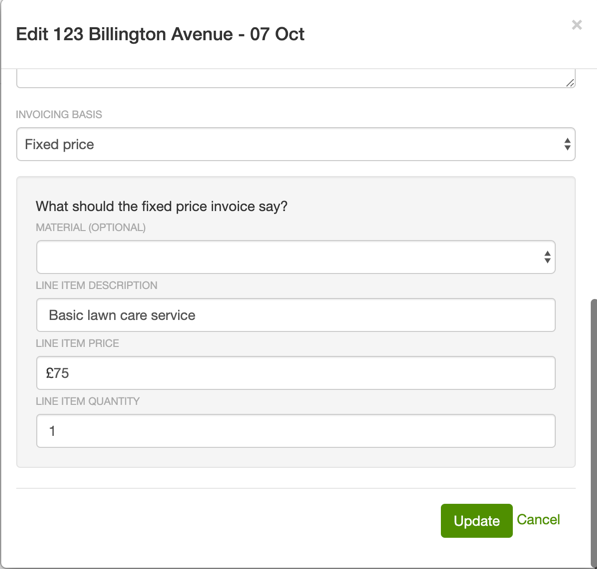
You can still enter employee hours for that job but those hours will not appear on the invoice. Only the price, quantity and description specified above will appear on the invoice. In the example above, there will be just one invoice line item with the description “Basic lawn care” for $75 irrespective of how many hours were spent on the job. Any materials added to the job will also appear as line items on the invoice.
Automating invoice creation from jobs simplifies administrative tasks by eliminating the need for manually copying previous invoices. This can streamline invoicing workflows, particularly for recurring services.
Non-billable invoicing basis
Section titled “Non-billable invoicing basis”Set Invoicing basis to Non-billable on the job itself. On a repeating job, choose This and all future jobs when asked, so later jobs stay non-billable. To change one job only, see Update one job in a repeating series.
The default under Settings → Jobs → Job settings is only for new jobs you create later. Do not change it to stop invoicing one customer.
Any job set to non-billable will not prompt you to create an invoice after it is completed.