

How to avoid overlapping jobs when mixing repeat frequencies
Last updated:
If you schedule multiple repeating jobs on the same crew (for example, some customers every 2 weeks and others every 3 weeks), you may find those jobs landing on the same day at similar times. That is expected when the repeat intervals do not share a common cycle. It is not a sign that something is wrong with your schedule; it is how those frequencies work together over time.
This article explains why those overlaps happen, how SortScape warns you about them, and the most reliable way to plan around mixed repeat frequencies.
Why overlaps happen
Section titled “Why overlaps happen”Repeating jobs follow their own cycles. A fortnightly job occurs every 2 weeks; a three-weekly job occurs every 3 weeks. Because 2 and 3 do not divide evenly into each other, the two series will periodically land on the same day.
For example, if both series start in week 1:
- Fortnightly jobs fall in weeks 1, 3, 5, 7, 9, 11 …
- Three-weekly jobs fall in weeks 1, 4, 7, 10 …
Weeks 1 and 7 are shared by both cycles. If both jobs are set for the same time (say, 9:00–11:00 a.m.), your crew has a clash on those days.
The more fixed start and end times you use, the more visible these clashes become — especially when clients need consistent days and times, such as NDIS or aged care jobs.
Clash warnings in SortScape
Section titled “Clash warnings in SortScape”SortScape shows a yellow warning on the job form when a timed job overlaps another timed job on the same crew. For a repeating job it checks every date in the next 52 weeks, so you can spot these clashes when you set the job up. See Time clash warnings for when the check runs and what it lists.
Best approach: dedicated time blocks
Section titled “Best approach: dedicated time blocks”The most reliable way to run mixed frequencies is to reserve time blocks for each interval. Instead of scheduling fortnightly and three-weekly jobs at the same times, give each frequency its own window on specific days.
For example:
- Schedule three-weekly jobs on Monday and Wednesday between 12:00 p.m. and 4:00 p.m.
- Schedule fortnightly jobs in other time slots on those days, or on different days altogether.
The two cycles may still coincide on the same calendar day, but they will not compete for the same time. Your crew can complete the morning block first, then the afternoon block — with no overlap.
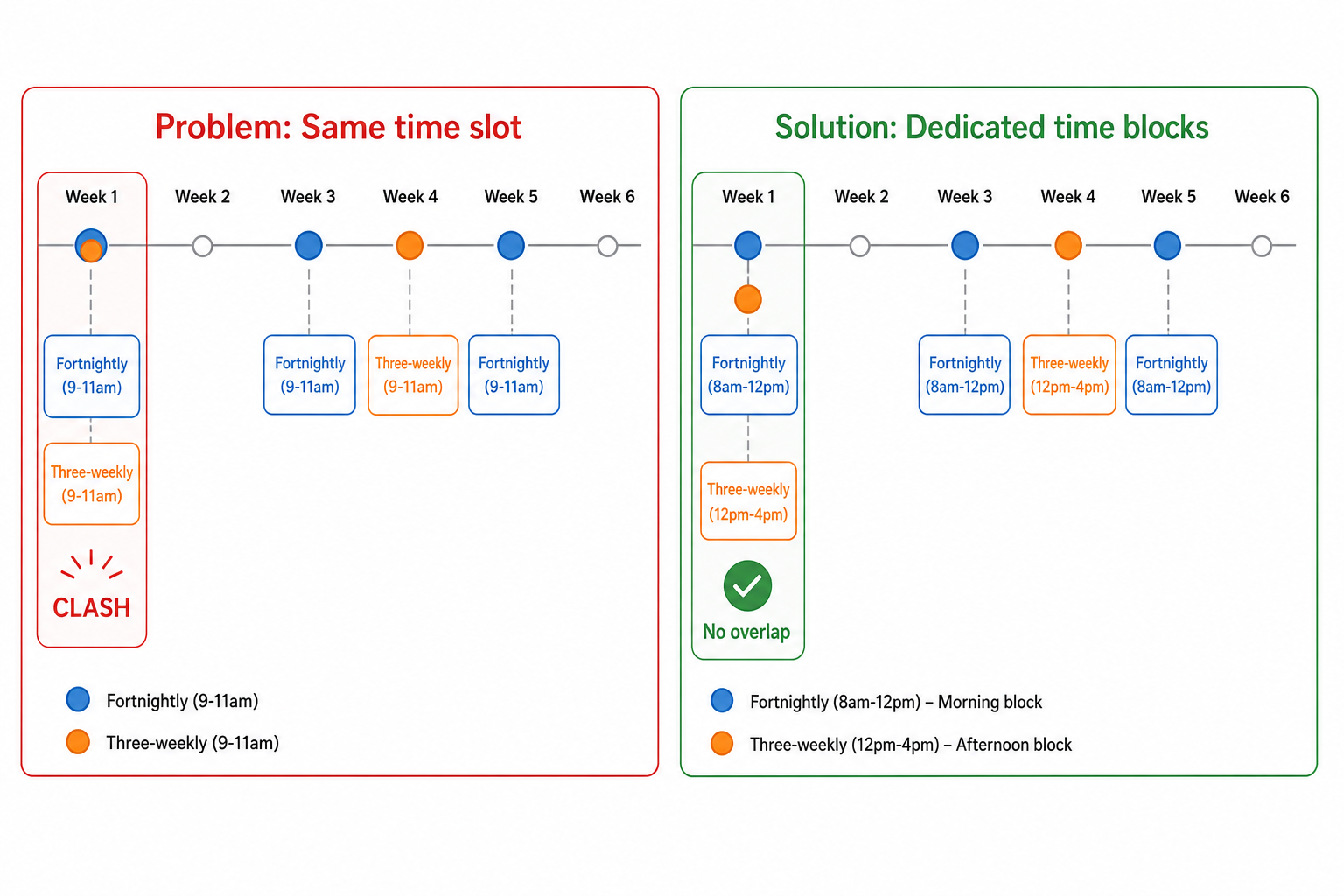
This approach works especially well when clients need fixed days and times. You keep the consistency they expect while still running more than one repeat frequency on the same crew.
When you can align frequencies instead
Section titled “When you can align frequencies instead”If you are adding an extra service alongside a main job — such as fertilizing alongside mowing — you may be able to use compatible frequency multiples instead of mixing incompatible intervals. For example, a weekly mow and a 4-weekly fertilizer application align naturally because 4 is a multiple of 1.
See How to schedule recurring tasks like fertilizer applications alongside regular jobs for guidance on choosing compatible repeat intervals.
Seasonal frequency changes
Section titled “Seasonal frequency changes”If your job frequency changes by season — for example, every 3 weeks in autumn and every 2 weeks in summer — that is a different scheduling pattern from mixing fortnightly and three-weekly jobs on the same crew year-round. SortScape handles this with seasonal schedules.
What to do when you see a clash
Section titled “What to do when you see a clash”When SortScape flags a clash:
- Move one job to a free time block on that day, or to another day in your schedule.
- Adjust start or end times so the jobs no longer overlap.
- Reserve dedicated time blocks per frequency (as above) to prevent future clashes as you add more clients.
Work through each clash in the warning’s list before the job date arrives.