

How do I add start and end times to jobs?
Last updated:
Originally, SortScape was designed without start and end times for jobs, allowing for quick and flexible job shuffling to accommodate staffing and weather changes. This is ideal if your customers are flexible about when the work gets done, as long as the job is completed. This is called the Classic Schedule.
If you want when to arrive at and finish each job, you have two options depending on where you need those times to appear:
- Smart ETAs: use route optimization on the Classic schedule to automatically calculate arrival and finish times. Times appear only in the route optimization modal (click the map button on a job run). They do not show on the main schedule or on printed runsheets.
- Calendar schedule: enable Calendar view when you need times on the schedule, mobile app, or print view, when customers need fixed appointment windows, or when coordinating with deliveries and other time-sensitive commitments.
Smart ETAs: plan arrival and finish times in route optimization
Section titled “Smart ETAs: plan arrival and finish times in route optimization”Smart ETAs give each job an estimated arrival and finish time from your day’s start time, travel between properties, and each job’s estimated time. You see them by clicking the map button on a job run. No times need to be entered and Calendar view does not need to be on. See Smart ETAs for how to view them and how they update during the day.
Enabling the calendar schedule
Section titled “Enabling the calendar schedule”Open Settings → Jobs → Job settings, then turn on Enable calendar view. See Calendar view for switching views and moving jobs on the calendar.
Start and end times in the calendar schedule
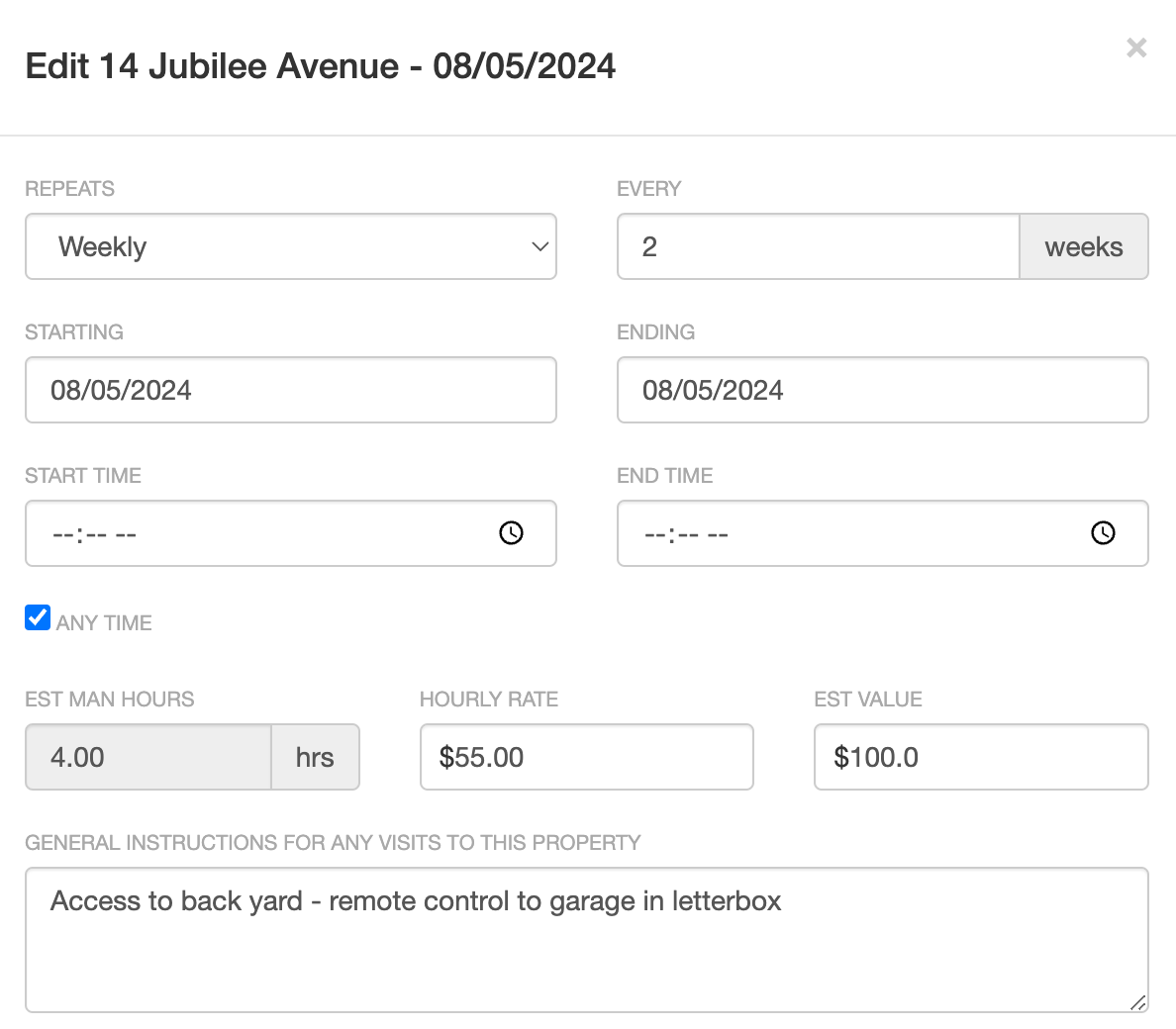
Section titled “Start and end times in the calendar schedule”When creating or editing jobs, you can enter a start and end time for the job. If you enter a start time, then you must enter an end time.
To turn a job with a start and end time into an anytime job, you just check the “Any time” checkbox.
Scheduling a lunch break
Section titled “Scheduling a lunch break”There is no separate lunch event type. To show lunch on the schedule, add a note (for example “Lunch”) and set an estimated time such as 30 minutes.
Time clash warnings
Section titled “Time clash warnings”If a timed job overlaps another timed job on the same crew, SortScape shows a yellow warning on the job form while you are editing. This is advisory only, so you can still save the job.
The check runs when the job has a start time, end time, crew, and due date. Back-to-back jobs are fine (for example, one ending at 10:00 and the next starting at 10:00). Jobs on other crews or marked Any time are not included.
For repeating jobs, SortScape checks every date the series would occur within the next 52 weeks, not just the first due date. When editing an existing job, that job and its repeating series are excluded so you are not warned about overlapping with yourself.
The warning lists each clash with the date, job name, time, and location. Two clashes are shown by default; click +N more to see the rest.
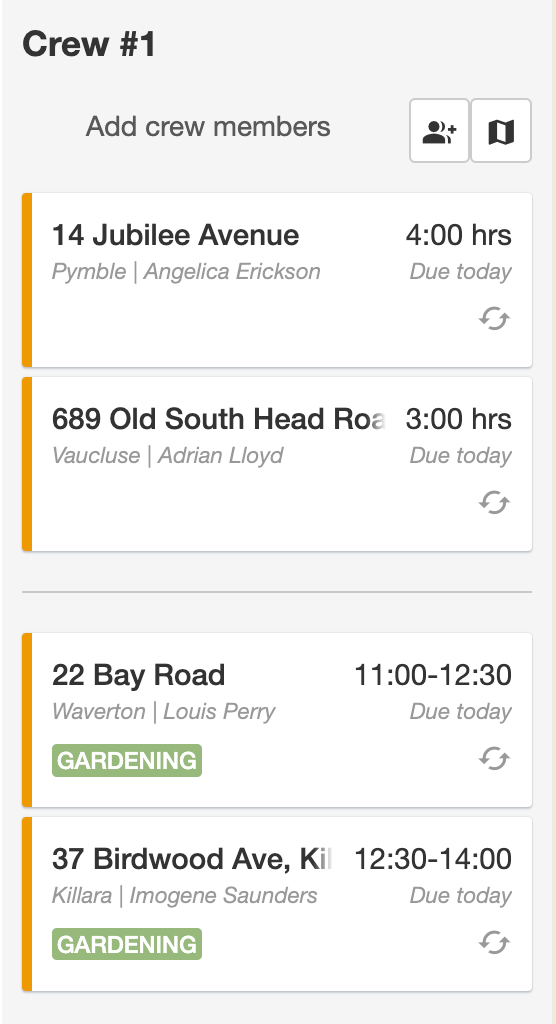
When some of your jobs are anytime jobs and some have a start and end time, you are effectively creating two job lists for the day, as the list of anytime jobs is ordered by position and the list of timed jobs is ordered by start time.
Route optimization
Section titled “Route optimization”Route optimization only reorders anytime jobs. Jobs with a fixed time stay in their time slots, because optimizing them would change the times you set. See Route optimization.