

Printing the schedule
Last updated:
You can get a printable view of the schedule for each day to use as your runsheets.
Note: Rather than working off printed runsheets, we recommend that your employees access the schedule by logging into SortScape from the mobile app. That way they can view up-to-date information and submit their time and materials while in the field.
However, the printed runsheets are a good way to get started with SortScape if your employees are used to working off paper.
To print the schedule for a given day, go to the week view or day view of the schedule.
In the heading for the day you can click on the “printer” icon to get a printable view for the day.
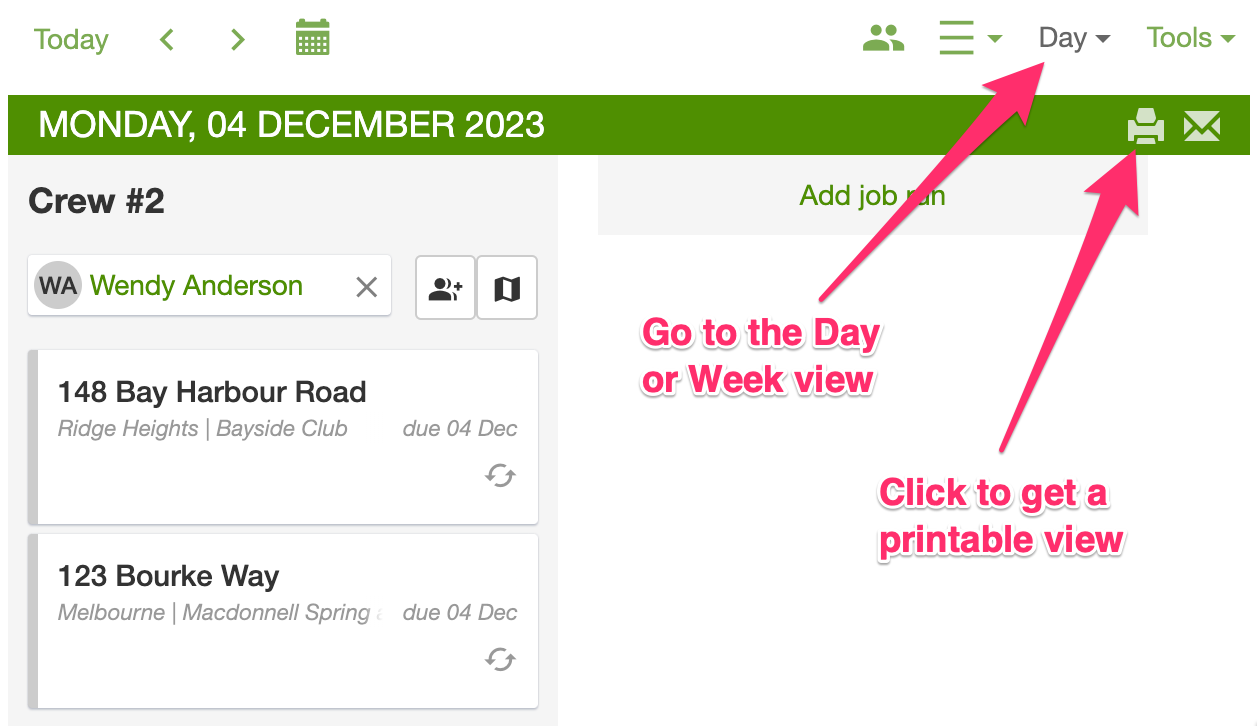
Once you get to the printable view of the schedule, we don’t automatically print the page. Rather you can print the page as you would any other web page. For example on a Windows computer you might click “CTRL+P” or on a Mac you might click “CMD+P.”
Please note that the printing functionality is only available in the desktop version when you sign in via the browser.
Showing arrival and finish times on printed runsheets
Section titled “Showing arrival and finish times on printed runsheets”Smart ETAs from route optimization do not appear on printed runsheets. If you need arrival and finish times on a printed runsheet, enable Calendar view and add start and end times to your jobs. See How do I add start and end times to jobs?.