

Invoice tax handling in Xero
Last updated:
The tax configuration for invoices (whether amounts are tax inclusive or exclusive) is controlled within Xero.
Managing tax settings in Xero is essential for ensuring that your invoices reflect the correct tax treatment, whether GST inclusive or exclusive. Xero allows you to control tax settings at both the customer level and the general financial settings level, ensuring that your invoices align with your business requirements.
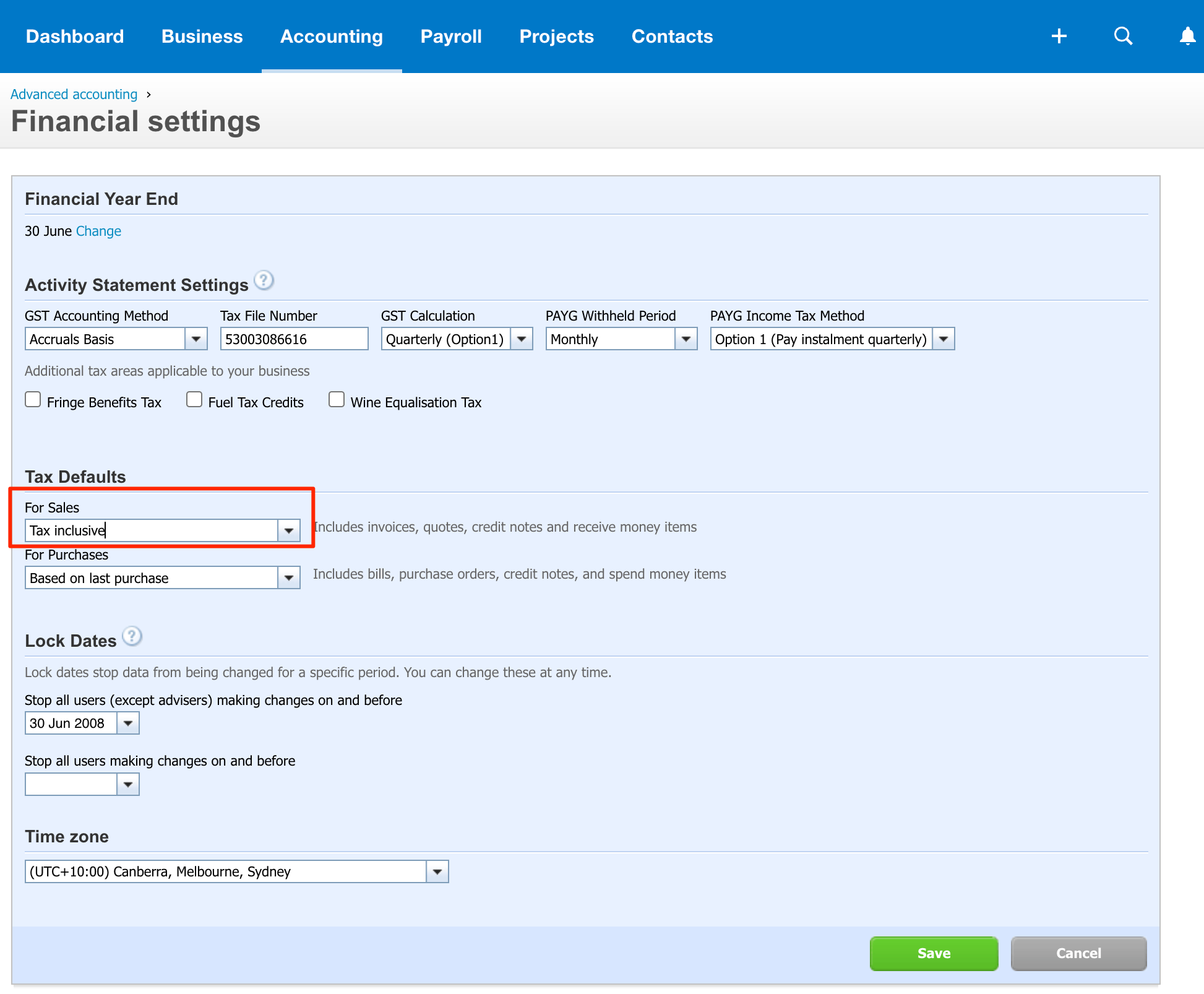
To modify this setting in Xero:
There are multiple ways to configure tax settings in Xero, including customer-specific settings and general financial settings.
- Log in to Xero as an administrator.
- Click Accounting in the top menu.
- Select Advanced and then click Financial Settings.
- Scroll down to the Tax Defaults section.
- Under For Sales, choose either Tax Inclusive or Tax Exclusive. Xero explains each option in Choose the right tax treatment on transactions.
Do not leave this set to Remember previous. SortScape cannot follow that Xero option, so invoices will default to tax inclusive (or tax exclusive for US and Canadian organisations). Pick Tax Inclusive or Tax Exclusive as your usual setting instead.
Once updated, invoices generated from SortScape and sent to Xero will follow this setting.
Customer-specific tax settings take priority over the organisation default. Use this when one customer should be treated differently from your usual For Sales default (for example, most invoices are plus GST, but one customer is GST inclusive).
To set tax defaults on a Xero contact:
- In Xero, click Contacts, then All contacts.
- Search for the customer and click their name to open the contact.
- Click Edit.
- Scroll down to Financial details.
- Under Sales defaults, set Sales tax to a sales tax type (for example 15% GST on Income, or GST Free Income if they should not be charged GST). Do not pick a tax type that says Expenses.
- Still under Sales defaults, set Amounts are to Tax exclusive (plus GST) or Tax inclusive.
- Click Save.
New invoices created from SortScape for that contact will use those sales defaults. The contact Sales tax overrides the tax on the line item, so it must be a sales tax type. An expense tax type such as GST Free Expenses will fail when SortScape creates the invoice.
Where the tax rate on each line comes from
Section titled “Where the tax rate on each line comes from”The tax rate on each invoice line usually comes from the Xero product or service on that line (via its account code). If the line has no Xero product or service, SortScape uses the account in the Account for new Xero products setting on Settings → Integrations → Xero. If the Xero contact has a Sales tax default, SortScape uses that instead.
When you invoice an item that doesn’t exist in Xero yet, SortScape creates the Xero item when the invoice is created and codes it to that same Account for new Xero products account. For example, if that setting is “Sales - 200”, any new Xero item created from SortScape uses account “Sales - 200”.
GST-free customers
Section titled “GST-free customers”If one customer should not be charged GST, set Sales tax on that contact to GST Free Income. Leave your usual sales account as it is (for example 200 or 201). You do not need a separate Xero account or product for GST-free customers.
Do not use GST Free Expenses. That tax type is for bills and purchases. Xero still lets you pick it under Sales defaults, then rejects the sales invoice.
”The TaxType code ‘EXEMPTEXPENSES’ cannot be used with account code”
Section titled “”The TaxType code ‘EXEMPTEXPENSES’ cannot be used with account code””If creating a Xero invoice fails with this error:
Xero reported the following error: The TaxType code ‘EXEMPTEXPENSES’ cannot be used with account code ‘201’.
the contact’s Sales tax is set to an expense tax type (GST Free Expenses). Account 201 is a sales account, so Xero only accepts sales tax types on it.
To fix it:
- In Xero, open the customer contact.
- Click Edit, then scroll to Financial details.
- Under Sales defaults, set Sales tax to GST Free Income. Do not use GST Free Expenses.
- Click Save.
- In SortScape, create the invoice again from Invoicing → Completed. The job is back on that list after the failed create.
The same rule applies outside Australia: sales invoices need an income or sales tax type, not a purchases or expense one. Look for names that say Income or Sales, not Expenses or Purchases.