

Bulk selecting jobs on the schedule
Last updated:
Bulk job selection lets you work with several jobs at once, in one job run or in Unscheduled. This is useful when a crew does not finish all of the jobs in a run, when you need to move a group of jobs to another crew, or when you want to complete, skip, invoice, email or text several jobs together.
Looking for customer confirmation on jobs? See Job confirmations.
Want to complete a lot of jobs at once? See Completing or skipping many jobs at once. It covers completing every past job in one click as well as completing a selection.
Selecting jobs
Section titled “Selecting jobs”Bulk selection works within one job run, or in Unscheduled, at a time.
- Go to the Schedule.
- Find the job run that contains the jobs you want.
- Click Bulk actions… in the … menu at the top of that job run. In day and week view you can also click Select at the top of the run (checkbox icon). If the column is very narrow, you may only see the icon.
Every job in the run starts ticked, because most of the time you want the whole run. Click a job to untick it. If you only want a few, click Deselect all at the top of the run, then tick the ones you want.
While you are selecting, the rest of the schedule fades so it is clear which run you are working in. You can still drag jobs onto the faded runs.
The top of the run shows how many jobs are selected, with Select all or Deselect all beside it. On a narrow phone screen in month view these are shortened to All and None. The run’s hours and value at the bottom add up only the selected jobs.
The actions sit at the bottom of the run: click Actions… to see what you can do with the selected jobs. On a long run the bottom of the run stays on screen as you scroll. On a phone, a bar with the number selected, the run’s date and name, and Actions… takes the place of the menu bar at the bottom of the screen.
If you have filtered the schedule by search or tags, only the jobs you can see are selected.
To leave selection mode, click Cancel or press Escape.
Unscheduled jobs
Section titled “Unscheduled jobs”In the Unscheduled panel, click the checkbox icon in the panel header (Select jobs), then tick the jobs you want. Unscheduled jobs start unticked. The actions appear in a bar at the bottom of the screen.
The Actions… menu shows Add to schedule here, not Move jobs. Skip or Complete takes those jobs out of Unscheduled. There is no bulk Delete. To permanently delete every unscheduled job, see How can I clear my schedule and start over?.
Faster ways to select jobs
Section titled “Faster ways to select jobs”On desktop, you can also use these shortcuts in day, week, and month view, including Unscheduled:
- Hold Ctrl on Windows or Command on Mac and click a job to start selecting or toggle that job.
- After you select one job, hold Shift and click another job in the same job run, or in Unscheduled, to select the range between them.
To select a whole job run, open its … menu and click Bulk actions… (or click Select). Every job starts ticked.
On phones and tablets, use … → Bulk actions… on the job run, or Select jobs in Unscheduled, then tap jobs to tick or untick them. There is no press-and-hold to select.
Moving selected jobs
Section titled “Moving selected jobs”Once jobs are selected, you can drag them as a group. As you drag, the run under your pointer is highlighted, so you can see where the jobs will land.
- Drag the selected jobs into another job run to move them there, including onto a crew that already has jobs that day.
- Drag the selected jobs onto an empty add-job-run area to create or choose a job run for that day.
If any of the selected jobs repeat, a prompt appears: Apply to future jobs in these series. Click Confirm so later jobs in those series follow the new crew. Skip the prompt if you only want to move this day.
This is the usual way to move a whole crew’s work onto another crew from a start date. See Moving one crew’s future jobs onto another crew. Change crew cannot do that when the destination crew already has jobs that day.
If any of the selected jobs are confirmed with customers, SortScape asks whether you want to keep them confirmed or mark them as pending. See Job confirmations for more about confirmed jobs.
Moving selected jobs to another day
Section titled “Moving selected jobs to another day”Use Move jobs when you want to send the selected jobs to another date without dragging.
- Select the jobs.
- Click Actions… at the bottom of the run (in Unscheduled, in the bar at the bottom of the screen).
- Click Move jobs.
- Choose the date. The default is the next working day, based on your job settings. For example, if your account is set to work Monday to Friday and you move jobs from Friday, the default is Monday.
- If any of the selected jobs repeat, you can tick Apply change to future jobs so later jobs in those series also move.
- Click Confirm date.
If the same crew already has a job run on that date, SortScape adds the jobs to that run. If not, SortScape creates a job run for that crew on that date.
After the move finishes, a message appears with a link to the day the jobs were moved to. Click the date in the message to jump to that day on the schedule.
If any selected jobs are confirmed with customers, SortScape asks whether to keep them confirmed or mark them as pending before moving them.
Leave Apply change to future jobs unticked if you only want to move this day. That is the usual choice when a crew did not finish the run and you are carrying leftover jobs forward.
Completing or skipping many jobs at once
Section titled “Completing or skipping many jobs at once”There are two ways to complete a lot of jobs in one go. Pick the one that matches what you want to clear.
| You want to | Use | Completion date |
|---|---|---|
| Complete every past job on a job run that was never marked complete | Mark all complete in the schedule banner | Each job’s job run date |
| Complete or skip some jobs on one job run | Bulk selection on that job run | The job run’s date |
| Complete or skip jobs in Unscheduled | Bulk selection in Unscheduled | A date you choose (today by default) |
Either way, only jobs that are not already completed or skipped are affected.
Complete all past jobs at once
Section titled “Complete all past jobs at once”If any jobs on past job runs were never marked complete, a yellow banner at the top of the Schedule says how many there are.

- Go to the Schedule.
- In the banner, click mark all complete.
- Confirm.
Every past job on a job run that is still open is marked complete on the date of its job run. You do not need to select anything, and it covers every crew and every past day at once.
To check the list first, click See all in the banner instead. From there you can complete or skip each job.
The banner:
- is only shown to administrators
- is only shown on wider screens: a computer, a tablet, or a phone turned sideways (landscape). If you do not see it on your phone, rotate it.
- does not include jobs in Unscheduled, because they have no job run date. Use bulk selection for those (below).
Complete selected jobs on a job run
Section titled “Complete selected jobs on a job run”Use this when you only want some jobs, or one crew’s day.
- Select the jobs on the job run: click Bulk actions… in the run’s … menu. Every job starts ticked, so untick any you want to leave out.
- Click Actions… at the bottom of the run.
- Click Complete or Skip.
Selected jobs are completed on that job run’s date. Selection works on one job run at a time, so repeat this for each run.
Complete selected jobs in Unscheduled
Section titled “Complete selected jobs in Unscheduled”- In the Unscheduled panel, click the checkbox icon next to the Unscheduled heading (Select jobs), then tick the jobs. Hold Shift and click to select a range.
- Click Actions… in the bar at the bottom of the screen.
- Click Complete or Skip.
- For Complete, choose the completion date (today by default) and confirm.
Unscheduled jobs load in pages as you scroll. A Shift-click range only includes jobs that have loaded, so scroll down first if you want to reach jobs further down the list.
Skipping instead of completing
Section titled “Skipping instead of completing”If some of the jobs never actually happened, skip them instead of completing them, so they do not count as done work.
Skipping a job marks it as skipped rather than completed, so a skipped job will not appear in Jobs pending invoicing. See Remove a job from Jobs pending invoicing.
Skipping selected jobs skips only those instances. It does not change future jobs in a repeating series. To reschedule an entire repeating series, see Rescheduling jobs in SortScape.
The mark all complete banner only completes. To skip, use bulk selection.
Permissions
Section titled “Permissions”The actions you see depend on your permissions. For example, some users can move jobs but cannot complete or skip them. If your selection includes jobs that are already completed or skipped, Complete and Skip stay unavailable until you deselect those jobs.
Invoicing selected jobs
Section titled “Invoicing selected jobs”If invoicing is set up for your account, administrators also see Invoice in the Actions… menu.
- Select the jobs.
- Click Actions… at the bottom of the run (in Unscheduled, in the bar at the bottom of the screen).
- Click Invoice.
- Review the invoices that will be created, then click Create 1 invoice (the button shows the count).
You can include jobs that are not complete yet. SortScape marks those jobs complete on their run date when the invoices are created. Invoice is unavailable if any selected job is already invoiced, skipped, or a note.
This is different from opening one job and using ⋮ → Create invoice, which can bill a job without marking it complete. For the full bulk invoicing workflow, including grouping, email and text, and Xero or QuickBooks contacts, see Bulk invoicing.
Emailing or texting selected jobs
Section titled “Emailing or texting selected jobs”Use this to message every customer on a run in one go, for example to warn them about rain or a late start.
- Select the jobs: click Bulk actions… in the run’s … menu. Every job starts ticked, so to message the whole run there is nothing more to select.
- Click Actions… at the bottom of the run.
- Click Email or Text message.
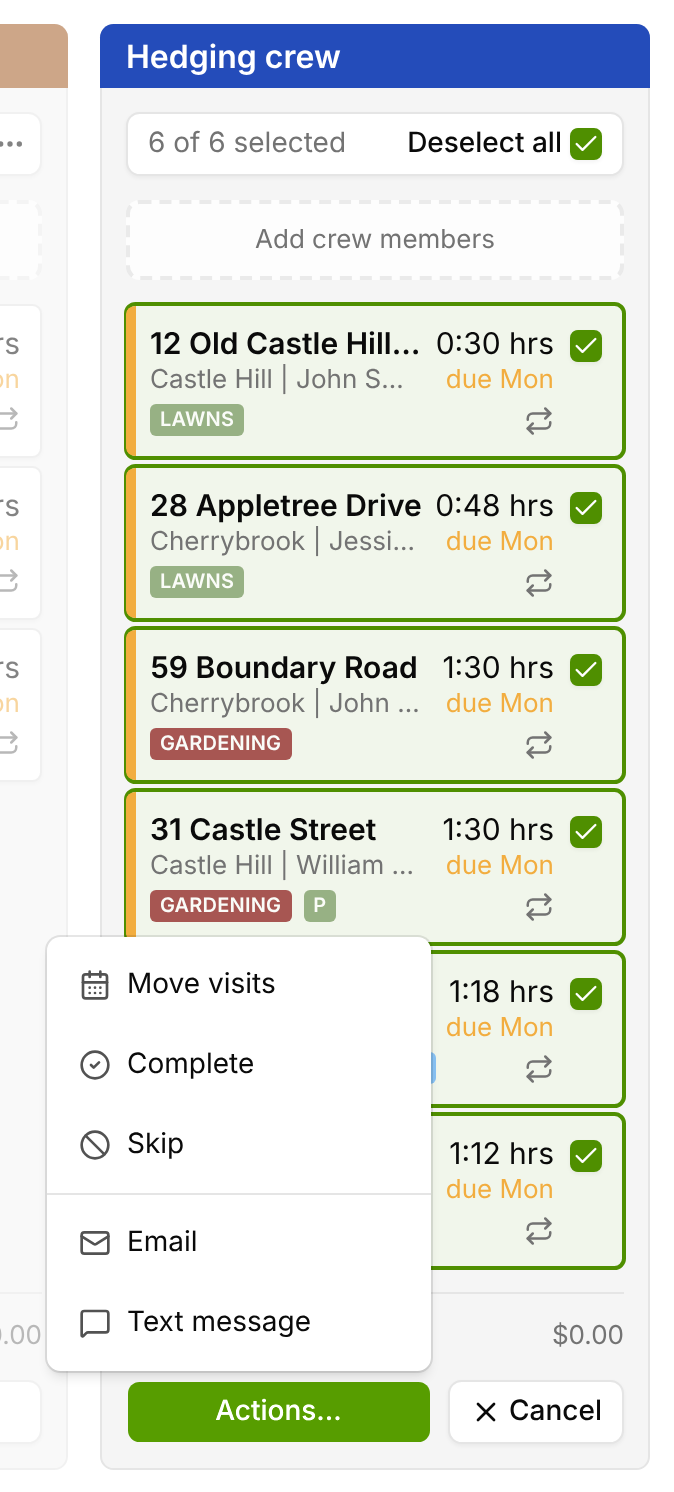
SortScape sends one message to the service contact of each selected job. For the full steps, templates and SMS credits, see One-off bulk notifications for a job run.
Notes on the schedule are not messaged. If you only select notes, Email and Text message are unavailable.