

Adding employees
Last updated:
You must be logged in as an administrator to add an employee to the system.
You can create a login for each of your employees so they can see the jobs they’re assigned to and submit their time. To add a new employee:
-
Log in as an administrator, then open Settings → Company → Employees.
-
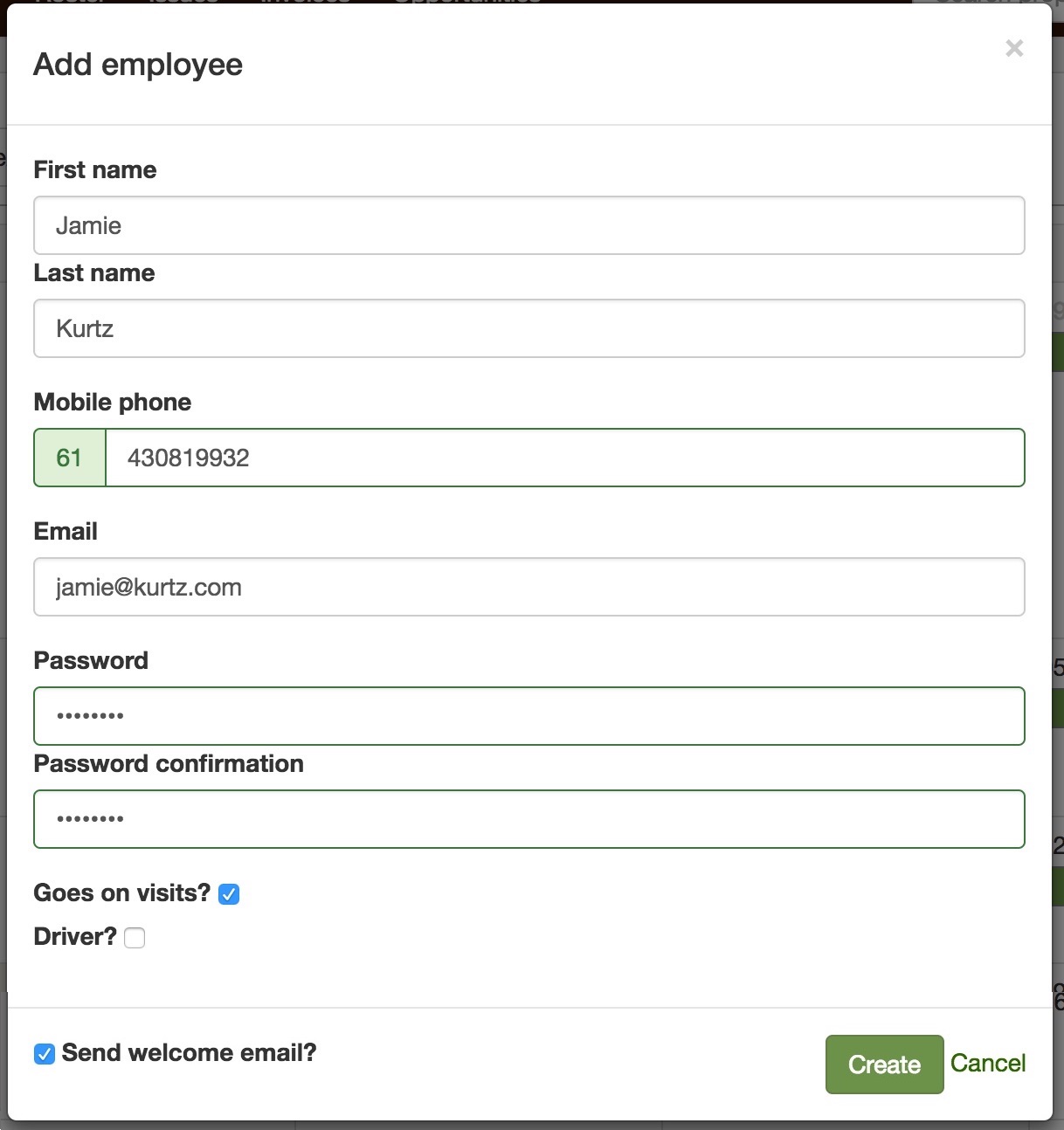
Click the “add employee” button in the upper right hand corner of the screen to launch the “add employee” dialog.
-
Enter the employee’s name and contact information.
-
Enter the employee’s password.
-
Keep the “goes on jobs” box checked if this is an employee who you send out on jobs. (Typically you would only un-check this box for administrative office employees).
-
Check the “driver” box if the employee is licensed to drive on job runs. This helps you ensure there’s always a licensed driver assigned to each job run.
-
Keep the “Send welcome email?” box checked if you want them to receive an email with login instructions. When you click the “Create” button the employee will then be added to the system. If you’ve kept the “Send welcome email?” box checked, the employee will receive an email with login instructions.
Let your employee know they’ve been added
Section titled “Let your employee know they’ve been added”If you un-ticked the “Send welcome email?” box, you can send them a welcome email later. Alternatively they can reset their password themselves by clicking the “forgot password” link on the login screen and following the instructions.
If the email address is already in use
Section titled “If the email address is already in use”Each email address can only be used for one SortScape login, across every company that uses SortScape. When you add an employee with an address that’s already in use, the Add employee dialog shows “this email is already taken” under the email field and the Create button stays greyed out. When you edit an employee, saving shows “Email has already been taken”.
Check your own team first. The address often belongs to someone who’s already set up in your company. Open Settings → Company → Employees, type the address into Search employees and click Search. Look on both the Active and Inactive tabs. If you find them, edit or activate that employee instead of adding them again.
If they’re not in your company, the address belongs to a login at another company, such as a previous employer or another business that added them as staff. Deactivating an employee doesn’t free up their email address. Their previous employer can change the email on that employee, or you can ask for our team in the SortScape chat, send them the address, and we’ll free it up for you.
Your new employee doesn’t need to delete their old login. They can’t sign in to it anyway: a deactivated login shows “Your account is not activated yet.”