

Using the display settings on the schedule
Last updated:
If you want to see only certain job runs in SortScape, the Schedule display settings are just the thing for you. They let you control how the schedule looks and which jobs you see. Handy for anyone using SortScape on a mobile device where it avoids scrolling, or for companies that have lots of job runs each day.
These settings are per user and available on the web and in the mobile app. They apply to Day, Week, and Month. They do not change Calendar view. They are not the same as company-wide options on the Job settings screen (for example Job title on schedule, which chooses whether the contact name or property address appears as each job’s title).
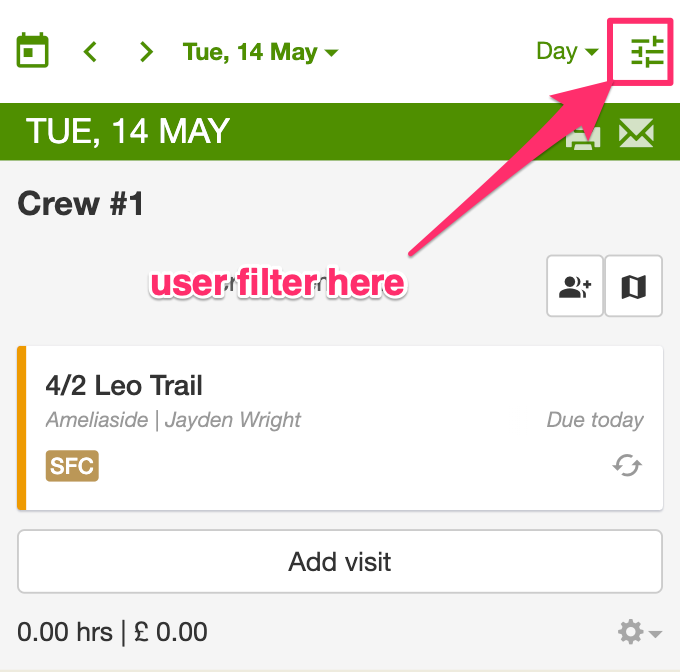
Here’s how to use it:
- Open the SortScape app and go to the
Scheduletab. In the top right of the schedule toolbar, you’ll see the schedule settings icon (three horizontal sliders). This is not the company Settings gear. - Tap the three horizontal sliders icon to open the Schedule display settings. Use the Employee Filter to choose which team member’s jobs you see.
- You’ll then see only the job runs for the user you selected. It’s a cleaner view, with only the tasks you need.
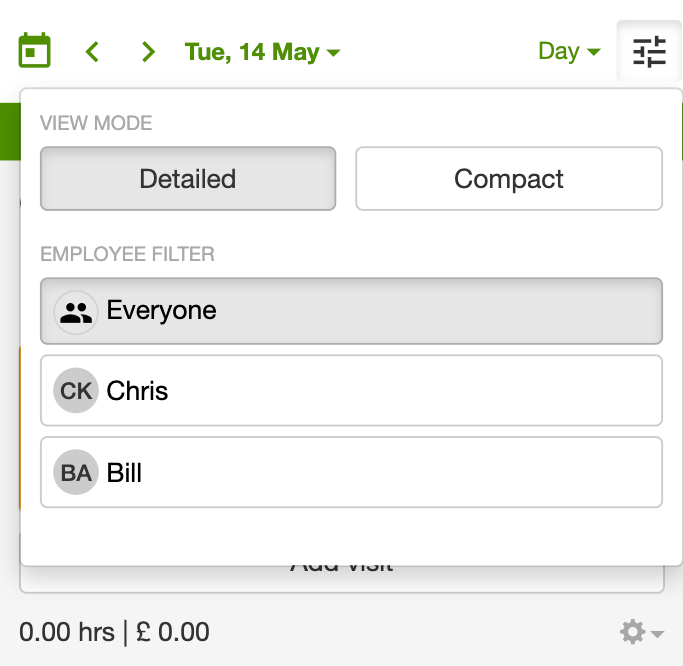
The Employee Filter is not the Employees panel on the right of day view. That panel is for dragging people onto job runs. See Employees panel on day view for what it does.
Search and tag filters
Section titled “Search and tag filters”Schedule display settings change how the schedule looks and which job runs you see. They are not where you filter by job tag.
To find jobs by contact, address, suburb, or tag, click the magnifying glass on the schedule toolbar. That opens a Filter box. See Filter the schedule by tags.
The magnifying glass is hidden when the schedule is narrow, such as on a phone in portrait. See On a phone or tablet for what works there.
The Unscheduled column has its own Filter box. See Filter unscheduled jobs.
View mode: compact vs detailed
Section titled “View mode: compact vs detailed”In the Schedule display settings you’ll see a View mode option with two choices:
- Detailed: Each job card shows the full picture: address, time, suburb, contact, days due, and extra details like custom tags, open issues, and icons for attachments, messages, and whether the job repeats. Use this when you want to see everything at a glance.
- Compact: Job cards are shrunk so more fit on the screen. You still see the essentials (address, time, suburb, contact, days due), but tags, issues, and the extra icons are hidden. Handy on mobile or when you have lots of jobs and want to scan quickly.
Month view starts in Compact, so tags stay hidden on month view until you switch it to Detailed. Day and week views start in Detailed. Each view remembers its own choice on that device, so changing month view does not change day or week. Switch between Detailed and Compact anytime from the Schedule display settings.
To see all job runs again, tap Show all in the banner at the top of the schedule while an Employee filter is active.
Crew colors
Section titled “Crew colors”If your account uses crews, job run titles can use each crew’s colour on the day, week, and month schedule views so you can tell crews apart at a glance.
Set or change a crew’s colour in Settings → Jobs → Crews. Then open Schedule display settings with the three horizontal sliders icon and turn Crew colors on.
New accounts have crew colours on by default, and we’re rolling them out gradually to existing accounts. This choice is per user and remembered across devices. When crew colours are already on for your whole account, the toggle does not appear and titles should already use each crew’s colour. If titles are still green and you cannot find the toggle, message support rather than assuming the feature is missing.
Run heights
Section titled “Run heights”When you are in month view, the Schedule display settings include a Run heights option. It controls how job runs are spaced within each day of the month:
- Fit content: Each job run is only as tall as the jobs inside it. Days with fewer or shorter runs stay compact, so you can fit more of the month on screen.
- Equal: Job runs line up across the days of each week. Extra space is added so the same run row has the same height on every day, which makes it easier to scan across the week.
Job runs line up in your crew order. To change that order, open Settings → Jobs → Crews and drag the crews. You cannot drag job-run columns on the Schedule itself.
This option only appears while you are looking at the month view. Switch to day or week view and it is hidden. Your choice is remembered for next time on the web and in the mobile app.
To plan a month ahead, pair Run heights set to Fit content with Compact view mode, then read the total hours at the bottom of each job run to find days with room. See Which view to use.
Schedule value totals
Section titled “Schedule value totals”Compact and detailed view modes control how much detail appears on each job card. They do not turn estimated dollar values on or off. For how values are entered and how day/week/month totals work, see Seeing estimated values on the schedule.
Employees panel on day view
Section titled “Employees panel on day view”On day view, a wide enough screen shows an Employees panel on the right of the schedule. Drag someone from Available onto a job run to add them for that day only. See Adding employees to a job run.
This panel is not a display setting, and it is not the Employee Filter above. Week view and month view do not show it. On a phone, or any screen narrower than a typical tablet, it is hidden so the job runs have more room.
The Employees panel cannot be collapsed. Unlike Unscheduled on the left, it has no arrow at the top. To give job runs more room, switch the schedule to Week or Month.
That’s it! We hope the Schedule display settings make it easier for you to manage your schedule in SortScape. Happy scheduling!