

Connecting Claude, ChatGPT and other AI assistants
Last updated:
The AI connector is included in the SortScape Premium plan. It's new, so for now it can read your SortScape data but not change it. Tell us how you go with it through the chat in SortScape.
The AI connector links your SortScape account to an AI assistant such as Claude, ChatGPT or Grok. You can then ask about your business in plain words:
- “What’s on for the Smith crew tomorrow?”
- “Which invoices are overdue?”
- “Which properties haven’t had a job in two months?”
- “Show me the photos from yesterday’s job at 12 Hill St.”
Later it will also make changes when you ask, such as adding a client, booking or moving jobs, ticking off issues, saving a draft quote or invoicing completed jobs. For now it reads only, apart from a few businesses helping us test changes.
Before you start
Section titled “Before you start”- Your business needs the Premium plan. The AI connector is included in Premium, and fair use applies.
- You need to be an administrator in SortScape. Other people in your business can’t connect an assistant yet.
- You need an AI app that can add a custom connector. Claude, ChatGPT and Grok each have their own plan rules, explained below.
Every app uses the same address:
https://app.sortscape.com/mcpSome apps call this the MCP server URL. MCP is just the technical name for the kind of connection the AI connector uses.
Connect Claude
Section titled “Connect Claude”- In Claude, open Customize → Connectors.
- Click + Add, then Add custom connector.
- Name it SortScape, paste
https://app.sortscape.com/mcpand click Continue. - Leave the sign-in settings as they are, and click Add.
- Click Connect. SortScape’s sign-in page opens.
- Sign in to SortScape, check the business name and your email, and click Allow.
To use it in a chat, click + at the bottom left of the message box, choose Connectors and make sure SortScape is turned on.
Claude’s free plan allows one custom connector. On a Claude Team or Enterprise plan, an owner of your Claude organisation adds the connector first (Organization settings → Connectors), then you find SortScape in Customize → Connectors and click Connect. Once it’s connected on the web, it also works in the Claude desktop and mobile apps.
Connect ChatGPT
Section titled “Connect ChatGPT”You add SortScape in ChatGPT on the web, not in the mobile app.
- In ChatGPT, open Customize → Plugins.
- Click Add at the top right, then Add custom MCP server.
- Name it SortScape. Under Connection, paste
https://app.sortscape.com/mcp. - Leave Authentication set to OAuth, and leave Advanced OAuth settings as they are.
- Tick I understand and want to continue, then click Create as a plugin.
- Sign in to SortScape when its sign-in page opens, check the business name and your email, and click Allow.
To use it, start a new chat, type @ in the message box and choose SortScape. You can also click Try in chat on SortScape’s plugin page.
ChatGPT lets you add SortScape this way on its Business, Enterprise, Edu and Pro plans. In a Business workspace only admins and owners can add it, and Enterprise admins can let other people do it too. Once an admin publishes SortScape for the workspace, everyone else finds it in Plugins and signs in with their own SortScape login. On Pro, ChatGPT lets SortScape read your data but not change it.
Connect Grok and other assistants
Section titled “Connect Grok and other assistants”Any AI app that can add a custom connector with a sign-in can use SortScape. The steps are nearly always the same: add a custom connector, paste https://app.sortscape.com/mcp, leave any client ID and secret fields empty, then sign in to SortScape and click Allow.
In Grok, go to grok.com/connectors, click New Connector, choose Custom and paste the address.
Menu names in these apps change often. If a step doesn’t match what you see, check the app’s own help for “custom connector”.
When we add something new
Section titled “When we add something new”We add new things the assistant can do from time to time. Your AI app keeps its own list of what SortScape can do, so it won’t know about a new action until it gets a fresh copy of that list. Fixes to how something already works reach you straight away, with nothing to do.
If we tell you about something new, or the assistant says it can’t do something you know SortScape now does, refresh the connector in your app, then start a new chat. A chat that’s already open keeps the list it started with.
Claude
Section titled “Claude”- Open Customize → Connectors and click SortScape.
- Click ⋯ next to it and choose Refresh tools list.
- Start a new chat.
If the new action still isn’t there, click Disconnect, then Connect, sign in to SortScape and click Allow. Claude also gets the new list by itself after a while, usually within a day, so you only need to do this if you want it straight away. Refreshing on the web is enough for the Claude desktop and mobile apps too.
ChatGPT
Section titled “ChatGPT”- Open Customize → Plugins and click SortScape under Installed.
- Click Settings, then Refresh tools.
- Start a new chat.
ChatGPT never refreshes on its own, so do this each time we tell you about something new. In a Business or Enterprise workspace, an admin refreshes SortScape from the workspace settings instead.
Grok doesn’t have a refresh button.
- Go to grok.com/connectors.
- Turn SortScape off, then on again.
- Start a new chat.
If the new action still isn’t there, remove the connector and add it again with the steps in Connect Grok and other assistants.
When we ask you to reconnect
Section titled “When we ask you to reconnect”Now and then something new needs a new permission, for example the first time the assistant could change things as well as read them. We’ll tell you when that happens. Disconnect and connect again in your app, and click Allow on SortScape’s sign-in page. A refresh alone won’t ask for the new permission.
What the assistant can see
Section titled “What the assistant can see”The assistant sees what you can see in SortScape, as you: your schedule and jobs, properties, clients and contacts, requests, quotes, invoices, job hours, issues, schedule notes, chemical applications, photos and your items catalogue. It works in your business’s time zone.
Claude can look at the photos on a job, property, issue, request or quote. ChatGPT can list them and link to them, but it can’t see the pictures themselves, so it won’t describe them.
What the assistant can change
Section titled “What the assistant can change”When you connect, SortScape asks you to allow two things: Read your SortScape data and Change your SortScape data. With changes allowed, the assistant can:
- add clients and requests
- change a property’s general instructions, name or service contact
- book jobs, and move, edit, complete, skip or reopen them
- put people on a crew’s run for a day, or move a crew’s whole day
- add issues and mark them complete, add schedule notes and record chemical applications
- save draft quotes (it never sends them)
- invoice completed jobs, and send the invoices by email or text or to Xero or QuickBooks, but only when you ask
For now we turn changes on for each business while we test them. Until then, the sign-in page says so and the assistant can only read. Once they’re on, an administrator can switch them off and on again at any time. See Turn the AI connector off or on.
Checking before anything changes
Section titled “Checking before anything changes”Your AI app asks you before each change, unless you’ve told it to always allow SortScape. We recommend leaving “always allow” off.
Bigger changes are shown to you first and saved only when you confirm them. That covers changes to more than 3 jobs, a change to a whole repeating series, and invoicing more than 3 jobs or creating more than one invoice. The assistant lists what will change in its reply, and nothing is saved until you tell it to go ahead.
Before the assistant sends any invoice, by email, by text or to Xero or QuickBooks, it asks you to confirm. A sent invoice can’t be unsent, so check who it’s going to before you say yes.
Every change shows in the activity log under your name, marked “via” the app you used, for example “via Claude”. Open Settings → System → Activity log to see them.
Messages written by other people
Section titled “Messages written by other people”Some of what the assistant reads was written by someone outside your business, such as enquiries from your request form, email leads and the AI Receptionist. The assistant treats that text as information, not instructions. If an enquiry ever seems to tell the assistant to do something, check with the client before agreeing to anything the assistant suggests.
What SortScape records
Section titled “What SortScape records”SortScape records which actions your AI assistant takes and a short reason it gives for each one, with names, addresses, emails and phone numbers removed. We use this to fix problems and decide what to build next. For a change, the reason also shows in the activity log. We delete the reasons after 90 days and the rest of the record after 13 months. We never see your conversation with the assistant.
Tell us what’s missing
Section titled “Tell us what’s missing”If the assistant says it can’t do something, ask it to send feedback to SortScape. It sends us a short note about what you were trying to do.
Turn the AI connector off or on
Section titled “Turn the AI connector off or on”An administrator can stop every AI app reaching your business, or stop them making changes, without disconnecting anything.
- Open Settings → Integrations → AI connector.
- Turn a switch off or on.
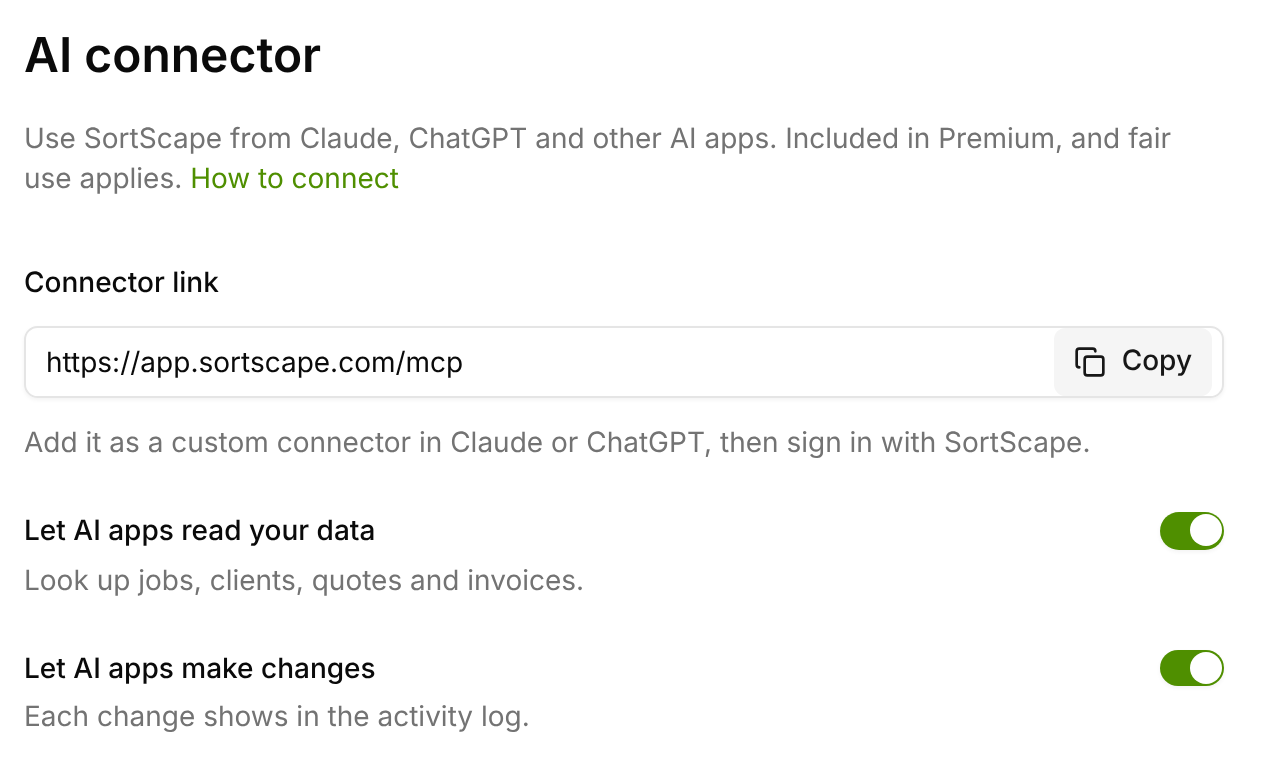
- Let AI apps read your data is on to start with. Turn it off and Claude, ChatGPT and every other AI app connected to your business stop working with SortScape, and nobody can connect a new one. Zapier isn’t affected.
- Let AI apps make changes is also on to start with, and only shows once changes are turned on for your business. Turn it off and the assistants can still read, but anything they try to change is refused and nothing is saved.
A switch takes effect on the assistant’s next request. Your connections are kept while a switch is off, so when you turn it back on there’s nothing to reconnect. Each change of a switch shows in the activity log with who made it.
To cut off one app for good, revoke it instead (see below).
Disconnect an assistant
Section titled “Disconnect an assistant”- Open Settings → Integrations → AI connector.
- Under Connected apps, click the app to see who connected it, what it may do and its recent activity.
- Click Revoke, then Revoke again to confirm.
The assistant stops working with SortScape straight away. Administrators see every AI app connected in the business and can revoke any of them. Zapier connections are listed on Settings → Integrations → Zapier. Removing the connector in Claude, ChatGPT or Grok stops it there too, but revoking it in SortScape makes sure.
When something goes wrong
Section titled “When something goes wrong”- The sign-in page says you need Premium. The AI connector is part of Premium, like Zapier. An administrator can start a free 30-day Premium trial or upgrade from Settings → Integrations → AI connector (in a web browser, not the mobile app).
- The sign-in page says only administrators can connect. Ask an administrator of your business to connect it, or to make you an administrator.
- The sign-in page or the assistant says the AI connector is turned off for your business. An administrator turned off Let AI apps read your data. They can turn it back on in Settings → Integrations → AI connector.
- The assistant says changes are turned off. An administrator turned off Let AI apps make changes, so the assistant can only read. They can turn it back on in the same place. You don’t need to reconnect.
- The assistant says your account is inactive. The AI connector and Zapier stop when your free trial ends or the account is inactive. They start working again as soon as the account is paid, with no need to reconnect.
- The assistant doesn’t know about something new. Refresh the connector in your app and start a new chat. See When we add something new.